
If your website is acting strangely, redirecting visitors, showing security warnings, or loading unknown popups, you may need WordPress Malware Removal before the problem becomes worse. A malware infected WordPress site can damage your search rankings, customer trust, email reputation, and online sales. The good news is that a careful cleanup process can help you remove malware from WordPress and reduce the chance of another attack.
This WordPress security guide is written for small business owners, WordPress website owners, bloggers, eCommerce store owners, and website administrators who want a clear, practical path. You will learn what malware is, how to spot warning signs, how WordPress Malware Removal works, which tools can help, and when it is safer to hire a professional malware removal service.
What Is WordPress Malware?
WordPress malware is malicious code, scripts, files, links, redirects, or hidden access points added to a WordPress website without permission. It can appear inside core files, theme files, plugin folders, uploads, database tables, cron jobs, widgets, custom HTML blocks, or server configuration files.
Some malware is designed to redirect visitors to scam websites. Some inject spam links into your pages. Some creates fake login pages to steal credentials. Some sends spam emails from your domain. Other malware quietly creates a backdoor so attackers can return even after a basic cleanup.
WordPress itself can be secure when it is properly maintained. Most infections happen because of outdated plugins, weak passwords, nulled themes, poor hosting security, unsafe file permissions, or abandoned software. That is why WordPress Malware Removal should include both cleanup and prevention.
Common Signs Your WordPress Website Has Malware
A hacked WordPress website does not always look broken at first. Sometimes the homepage looks normal while malware runs in the background. Here are the most common signs that your site may be infected.
Unexpected Redirects
If visitors are redirected to gambling pages, fake software downloads, adult websites, survey scams, or unrelated domains, malware may be controlling your traffic. Redirect malware often appears only on mobile devices, only for first-time visitors, or only when users arrive from Google.
Browser or Google Security Warnings
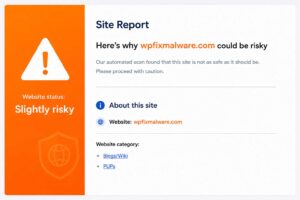
Warnings such as “This site may be hacked” or “Deceptive site ahead” are serious. You can check your domain with the Google Safe Browsing site status tool. If your website is flagged, WordPress Malware Removal should be handled quickly and carefully.
Unknown Admin Users
If you see administrator accounts you did not create, your website may already be compromised. Attackers often add new users so they can keep access even after one infected file is deleted.
Spam Pages in Search Results
Search your domain in Google. If you see pages about casinos, medicine, loans, crypto, or foreign-language spam that you never published, your site may be infected. This is common in SEO spam attacks.
Slow Website Performance
A sudden slowdown can mean malicious scripts are using server resources. Malware can increase CPU usage, create database load, or load harmful third-party scripts.
Suspicious Files or Code
Look for strange PHP files, unreadable code, hidden folders, encoded strings, or files with names that imitate real WordPress files. These are often signs of a malware infected WordPress site.
Why Malware Is Dangerous for Your Website
Malware is dangerous because it affects more than the technical health of your site. It can hurt your business, your visitors, and your brand reputation.
It Can Damage Customer Trust
If visitors see warnings, redirects, popups, or suspicious content, they may leave immediately. For eCommerce stores and service businesses, that can mean lost sales and fewer leads.
It Can Hurt SEO Rankings
Search engines want to protect users. If your website is flagged or filled with spam pages, your rankings can drop. Google may also remove infected URLs from search results until the problem is fixed.
It Can Steal Data
Some attacks target login credentials, customer details, form submissions, or payment-related information. If your website handles sensitive data, cleanup becomes even more urgent.
It Can Keep Coming Back
If the root cause is not fixed, malware can return after cleanup. Backdoors, stolen passwords, vulnerable plugins, and unsafe server settings can all lead to reinfection.
Step 1 – Back Up Your Website
Before you remove infected files, create a full backup of your website. This includes WordPress files, the database, uploads, themes, plugins, and configuration files. A backup gives you a recovery point if something breaks during cleanup.
Important: do not restore an old backup blindly. If the backup already contains malware, restoring it can bring the infection back. The backup is for safety and investigation, not always for direct recovery.
If your host provides backup tools, download a clean copy outside the infected server. You can also use a trusted backup plugin, but be careful if your WordPress dashboard is already compromised.
Step 2 – Scan Your WordPress Website for Malware
The next step in WordPress Malware Removal is scanning, because a careful scan shows where the cleanup should begin. A scan helps identify suspicious files, modified core files, malicious database entries, unsafe links, and known malware signatures.
Use a WordPress Malware Scanner
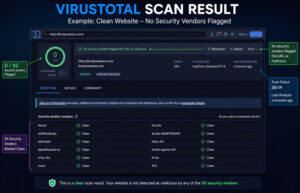
A WordPress malware scanner can help you find infected files and risky changes. Tools such as Wordfence, Sucuri SiteCheck, MalCare, and Patchstack can be useful for detection. You can also use the Sucuri SiteCheck scanner for an external check.
Remember that scanners are not perfect. Some malware hides from public scans. Some malicious code is custom and does not match known signatures. Use scanner results as a starting point, not the full answer.
Check WordPress Core Integrity
Compare your WordPress core files against clean official versions. If core files are modified without reason, they may be infected. You can review official security guidance from WordPress.org hardening documentation.
Review Themes, Plugins, and Uploads
Check active and inactive themes, plugin folders, and the uploads directory. Malware often hides in places where website owners do not look closely. Inactive themes and unused plugins can still create risk if they remain on the server.
Step 3 – Remove Infected Files
After scanning, you can begin cleanup. This is where WordPress Malware Removal becomes more detailed and technical. This is the most sensitive part of WordPress Malware Removal because deleting the wrong file can break the website, while missing one backdoor can allow attackers to return.
Replace Infected Core Files
If WordPress core files are infected, replace them with clean copies from the official WordPress release. Do not overwrite wp-config.php or wp-content without understanding what you are doing, because those areas contain site-specific data.
Clean Theme and Plugin Files
For themes and plugins, compare files with clean versions from trusted sources. Remove malicious code, replace compromised files, and delete unused plugins or themes. Avoid nulled plugins and themes because they commonly contain backdoors.
Check the Database
Malware can hide inside database tables, especially posts, options, widgets, user records, and plugin settings. Look for suspicious scripts, iframe injections, spam links, unknown admin users, and strange site URL changes.
Remove Backdoors
A backdoor is hidden access that lets an attacker return later. Backdoors may use innocent-looking file names or sit inside upload folders. If you clean visible malware but leave a backdoor, your site can be reinfected.
Step 4 – Update WordPress, Themes, and Plugins
After removing malware, update WordPress core, themes, and plugins. This WordPress Malware Removal step helps close the vulnerabilities that may have allowed the attack. Updates often include security patches that close vulnerabilities attackers use. This step is essential if you want to fix hacked WordPress website issues for the long term.
Before updating, confirm your site has a backup. Then update carefully, test important pages, check forms, review checkout pages if you run WooCommerce, and make sure the site still works correctly.
If a plugin has not been updated in a long time, consider replacing it. Abandoned plugins can become security risks even if they appear to work.
Step 5 – Change All Passwords
Changing passwords is a major part of WordPress Malware Removal. If attackers stole credentials, they can log back in even after you clean the files.
Change passwords for WordPress admin users, hosting accounts, FTP/SFTP, database users, email accounts, control panels, cloud storage, and any connected services. Use unique passwords for each account.
Enable two-factor authentication for administrator accounts. Also remove unknown users, downgrade unnecessary admin accounts, and review user roles to make sure every account has only the access it needs.
Step 6 – Secure Your Website Against Future Attacks
Cleanup alone is not enough. A complete WordPress Malware Removal plan also includes prevention. You also need to prevent WordPress malware from returning. Strong WordPress website security reduces the risk of future attacks.
Use Security Monitoring
Set up file change monitoring, login alerts, uptime monitoring, and malware scans. Early detection can prevent a small issue from becoming a serious infection.
Limit Login Attacks
Use strong passwords, two-factor authentication, login attempt limits, and secure admin access. Do not share admin accounts between multiple people.
Keep Backups Offsite
Store backups outside the same server. If malware infects your hosting account, local backups may also be affected. Offsite backups make recovery safer.
Review File Permissions
Unsafe permissions can allow attackers to modify files. Your hosting provider or security professional can help confirm proper permissions for your server environment.
Best Tools for WordPress Malware Removal
The right tools can make WordPress Malware Removal easier, especially for scanning and monitoring. Here are common options website owners use.
- Wordfence: Popular WordPress security plugin with scanning, firewall, and login protection features.
- Sucuri SiteCheck: External scanner that checks public pages for malware, blacklist status, and suspicious behavior.
- MalCare: WordPress security platform focused on malware scanning and cleanup workflows.
- Patchstack: Useful for vulnerability monitoring across WordPress plugins and themes.
- Hosting security tools: Many hosts provide malware scans, file restore options, and server-level logs.
Tools can help, but they do not replace expert review in complex cases. If the site has redirects, repeated reinfections, hidden backdoors, or Google warnings, professional help may save time and reduce risk.
When to Hire a Professional Malware Removal Service
You should consider hiring a professional service if your website is losing traffic, showing security warnings, redirecting visitors, sending spam, or getting reinfected after cleanup. Professional WordPress Malware Removal is also a smart choice if you run an eCommerce store, handle customer data, or do not feel comfortable editing files and database tables.
A professional cleanup should remove malware, identify the root cause, clean backdoors, review users, secure vulnerable areas, and test the website after repair. At Fix WP Malware, we help website owners remove malware from WordPress, fix hacked WordPress websites, and protect sites against future attacks.
Frequently Asked Questions (FAQ)
How do I know if my WordPress website has malware?
Common signs include redirects, browser warnings, unknown admin users, spam pages in Google, suspicious files, slow performance, and unusual server activity.
Can I remove malware from WordPress myself?
Yes, if you have technical experience and clean backups. However, complex infections can hide in files, databases, and backdoors, so professional cleanup is safer for business-critical websites.
What is the best WordPress malware scanner?
Popular options include Wordfence, Sucuri SiteCheck, MalCare, and Patchstack. The best tool depends on your site, hosting environment, and the type of infection.
Why does WordPress malware come back after cleanup?
Malware often returns when a backdoor, stolen password, vulnerable plugin, or insecure server setting remains active after cleanup.
How long does WordPress Malware Removal take?
Simple infections may be cleaned quickly, while complex attacks can take longer. The timeline depends on the size of the website, infection depth, hosting access, and whether the site has been blacklisted.
How can I prevent WordPress malware?
Keep WordPress, themes, and plugins updated. Use strong passwords, two-factor authentication, offsite backups, security monitoring, and trusted plugins only.
Final Thoughts
WordPress Malware Removal is not only about deleting suspicious files. A complete cleanup means finding the infection, removing malicious code, closing the security gap, changing credentials, testing the website, and preventing future attacks. If your site is infected, acting quickly with a proper WordPress Malware Removal process can protect your customers, SEO rankings, revenue, and reputation.
If you need help with a malware infected WordPress site, Fix WP Malware is ready to help. Our team can scan your website, clean hacked files, remove hidden backdoors, repair security issues, and help you secure your site for the future.
Contact Fix WP Malware today for professional WordPress Malware Removal and hacked website repair.