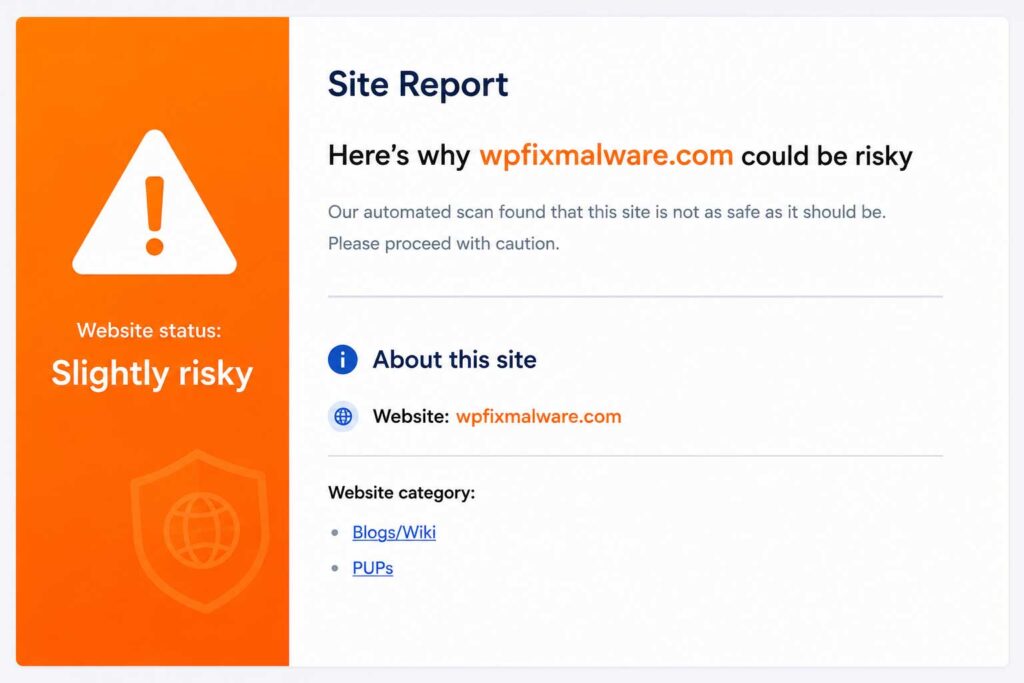
Every website owner wants visitors to access their website safely without security warnings. However, if McAfee WebAdvisor identifies your website as suspicious, users may see a warning before visiting your site. This can reduce traffic, damage your reputation, and negatively impact conversions.
Fortunately, a McAfee warning does not always mean your website is permanently blacklisted. In many cases, websites are flagged because of malware infections, phishing content, spam pages, outdated software, or even false-positive detections.
In this guide, you’ll learn exactly how McAfee Website Block Removal works, why your website may have been blocked, and the steps you can take to restore your website’s reputation.
Whether you own a WordPress website, WooCommerce store, business website, or blog, this guide will help you identify the issue and request a successful review.
What Is McAfee Website Block?
McAfee protects millions of internet users through its security products, including McAfee WebAdvisor, which analyzes websites before visitors access them.
If McAfee detects suspicious behavior, visitors may receive warnings such as:
- Dangerous Website
- Risky Website
- Suspicious Download
- Phishing Website
- Malware Detected
These warnings help protect users from cyber threats but can significantly impact legitimate website owners if their site becomes flagged.
A blocked website often experiences:
- Lower visitor trust
- Reduced sales
- Increased bounce rate
- SEO performance issues
- Loss of business credibility
For this reason, removing a McAfee warning should be a priority.
Why Does McAfee Block Websites?
Understanding the reason behind the warning is the first step toward resolving it.
The most common reasons include:
1. Malware Infection
Hackers may inject malicious scripts into your website without your knowledge. These scripts can distribute malware or redirect visitors to harmful pages.
2. Phishing Content
If McAfee detects fake login pages or attempts to steal user information, your website may immediately receive a warning.
3. Spam Pages
Many compromised WordPress websites automatically generate thousands of spam pages targeting pharmaceutical, gambling, or adult keywords.
4. Suspicious Redirects
Hidden redirects sending visitors to another domain are one of the most common reasons websites become blocked.
5. Outdated Plugins and Themes
Older WordPress plugins and themes often contain vulnerabilities that attackers exploit.
6. False Positive Detection
Sometimes a completely safe website is mistakenly flagged due to suspicious JavaScript, advertising networks, or historical reputation.
Fortunately, these cases are usually resolved quickly after submitting a review.
Step-by-Step McAfee Website Block Removal
If your website has been flagged by McAfee, don’t panic. In many cases, the issue can be resolved by cleaning your website, improving its security, and requesting a reputation review.
Follow these steps carefully to remove the McAfee warning and restore your website’s reputation.
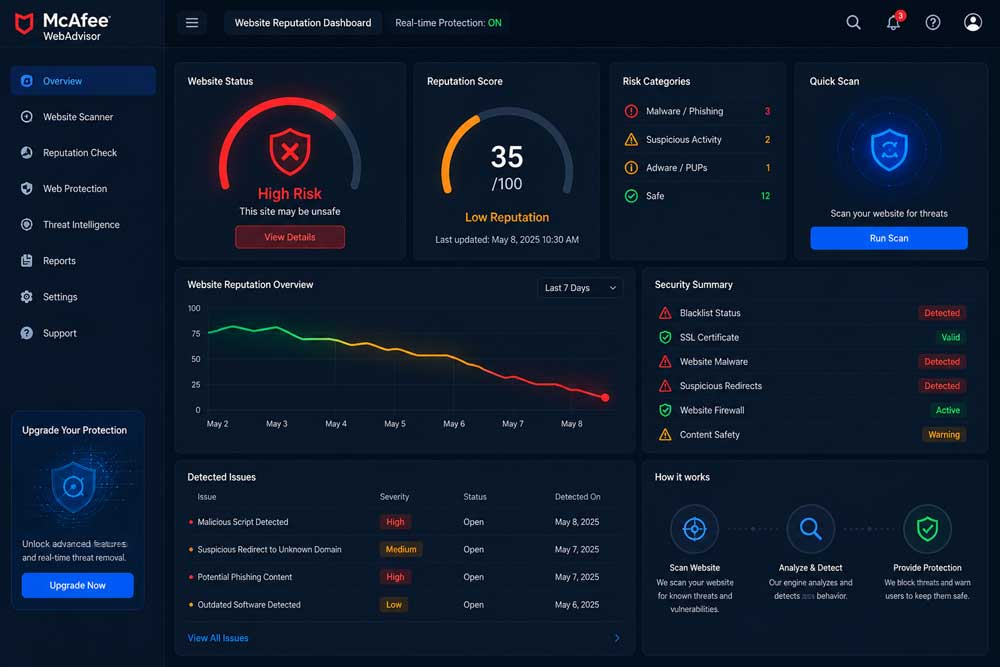
Step 1: Confirm That Your Website Is Actually Blocked
Before making any changes, verify that McAfee is genuinely blocking your website.
Sometimes users report a warning based on cached security data or browser extensions, while the website itself is no longer considered unsafe.
- McAfee displays a warning before opening your website.
- Visitors report security alerts.
- Your traffic suddenly drops after a warning appears.
- Search engines or antivirus software also flag your domain.
Step 2: Scan Your Website for Malware
The most common reason websites are blocked is malware.
Perform a complete security scan before requesting a review.
Things to check include:
- Malware infections
- Suspicious PHP files
- Hidden JavaScript
- Injected spam pages
- SEO spam
- Malicious redirects
- Unknown administrator accounts
If you’re using WordPress, update every plugin, theme, and the WordPress core before scanning again.
Step 3: Check Google Security Status
Even if only McAfee displays a warning, it’s a good idea to verify whether Google has detected any security issues.
Open Google Search Console and check the Security Issues section.
If Google reports malware or hacked content, fix those issues first before requesting a McAfee review.
Also check your domain using Google’s Safe Browsing Transparency Report.
Step 4: Remove All Malware Completely
Cleaning only the visible malware is usually not enough.
Professional malware removal includes:
- Removing malicious files
- Cleaning infected database records
- Removing spam pages
- Fixing malicious redirects
- Repairing modified core files
- Removing backdoors
- Resetting compromised accounts
After cleaning your website:
- Change every password.
- Update plugins.
- Update themes.
- Enable a firewall.
- Enable two-factor authentication.
Skipping any of these steps increases the risk of reinfection.
Step 5: Secure Your Website
Security improvements help prevent future blacklist issues.
A secure website should include:
✔ SSL Certificate
✔ Website Firewall
✔ Daily Backups
✔ Malware Monitoring
✔ Strong Password Policy
✔ Two-Factor Authentication
✔ Updated Plugins
✔ Updated Themes
✔ Latest PHP Version
✔ Regular Security Audits
Step 6: Submit a McAfee Website Review
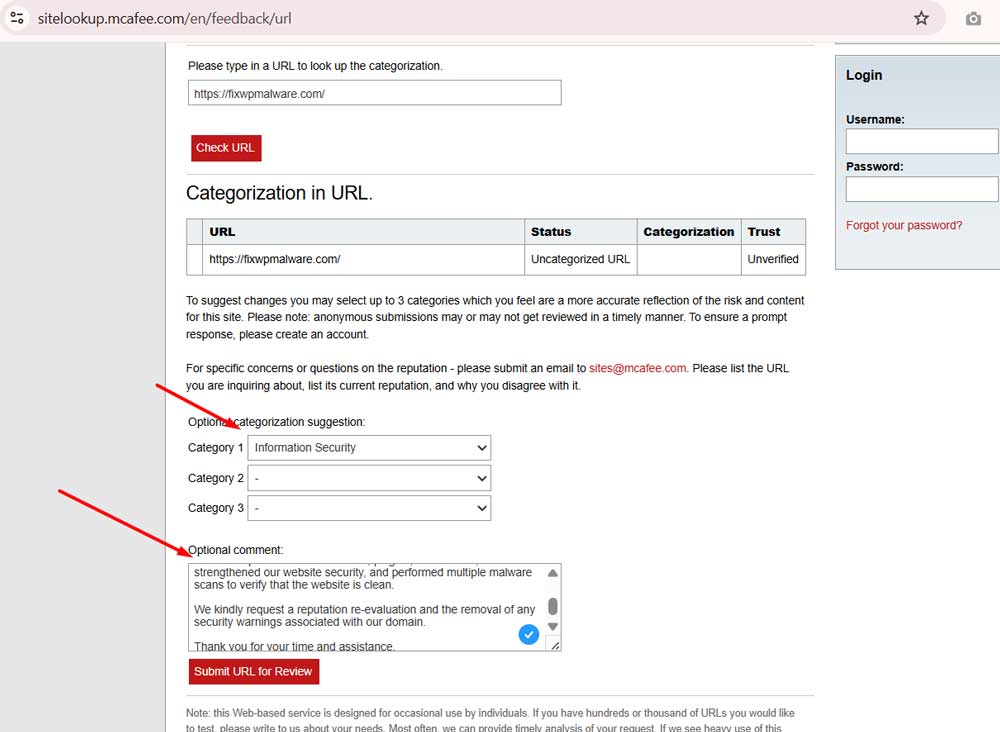
After you’ve completely cleaned your website and resolved all security issues, the next step is to request a McAfee reputation review. This allows McAfee’s security team to re-evaluate your website and, if no threats are found, remove the security warning from their database.
To submit your website for review, visit the official McAfee Site Lookup & Review Portal and enter your domain name.
👉 Submit Your Website Here:
https://sitelookup.mcafee.com/
When submitting your request, clearly explain the actions you’ve taken to secure your website. A detailed and honest explanation can help reviewers understand that the issues have been fully resolved.
Include the Following Information in Your Review Request
- ✅ All malware and malicious files have been removed.
- ✅ Spam pages and suspicious redirects have been eliminated.
- ✅ WordPress core, plugins, and themes have been updated to the latest versions.
- ✅ Website security has been strengthened with additional protection measures.
- ✅ The website has been thoroughly scanned and verified as clean.
- ✅ Request a reputation re-evaluation and removal of the security warning.
Pro Tip: Before submitting your review, perform one final malware scan to ensure your website is completely clean. Submitting a review while malicious files are still present may result in your request being rejected.
Important: Avoid submitting multiple review requests within a short period. Repeated submissions can delay the review process and may slow down the re-evaluation of your website.
Step 7: Wait for the Review
McAfee reviews websites manually and automatically.
The review time depends on:
- Website size
- Security history
- Reputation score
- Severity of previous infections
Continue monitoring your website while waiting.
Do not make major changes during the review unless necessary.
Common Reasons Review Requests Are Rejected
Many website owners request a review too early.
The most common mistakes include:
Malware Still Exists
Even a single infected file can trigger another warning.
Hidden Redirects
Attackers often leave hidden redirects inside themes or plugins.
Spam Pages Were Not Removed
Spam content generated by malware can remain indexed even after files are cleaned.
Outdated Plugins
Vulnerable plugins allow hackers to reinfect the website.
Fake Security Plugins
Some free security plugins only detect issues without actually removing malware.
Expert Tips for Faster McAfee Website Block Removal
Based on years of website security experience, these best practices significantly improve your chances of approval:
- Scan your website multiple times using different security tools.
- Remove every suspicious file before requesting a review.
- Keep WordPress, plugins, and themes fully updated.
- Enable a Web Application Firewall (WAF).
- Remove unused plugins and themes.
- Check your website from multiple devices.
- Monitor your website after approval to prevent reinfection.
How Long Does McAfee Website Block Removal Take?
The review time varies depending on the condition of your website.
Generally:
- Malware cleanup: A few hours to one day
- Website security improvements: A few hours
- Reputation review: Several days (sometimes longer)
Complex cases involving repeated infections or phishing may require additional investigation.
When Should You Contact a Security Expert?
If you’ve already cleaned your website but the warning remains, professional assistance may save significant time.
A website security specialist can:
- Perform deep malware analysis
- Remove hidden backdoors
- Clean the database
- Repair hacked files
- Harden website security
- Prepare the website for reputation review
This is often the fastest solution for business websites that cannot afford prolonged downtime.
Frequently Asked Questions (FAQ)
How do I know if McAfee has blocked my website?
The easiest way is to visit your website using a device with McAfee WebAdvisor installed. If McAfee has flagged your site, visitors may see a warning before the website loads. You can also ask users who reported the issue and verify your site’s reputation using McAfee’s website review tools.
Why did McAfee block my website?
McAfee may block a website for several reasons, including malware infections, phishing content, malicious redirects, spam pages, suspicious downloads, or outdated software with known vulnerabilities. In some cases, a legitimate website may also be flagged due to a false positive.
Can I remove a McAfee website warning myself?
Yes. If you identify and remove the underlying security issue, update your website, and improve its security, you can request a reputation review from McAfee. Once the review is completed and your site is verified as safe, the warning may be removed.
How long does McAfee take to review a website?
Review times vary depending on the complexity of the case. Simple reputation reviews may be completed within a few days, while websites with a history of malware or phishing may require additional investigation.
Does removing malware automatically remove the McAfee warning?
No. Cleaning your website is only the first step. After your website is secure, you should request a review so McAfee can reassess your website’s reputation.
Can WordPress websites be blocked by McAfee?
Yes. WordPress websites are frequently targeted by attackers because of their popularity. Outdated plugins, vulnerable themes, weak passwords, and compromised hosting environments can all lead to a McAfee warning.
Can a false positive cause my website to be blocked?
Yes. Occasionally, McAfee may incorrectly identify a safe website as suspicious. If your website is clean and secure, submitting a review request is the best way to resolve a false-positive detection.
How can I prevent my website from being blocked again?
Follow these security best practices:
- Keep WordPress, plugins, and themes updated.
- Use strong passwords and enable two-factor authentication.
- Install a web application firewall.
- Schedule regular malware scans.
- Remove unused plugins and themes.
- Create frequent website backups.
- Monitor your website for unusual activity.
Final Thoughts
A McAfee website warning can significantly impact your business by reducing visitor trust, lowering conversion rates, and affecting your online reputation. The good news is that most website blocks can be resolved by identifying the root cause, removing malicious content, strengthening your website’s security, and submitting a review request.
Rather than focusing only on removing the warning, treat the process as an opportunity to improve your website’s overall security. Regular maintenance, timely software updates, proactive monitoring, and strong security practices will help protect your website from future threats.
If you maintain a clean and secure website, reputation-based security services are much less likely to flag your domain again.