Google Search Console security issues can be stressful for any business owner, but they are also fixable when you follow the right steps. If Google warns that your website has malware, hacked content, phishing, suspicious redirects, or unsafe downloads, you need to act quickly. This beginner-friendly guide explains how to identify the warning, clean your website, and request a review so your visitors and search visibility are protected.
For many small businesses, the first sign of trouble is a sudden traffic drop, a browser warning, or an email from Google Search Console. The message may look technical, but the process is simple: confirm the issue, remove the threat, secure the site, and tell Google what you fixed.
What Are Google Search Console Security Issues?
Google Search Console security issues are warnings that appear when Google believes your site has been hacked or may harm visitors. These issues can include malware, phishing pages, unwanted software, hacked content, deceptive pages, suspicious redirects, or unsafe downloads.
When Google detects a serious website security problem, affected pages may show warning labels in search results or display a browser warning before visitors reach your site. That warning can damage trust immediately. A customer may leave before reading your content, submitting a contact form, or buying from you.
Security issues are not the same as normal SEO problems. A missing heading or weak meta description can affect rankings, but a security warning can affect rankings, traffic, conversions, and customer confidence at the same time.
Why This Matters for Business Owners
If your website is flagged, it is not only a technical issue. It is a business risk. Google Search Console security issues can reduce organic traffic, make customers afraid to visit your site, and create the impression that your business is unsafe.
For service businesses, ecommerce stores, agencies, blogs, and local companies, trust is everything. Even one security warning can stop potential customers from contacting you. That is why you should treat every security alert as urgent.
The good news is that Search Console gives you a useful starting point. It shows the type of issue, example URLs, and a review request option once the problem is fixed.
How to Check Security Issues in Google Search Console
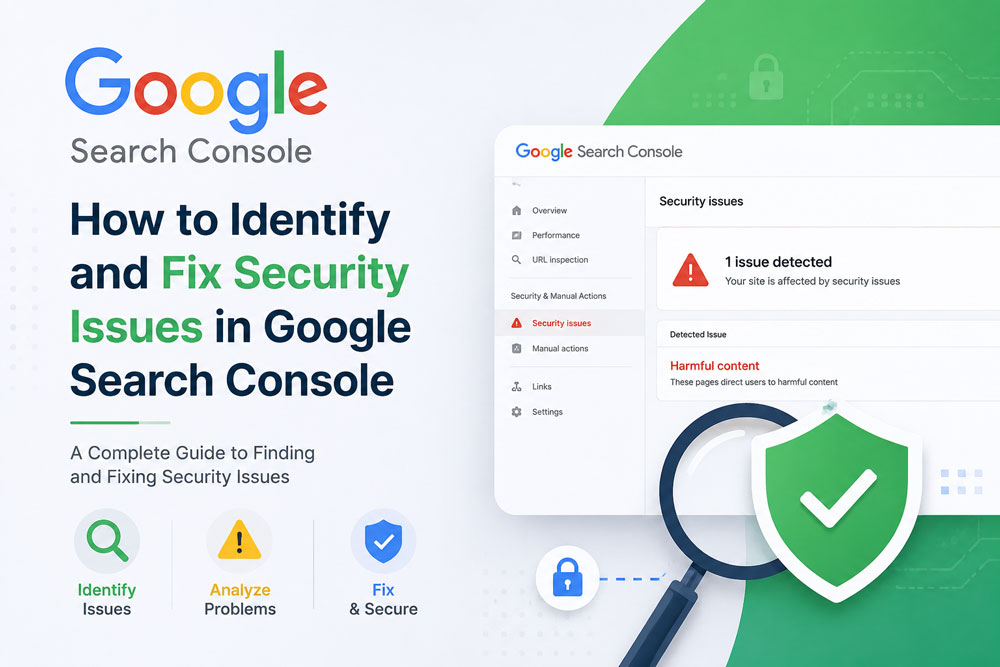
To find security warnings, log in to Google Search Console and choose the correct website property. In the left menu, open Security & Manual Actions, then click Security Issues.
If Google has not found a problem, Search Console will say that no issues are detected. If there is a problem, you will see the issue type and example pages. These example URLs are important because they show where Google found suspicious behavior.
Check each example URL carefully. Some hacks only appear on mobile devices, only redirect visitors from Google, or only show malicious content to first-time visitors. If you cannot see the problem in your browser, use the URL Inspection tool to understand how Google sees the page.
Common Types of Google Search Console Security Issues
The exact warning can vary, but most website security alerts fall into these common categories.
1. Hacked Content
Hacked content means someone added pages, links, files, or text to your website without permission. You may see spam pages about unrelated topics, strange foreign-language content, casino links, pharmaceutical keywords, or fake landing pages.
On WordPress sites, hacked content often comes from outdated plugins, weak passwords, abandoned themes, insecure file permissions, or old admin accounts that were never removed.
2. Malware
Malware is harmful code that can attack visitors, redirect them to unsafe websites, or try to download unwanted software. It may hide inside JavaScript files, theme files, plugin folders, uploaded files, or database entries.
If Search Console reports malware, take action immediately. Malware can directly harm visitors and can cause strong warnings in search results and browsers.
3. Phishing or Social Engineering
Phishing happens when a page tricks visitors into sharing private information such as passwords, payment details, or login credentials. Hackers may add fake login forms, fake support messages, or pages that copy a trusted brand.
Your domain can be flagged even if you did not create the phishing page. If it is hosted on your website, you are responsible for removing it.
4. Suspicious Redirects
A suspicious redirect sends visitors or search engines to another website without a clear reason. Some hacked redirects only affect mobile users or visitors coming from Google search results, which makes them harder to detect.
If customers report that your website opens a different page, investigate redirects, scripts, plugins, and server rules right away.
5. Unwanted or Unsafe Downloads
If your website offers files for download, Google may warn users when a file appears unsafe, deceptive, or uncommon. This can affect software companies, membership sites, agencies, and businesses that host PDFs, ZIP files, installers, or tools.
Step-by-Step: How to Identify the Problem
Start with the Security Issues report and write down the issue type and example URLs. Then open each URL in a browser and test it on desktop and mobile. Look for strange pop-ups, fake login forms, spam text, unexpected downloads, or redirects.
Next, use the URL Inspection tool in Search Console. This helps you check whether Google can crawl the page and whether the warning is still connected to that URL.
For WordPress websites, inspect your files and database. Look for recently modified files, unknown admin users, suspicious plugin folders, strange scripts, and pages you did not create. Also check your theme files, uploads folder, redirects, and database tables.
If you are a beginner and the issue looks serious, get professional help. Security cleanup is not just deleting one visible file. You must remove the threat and close the weakness that allowed the attack. For hands-on support, visit our WordPress malware removal and website security service.
How to Fix Google Search Console Security Issues
To fix Google Search Console security issues properly, you need to clean the website and secure it against reinfection. Follow these steps carefully.
1. Back Up Your Website
Create a backup before cleanup. This protects you if something breaks during the process. However, do not restore an old backup unless you know it is clean. A backup from after the infection may include the same malicious code.
2. Remove Hacked Content and Malware
Delete spam pages, malicious scripts, unknown files, fake forms, and injected code. If WordPress core files were changed, replace them with clean official copies. Review your plugins, themes, uploads folder, and database content.
3. Update WordPress, Plugins, and Themes
Outdated software is one of the most common causes of website hacks. Update WordPress core, active plugins, themes, and security tools. Remove unused plugins and themes instead of simply deactivating them.
4. Change Passwords and Remove Unknown Users
Change passwords for WordPress admins, hosting, SFTP, database access, and email accounts connected to the site. Remove unknown users and reduce administrator access for people who do not need it.
5. Scan the Site Again
Use a trusted malware scanner or website security service to scan your files and database. Automated scans are useful, but a manual review is often needed when attackers hide backdoors in normal-looking files.
6. Check Redirects, Ads, and Third-Party Scripts
Review redirects, ad networks, analytics scripts, tag manager containers, embedded widgets, and external JavaScript. A deceptive embedded resource can trigger a warning even when your own page content looks clean.
7. Harden Your Website Security
After cleanup, improve your protection. Enable two-factor authentication, limit login attempts, keep regular backups, monitor file changes, remove unused software, and use secure hosting practices. Prevention is easier than emergency recovery.
How to Request a Google Review After Fixing the Issue
Once you are confident the website is clean, return to the Security Issues report in Google Search Console and request a review. Do not request the review before the problem is fully fixed. If Google checks and still finds the issue, recovery may take longer.
In the review request, clearly explain what happened, what you fixed, and what you changed to prevent the issue from returning. For example, mention that you removed injected pages, cleaned malware, replaced infected files, updated vulnerable plugins, reset passwords, removed unknown users, and scanned the site again.
Google says a security review can take from a few days to a few weeks. During that time, keep monitoring your site and avoid adding risky scripts or plugins.
Additional Review Option
After addressing the security concerns and cleaning your website, return to the Security Issues report in Google Search Console and click the “Request Review“ button for each resolved issue. This helps Google verify the fixes and remove any security warnings associated with your site.
If your website has been cleaned and secured, you can submit a review request through Google’s Safe Browsing Report Error tool, as shown below:
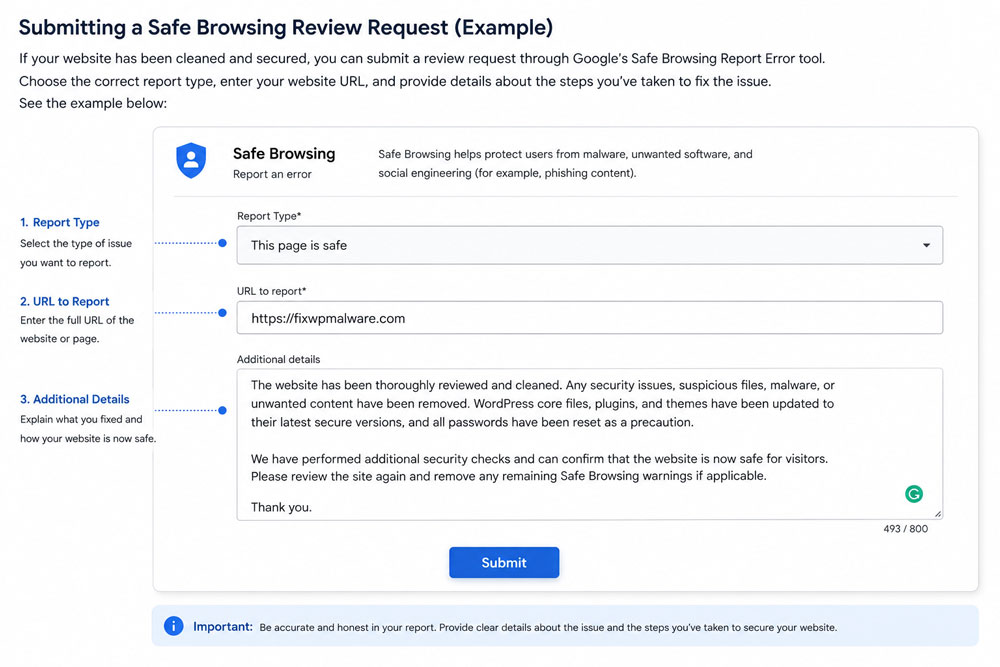
When submitting a review, clearly explain the issue, the actions you took to resolve it, and the security measures you implemented to prevent future problems.
How to Prevent Future Website Security Issues
The best way to avoid future Google Search Console security issues is regular maintenance. Update your website weekly, keep reliable backups, review admin users, monitor Search Console messages, and scan your site often.
Use strong passwords and two-factor authentication for WordPress, hosting, email, and any connected tools. Avoid sharing admin passwords through email or chat. If someone no longer works with your business, remove their access immediately.
For WordPress business websites, security should be part of your normal operations. A short weekly check can prevent a costly emergency later.
Beginner Checklist for Fixing Security Issues
- Open the Security Issues report in Google Search Console.
- Review the issue type and example URLs.
- Test affected pages on desktop and mobile.
- Use URL Inspection to check how Google sees the page.
- Back up your website before cleanup.
- Remove hacked content, malware, redirects, unsafe files, and fake forms.
- Update WordPress, plugins, themes, and security tools.
- Change passwords and remove unknown users.
- Scan files and database after cleanup.
- Request a Google review only after the issue is fully fixed.
- Monitor Search Console until the warning is removed.
FAQ: Google Search Console Security Issues
Can my website still appear in Google with a security issue?
Yes, but Google may show warnings that stop people from clicking. Some affected pages may also lose visibility, and your search traffic can drop quickly.
Are Security Issues and Manual Actions the same?
No. Manual actions usually relate to search spam policies. Security issues relate to hacked content or behavior that may harm visitors, such as malware, phishing, or unwanted software.
How long does Google take to remove a security warning?
After you request a review, it can take several days or a few weeks. The timing depends on the type of issue and Google’s review process.
Can I fix the issue myself?
Simple spam pages may be easy to remove, but malware and hidden backdoors can be difficult. If you are not confident with website files, databases, and server settings, hiring a professional is safer.
What should I write in the review request?
Explain the problem, list the cleanup steps, and describe how you secured the website. Be specific and honest. Google wants to know that the issue is fixed and unlikely to return.
Final Thoughts
Google Search Console security issues can be frightening, but they are manageable with a clear process. Identify the warning, inspect the affected URLs, clean the website, secure the weak points, and request a review when the site is truly safe.
For business owners, the main lesson is simple: website security protects your visitors, your brand reputation, and your search visibility. If Search Console reports a security problem, act quickly, document your fixes, and keep your site maintained.
Helpful official resources: Google Search Console Security Issues report and Google Search Central debugging guidance.