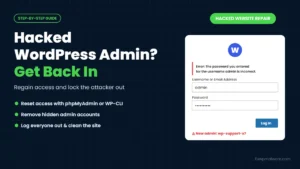
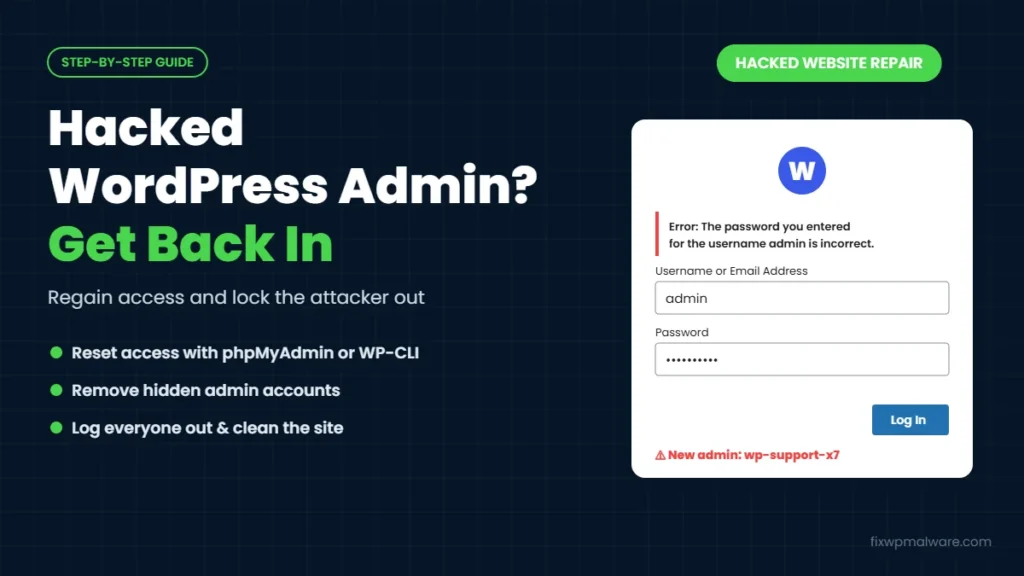
You try to log in to WordPress and your password doesn’t work. The “Lost your password?” email never arrives. Or you get in, but you’re no longer an administrator, and there’s a new admin user you’ve never seen before. Sometimes the login page simply redirects you to a strange website.
If any of this sounds familiar, your WordPress admin was hacked. A hacked WordPress admin is frightening, because the person who took over your dashboard can change anything on your site. The good news is that you can almost always get back in, even without the WordPress password. In this guide, we explain how to confirm the hack, how to regain access step by step and how to lock the attacker out for good.
Signs of a Hacked WordPress Admin
- Your correct password suddenly stops working
- Password reset emails never arrive, because the account email was changed
- You can log in, but you see “Sorry, you are not allowed to access this page”
- Your role was changed from Administrator to Subscriber or another role
- New administrator accounts appear, often with names like
admin1,wp-supportor random letters - The login page redirects to another website or shows a blank page
- Plugins you didn’t install appear, or security plugins were deactivated
Before you assume the worst, rule out the simple causes. A security plugin can lock you out after too many failed attempts, and some hosts block logins from certain countries. If you can still reach your hosting account and nothing else on the site has changed, check those first. If the signs above are present, treat it as a hack.
What an Attacker Can Do with Admin Access
Administrator access is the highest level of control inside WordPress. With it, an attacker can:
- Install a malicious plugin or edit theme files to add malware and backdoors
- Inject spam links, redirects or fake pages that damage your Google rankings
- Read customer details, orders and form submissions stored on the site
- Create extra admin accounts so they can return even after you change your password
- Delete content or lock you out completely
That’s why regaining access is only the first part of the job. You also need to find out what they changed while they were in.
Step 1: Make Sure You Still Control the Hosting Account
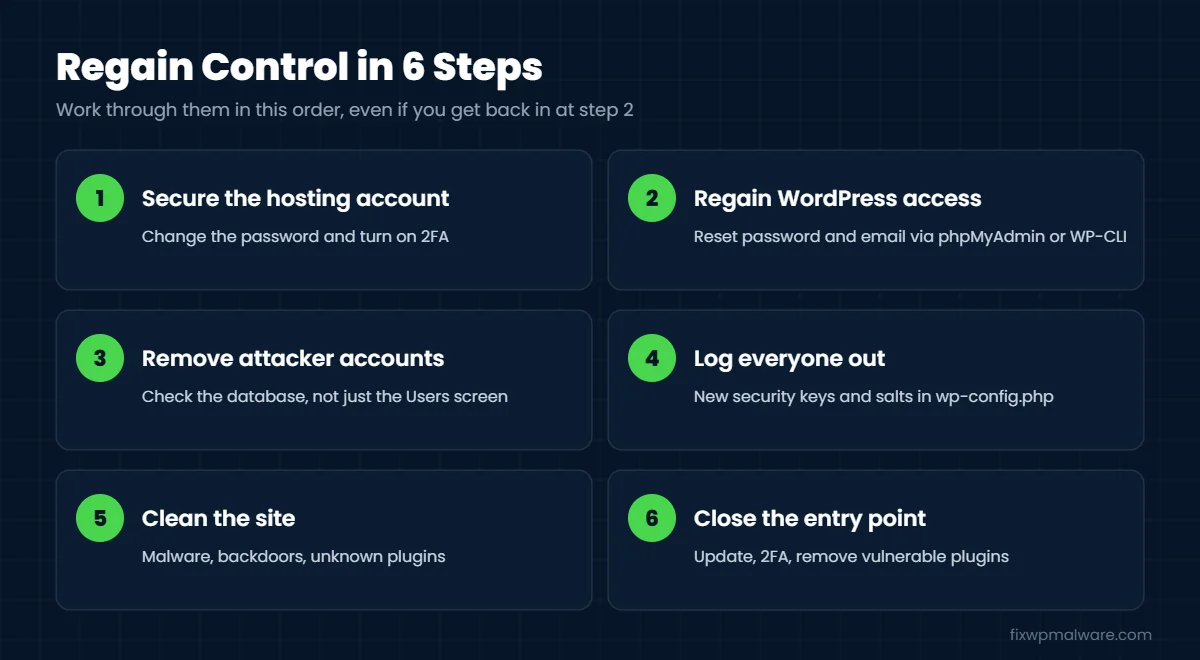
Everything else depends on your hosting account. Log in to your hosting control panel (cPanel, hPanel, Plesk or similar) and change its password straight away. Turn on two-factor authentication if your host offers it. If you can’t get into your hosting account either, contact your host’s support immediately. They can verify your identity and restore access.
Also change the password of the email account linked to WordPress. Attackers sometimes take over the email first, then use the “Lost your password?” link to take over WordPress.
Step 2: Regain Access to Your Hacked WordPress Admin
You don’t need the old WordPress password to get back in. Use one of these methods.
Option A: Reset the password with phpMyAdmin
- Open phpMyAdmin from your hosting control panel and select your WordPress database.
- Open the
wp_userstable. Your table prefix may be different, for examplewpxy_users. - Click Edit on your user row.
- Check
user_email. If the attacker changed it, put your own email address back. - In the
user_passfield, choose MD5 from the Function dropdown, type a new strong password and click Go.
This is the method described in the official WordPress password reset guide. WordPress accepts the MD5 password, so you can log in with it right away.
Option B: Use WP-CLI
If you have SSH access, WP-CLI is faster. Run wp user list to see every user and their role, then wp user update 1 --user_pass="NewStrongPassword" --user_email="you@yourdomain.com", replacing 1 with your user ID.
Option C: Restore your administrator role
If you can log in but you’re no longer an administrator, the attacker changed your role. With WP-CLI, run wp user set-role 1 administrator. In phpMyAdmin, open wp_usermeta, find the wp_capabilities row for your user ID and compare it with the value of a working administrator account. If you’re unsure, create a fresh admin with wp user create newadmin you@yourdomain.com --role=administrator and fix your old account from inside the dashboard.
If the login page redirects or shows a blank page
Check the siteurl and home values in the wp_options table. Both should show your real domain. If they do, rename the wp-content/plugins folder to plugins-off using your hosting file manager. This disables all plugins, including malicious ones, so you can reach the login page. Rename it back once you’re in, and reactivate plugins one by one. Also check .htaccess for redirect rules you didn’t add.
Step 3: Remove the Attacker’s Accounts
Now find every account the attacker created or changed:
- In the dashboard, open Users and filter by Administrator. Delete any account you don’t recognize, and attribute its content to your own account.
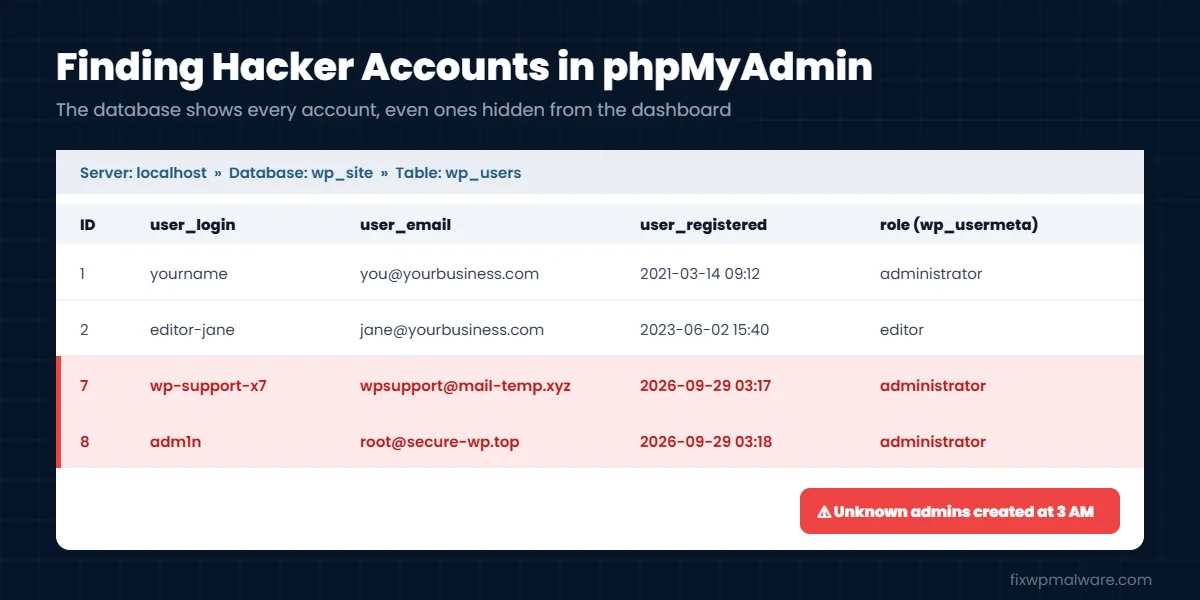
- Don’t trust the user list alone. Some malware hides admin accounts from the dashboard. Run
wp user list --role=administrator, or in phpMyAdmin searchwp_usermetafor rows wheremeta_keyiswp_capabilitiesandmeta_valuecontainsadministrator. - Check for new FTP accounts, SSH keys and cron jobs in your hosting panel, and for unknown owners in Google Search Console.
Step 4: Log Everyone Out
Changing your password doesn’t end the attacker’s current login session. To force every user to log in again, replace the security keys and salts in wp-config.php. You can generate new ones with the official WordPress salt generator, or run wp config shuffle-salts with WP-CLI. Then change the database password in your hosting panel and update it in wp-config.php.
Step 5: Clean the Site
An attacker with admin access rarely stops at creating an account. Admin access lets them install plugins, edit theme files and upload code, which means your site almost certainly has malware and at least one backdoor. Reinstall WordPress core, plugins and themes from official sources, check the uploads and mu-plugins folders for PHP files and search the database for injected scripts.
Our guide on how to find and remove a WordPress backdoor shows where attackers hide their way back in, and our full WordPress malware removal guide covers the complete cleanup. If you’re dealing with this right now, our checklist on what to do in the first 24 hours after a hack keeps you on track.
Step 6: Find Out How They Got In
The most common ways attackers take over a WordPress admin are:
- Weak or reused passwords: passwords leaked from another website and tried on yours
- Vulnerable plugins: some plugin flaws let attackers create admin accounts without logging in
- Nulled themes or plugins: pirated software that comes with a hidden backdoor
- A compromised email account: used to reset your WordPress password
- Another infected site on the same hosting account
Check your hosting access logs for requests to wp-login.php and xmlrpc.php, and look at when the unknown admin account was registered. That date usually points to the plugin or event that let them in. If you skip this step, read why a WordPress site keeps getting hacked, because the attacker will likely return.
How to Protect Your WordPress Admin from Being Hacked Again
- Use a unique, long password for every admin account and store it in a password manager
- Turn on two-factor authentication for all administrators
- Keep the number of administrator accounts as low as possible
- Limit login attempts and use a firewall
- Disable XML-RPC if you don’t use it
- Update WordPress, plugins and themes every week, and never use nulled software
- Disable the file editor with
define( 'DISALLOW_FILE_EDIT', true );inwp-config.php
Our checklist on how to prevent WordPress hacks covers each of these in more detail.
Frequently Asked Questions
Can I get back into WordPress without my password or email?
Yes. As long as you can access your hosting account, you can reset the password and email in phpMyAdmin or with WP-CLI. WordPress accounts are stored in your database, which you control through your host.
Is it enough to just change my password?
No. The attacker may have other admin accounts, active login sessions and backdoors in your files. Change the password, delete unknown users, replace the security keys and clean the site.
Why can’t I see the new admin user in my dashboard?
Some malware hides its admin accounts from the Users screen. Check the database or run wp user list --role=administrator to see every administrator.
Should I restore a backup instead?
A backup can help, but only if it was made before the attacker got in. Many backups already contain the hacker’s account or a backdoor. Check the restored site carefully before you trust it.
How long does it take to recover a hacked WordPress admin?
Regaining access usually takes minutes once you’re in the hosting account. A full cleanup, including finding backdoors and the entry point, typically takes a few hours for a normal WordPress site.
Locked Out and Need Help Now?
We help site owners regain access to hacked WordPress sites all the time. We restore your admin account, remove the attacker’s accounts and backdoors, clean the malware and secure your login so it doesn’t happen again. Choose emergency malware removal if you’re locked out right now, or our hacked website repair service for a complete cleanup.