You open your website and something is wrong. Maybe visitors are being sent to a strange website. Maybe Google shows a red warning screen. Maybe your hosting company just emailed you to say your account has been suspended for malware. However you found out, the feeling is the same: your WordPress site has been hacked, and you don’t know what to do first.
Take a breath. A hacked WordPress site is a serious problem, but it is almost always fixable. What you do in the first 24 hours makes the biggest difference. Act in the right order and you can limit the damage, protect your visitors and get back online faster. Act in panic and you can make things worse. The most common mistake is deleting files at random or restoring an old backup that still contains the backdoor.
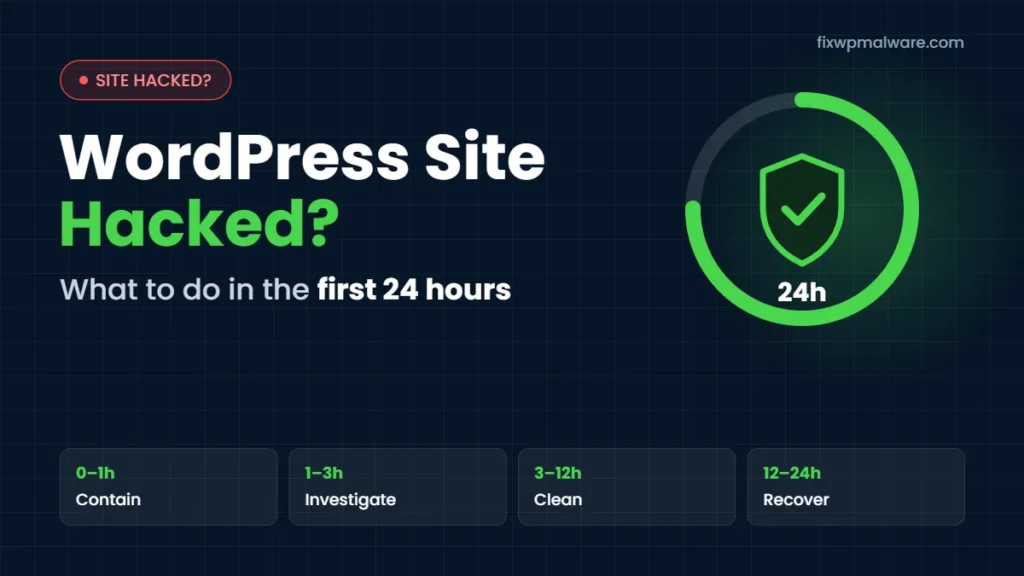
This guide walks you through the first 24 hours, step by step, in the order we follow when a client’s site is hacked.
First, Make Sure Your WordPress Site Is Really Hacked
Not every problem is a hack. A broken plugin update, an expired domain or a hosting outage can look scary too. Before you start an emergency cleanup, look for the usual signs of a hacked website:
- Visitors, especially on mobile or from Google, are redirected to spam, scam, adult or gambling sites
- Google shows “This site may be hacked” under your listing, or Chrome shows a red “Deceptive site ahead” warning
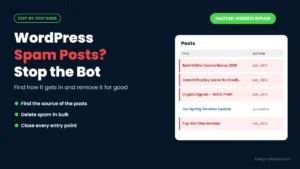
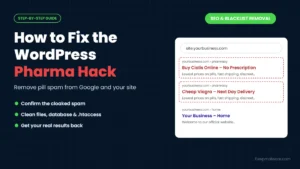
- You see pages in Google search results that you never created, often in Japanese (a sign of the Japanese keyword hack) or full of pharmacy keywords
- New admin users appear in WordPress that you did not add
- Your hosting company warns you about malware or suspends your account
- Strange pop-ups, fake CAPTCHA pages or “update your browser” messages appear on your site
- Your server is sending spam emails, or your emails suddenly land in spam
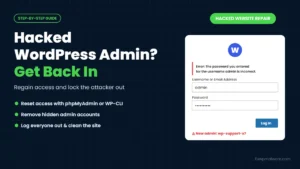
- You can no longer log in to wp-admin
If you see one or more of these, treat it as a hack. For a closer look at each sign, read our guide to the 10 signs your website has been hacked.
A quick tip: some redirects only happen for first-time visitors, mobile users or people coming from Google. If your site looks normal to you, try opening it in a private window on your phone, or search for your site on Google and click the result.
Hour 0–1: Stay Calm and Contain the Damage
The first hour is not about cleaning. It is about stopping the attacker from doing more harm and protecting your visitors.
1. Don’t delete anything yet
It is tempting to start deleting suspicious files right away. Please don’t. If you delete what you can see without finding what created it, the hidden backdoor stays on your server and reinfects the site within hours or days. Deleting files can also destroy the clues that show how the attacker got in.
2. Take a full backup of the hacked site
This sounds strange, but it is important. Before you change anything, back up all files and the database exactly as they are now. You will not restore this backup. It is a record of the infection, and it is also a safety net in case something goes wrong during the cleanup. Most hosting control panels, including cPanel, let you download a full backup. Store it on your computer, not on the same server.
3. Change your most important passwords
Assume that any password connected to the site may be known to the attacker. Change these first, from a computer you trust:
- Your hosting account and cPanel password
- FTP and SFTP accounts
- All WordPress administrator accounts
- Your domain registrar account
Use long, unique passwords, and turn on two-factor authentication wherever it is available. You will change passwords again after the cleanup, but doing it now can stop an attacker who is still logging in.
4. Consider putting the site in maintenance mode
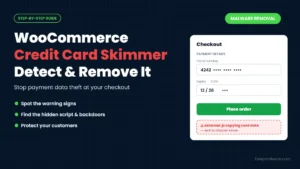
If your site is redirecting visitors to harmful pages or showing fake payment forms, it is better to take it offline for a few hours than to keep sending customers into danger. A simple maintenance page protects your visitors and your reputation while you work. If you run an online store and suspect a credit card skimmer, this step is especially important.
Hour 1–3: Find Out What Happened
Now that the damage is contained, it is time to understand the infection. The more you know, the more complete the cleanup will be.
5. Contact your hosting provider
Your host may already know about the problem. Ask them three questions: What did your malware scan find? Which files did it flag? Are other websites on the same account also infected? Many hosts keep server logs that show when and how files were changed. If your account was suspended, ask exactly what they need from you to reactivate it.
6. Check Google Search Console
If your site is verified in Google Search Console, open the Security Issues report. Google often lists the exact problem, such as malware, hacked content or deceptive pages, and sometimes gives example URLs. Also check the Pages report for spam URLs you did not create. Our guide to Google Search Console security issues explains every warning type.
7. Scan the site
Scanners won’t catch everything, but they show you where to start. Use more than one:
- An external scanner, such as Sucuri SiteCheck or VirusTotal, which checks what visitors and search engines see
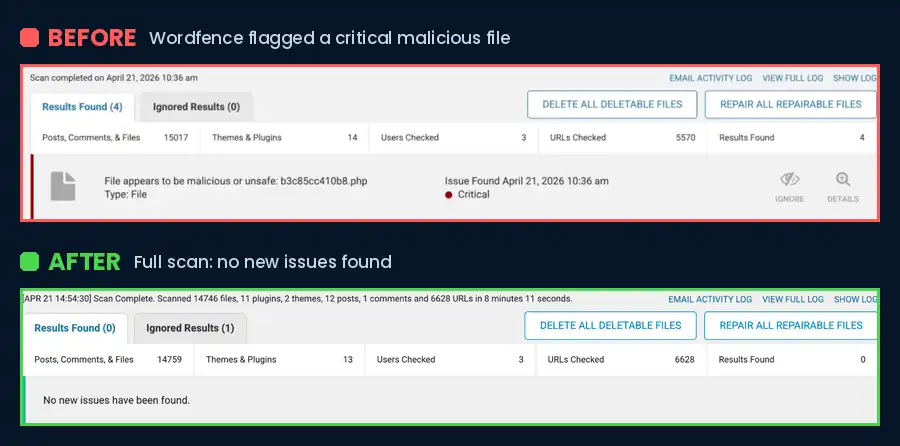
- A server-side scanner, such as the scan built into Wordfence or your host’s malware scanner, which checks the files themselves
Write down every file and URL the scanners report. Don’t delete anything yet.
8. Look for the obvious red flags yourself
Open your WordPress dashboard or your hosting file manager and check:
- Users: any administrator accounts you don’t recognize
- Plugins: plugins you never installed, or plugins that are hidden from the list but still present in
wp-content/plugins - The uploads folder:
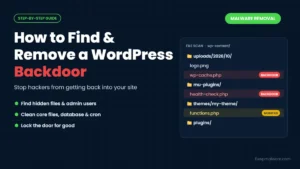
wp-content/uploadsshould hold images and documents, never PHP files - Hidden files: turn on “show hidden files” in the file manager and look for files and folders starting with a dot that have random names
- Recently modified files: core files that changed on a day you did not update anything
Hour 3–12: Clean the Infection Properly
This is the main part of the work. Cleaning a hacked WordPress site properly means more than deleting a few infected files. A proper cleanup removes the malware and everything the attacker left behind to get back in.
9. Replace WordPress core files
Download a fresh copy of the same WordPress version from WordPress.org and replace the wp-admin and wp-includes folders completely. Don’t touch wp-content or wp-config.php in this step. This removes any malware hidden inside core files in one go.
10. Reinstall plugins and themes from trusted sources
Delete every plugin and theme folder and reinstall fresh copies from WordPress.org or the developer’s official website. Remove anything you don’t use. If you find nulled, meaning pirated, premium plugins or themes, remove them permanently. They are one of the most common ways WordPress sites get infected.
11. Clean what remains in wp-content
Check the uploads folder for PHP files, check wp-config.php for unfamiliar code at the top or bottom, and look closely at drop-in files like db.php or object-cache.php. Remove backdoors and suspicious hidden files only after you understand what they do and what loads them.
12. Clean the database
Malware often hides in the database too. Look for injected scripts in posts and pages, spam links, unknown admin users in the users table, and suspicious entries in the wp_options table, especially options that contain long encoded strings. Always back up the database before you edit it.
From our experience: We once had a client whose WordPress website kept getting reinfected, even though the malware had been removed several times. The client was understandably frustrated. When we took over the cleanup, we ran a deeper investigation and found leftover malicious files from old plugins, plus hidden malicious entries in the database that kept bringing the infection back. Once those persistence points were completely removed and the site was secured, the malware stopped returning. The website is now clean, secure and working properly.
13. Reset security keys and every password
Generate new security keys (salts) in wp-config.php. This logs out everyone, including an attacker who stole a session. Then change all passwords again: WordPress users, database user, hosting, FTP and email accounts. The first change in hour one was an emergency measure. This one makes sure the attacker is locked out for good.
If this list feels overwhelming, you are not alone. Most site owners hand this part to a professional. Our hacked website repair service covers every step above, and our WordPress malware removal guide goes deeper if you want to do it yourself.
Hour 12–24: Close the Door and Recover
14. Find and fix the entry point
Every hack has an entry point. If you don’t close it, the attacker comes back through the same door. The most common ones are:
- An outdated plugin or theme with a known vulnerability
- Nulled plugins or themes that came with malware already inside
- A weak or reused password
- Another infected website on the same hosting account
- Wrong file permissions that let anyone change files
Update everything, remove what you don’t need, and check the other sites on the same hosting account too.
15. Scan again and test your site
Run the same scanners again and make sure they come back clean. Then test the site like a visitor: open it on your phone, in a private window and from a Google search result. Test your contact forms and, if you run a store, place a test order.
16. Ask Google to remove the warning
If Google flagged your site, go back to the Security Issues report in Search Console, select “I have fixed these issues” and request a review. Google explains the process in its official Security Issues report guide. Explain what you found and what you fixed. Only do this once you are sure the site is completely clean, because a rejected request makes the next review take longer. For step-by-step help, see our Google blacklist removal service.
17. Tell the people who need to know
If customer data or payment details may have been exposed, inform your payment provider and, where the law requires it, your customers. If your hosting account was suspended, send your host a short cleanup report so they can restore it.
Mistakes to Avoid in the First 24 Hours
When you are dealing with a hacked WordPress site, a few common mistakes can undo all your hard work:
- Restoring an old backup without checking it. If the backup was made after the infection started, you just restore the malware. Even a clean backup brings back the same vulnerability.
- Relying on one security plugin scan. Plugins miss obfuscated code, database injections and files outside the WordPress folders.
- Deleting files you don’t understand. You may break your site or destroy the evidence you need to find the backdoor.
- Only changing your WordPress password. Attackers often have hosting, FTP or database access too.
- Requesting a Google review too early. Wait until the cleanup is fully done and verified.
After the First 24 Hours: Keep It From Happening Again
Once your site is clean, a few habits keep it that way: update WordPress, plugins and themes every week, keep off-site backups, use strong passwords with two-factor authentication, remove unused plugins and never install nulled software. Watch your site closely for the next few weeks, because a missed backdoor usually shows itself quickly. For a complete checklist, read our guide on how to prevent WordPress hacks.
If you don’t have time to do all this yourself, our WordPress monthly maintenance plans take care of updates, backups and security monitoring for you.
Frequently Asked Questions
Can I fix a hacked WordPress site myself?
Yes, if you are comfortable working with files, the database and your hosting control panel. The hard part is not removing the visible malware but finding every backdoor and the entry point. If the malware keeps coming back after you clean it, that is a sign something was missed.
How long does it take to clean a hacked WordPress site?
A simple infection can often be cleaned in a few hours. Larger sites, stores and infections with many backdoors can take longer. Removing a Google warning usually takes a few extra days, because Google has to review the site.
Will I lose my content or SEO rankings?
A careful cleanup keeps your posts, pages, products and orders. Rankings can drop while Google shows a warning, but they usually recover once the site is clean, the warning is removed and spam pages are gone from the index.
Should I just restore a backup?
Only if you know the backup is clean and you also fix the vulnerability that let the attacker in. Otherwise the same hack will happen again, sometimes within hours.
Why does my site keep getting hacked after I clean it?
Because a backdoor, a hidden admin user or the original vulnerability is still there. Recurring infections usually mean the cleanup removed the symptoms but not the source.
Need Help Right Now?
If your WordPress site has been hacked and you would rather have an expert handle it, we can help. Our emergency malware removal service starts immediately, 24/7. We find the infection, remove every backdoor, close the entry point and send you a full cleanup report, so you can get back to running your business.