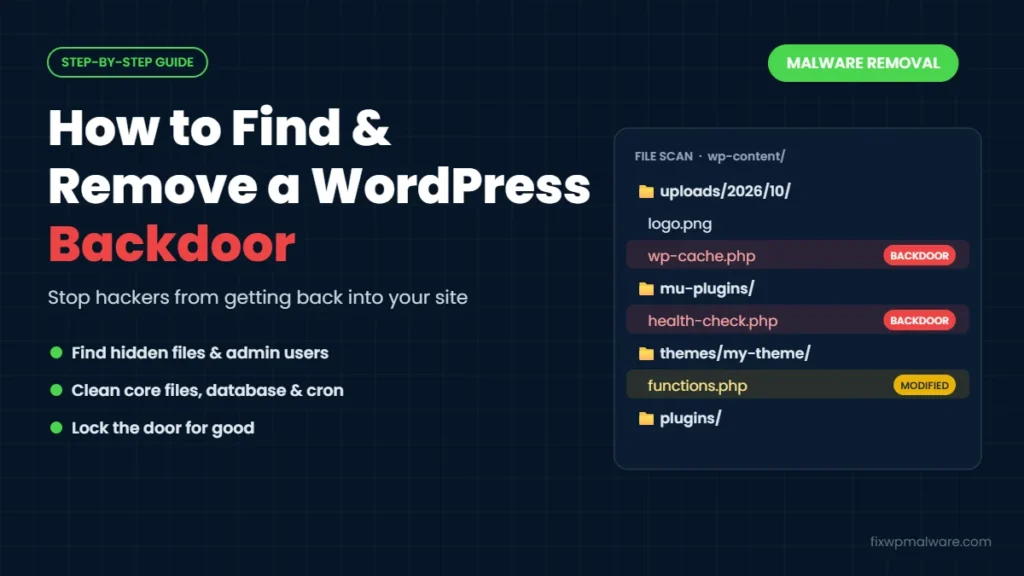
You cleaned your hacked WordPress site. The malware scanner says everything is fine. Then, a few days later, the spam pages, redirects or strange admin users are back. In almost every case like this, the reason is the same: a WordPress backdoor that was left behind.
A backdoor is the attacker’s private way back into your site. As long as it exists, every cleanup is temporary. In this guide, we explain what a WordPress backdoor is, where hackers hide them, how to find them step by step and how to remove them so the hacker can’t return.
What Is a WordPress Backdoor?
A WordPress backdoor is a piece of code, a file or an account that lets an attacker get back into your website without using the normal login. Once a hacker gets in the first time, usually through an outdated plugin or a stolen password, one of the first things they do is install a backdoor. That way, they keep access even after you change your password or update the plugin they used.
Backdoors are different from the visible malware on your site. Spam pages, redirects and fake popups are the result of a hack. The backdoor is the tool the attacker uses to put that malware back again and again. If you only delete what you can see, the visible malware returns.
A backdoor can be:
- A web shell: a PHP file that gives the attacker a file manager and command console in the browser
- A tiny code snippet: one line hidden inside a legitimate file that runs any code the attacker sends
- A file uploader: a small script that lets the attacker upload new malware whenever they want
- A hidden admin user: an administrator account that doesn’t appear in your user list
- A fake plugin: a plugin with an innocent-looking name that contains malicious code
- A scheduled task: a WordPress cron job or server cron job that downloads the malware again
Signs Your Site Has a Backdoor
You usually can’t see a backdoor directly, but you can see what it allows the attacker to do. Common signs include:
- Malware, spam pages or redirects come back after you’ve cleaned the site
- New administrator users appear, or you find users you didn’t create
- Files you deleted reappear, often with the same name
- PHP files show up in the
wp-content/uploadsfolder - Your hosting provider warns you about malicious files or suspicious outgoing traffic
- Core files such as
index.phporwp-config.phpchange without you editing them
If your site keeps getting reinfected, read our guide on why a WordPress site keeps getting hacked. A leftover backdoor is the number one cause we see.
Where WordPress Backdoors Hide
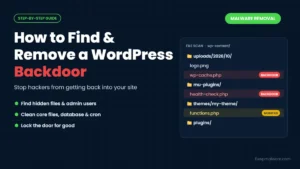
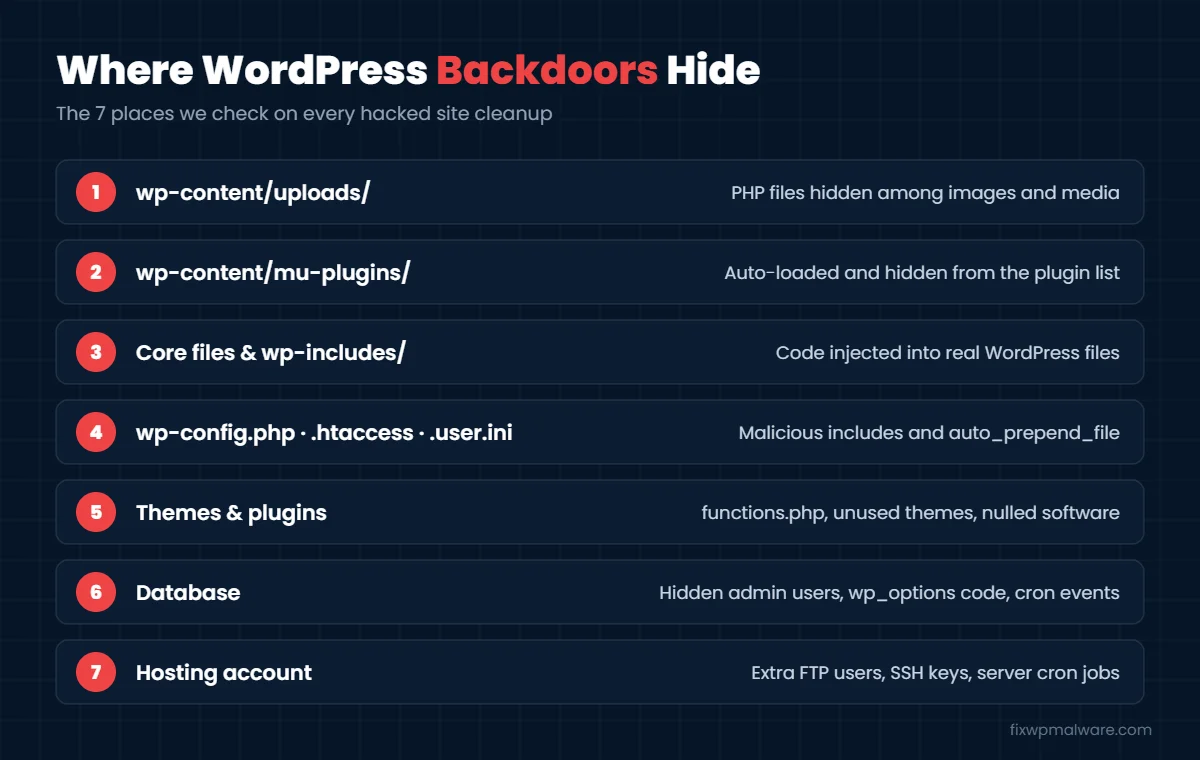
Attackers hide backdoors in places site owners rarely check, and they give them names that look like normal WordPress files, such as wp-cache.php, class-wp-hook-api.php or index-old.php. These are the places we check on every cleanup:
1. The uploads folder
The wp-content/uploads folder should only contain images, PDFs and other media. A PHP file in this folder is almost always malicious. Attackers like it because it’s writable and full of files, so a single extra one is easy to miss.
2. The mu-plugins folder
Files in wp-content/mu-plugins are “must-use” plugins. WordPress loads them automatically on every page, they can’t be turned off from the dashboard, and they don’t appear in your normal plugin list. That makes this folder a favourite hiding place. Many sites don’t use it at all, so any file you didn’t add yourself needs checking.
3. WordPress core files
Backdoor code is often added to the top or bottom of real core files like wp-load.php, wp-settings.php, wp-blog-header.php or files inside wp-includes. Attackers also add brand-new files to wp-includes and wp-admin with names that sound official.
4. wp-config.php, .htaccess and .user.ini
A single include line in wp-config.php can load a backdoor from anywhere on the server. In .user.ini or php.ini, the auto_prepend_file setting can load a malicious file before every page. In .htaccess, attackers sometimes add rules that let image files run as PHP code.
5. Themes and plugins
Backdoors are commonly placed in theme files like functions.php and header.php, in old themes you no longer use, and in plugins that aren’t active. Nulled (pirated) themes and plugins very often come with a backdoor already built in.
6. The database
Not every backdoor is a file. Check for administrator users you don’t recognize, malicious code stored in the wp_options table and suspicious events in the WordPress cron schedule. In our WooCommerce card skimmer case study, the store kept getting reinfected until we removed several hidden backdoors and the accounts the attacker had created.
7. Server-level access
On some hacks, the attacker also adds an extra FTP account, an SSH key or a server cron job in the hosting control panel. These sit completely outside WordPress, so no WordPress plugin will find them.
What Backdoor Code Looks Like
Most backdoors are designed to be hard to read. They hide what they do using encoding, compression and strange variable names. Here is a simplified example of the kind of code we find:
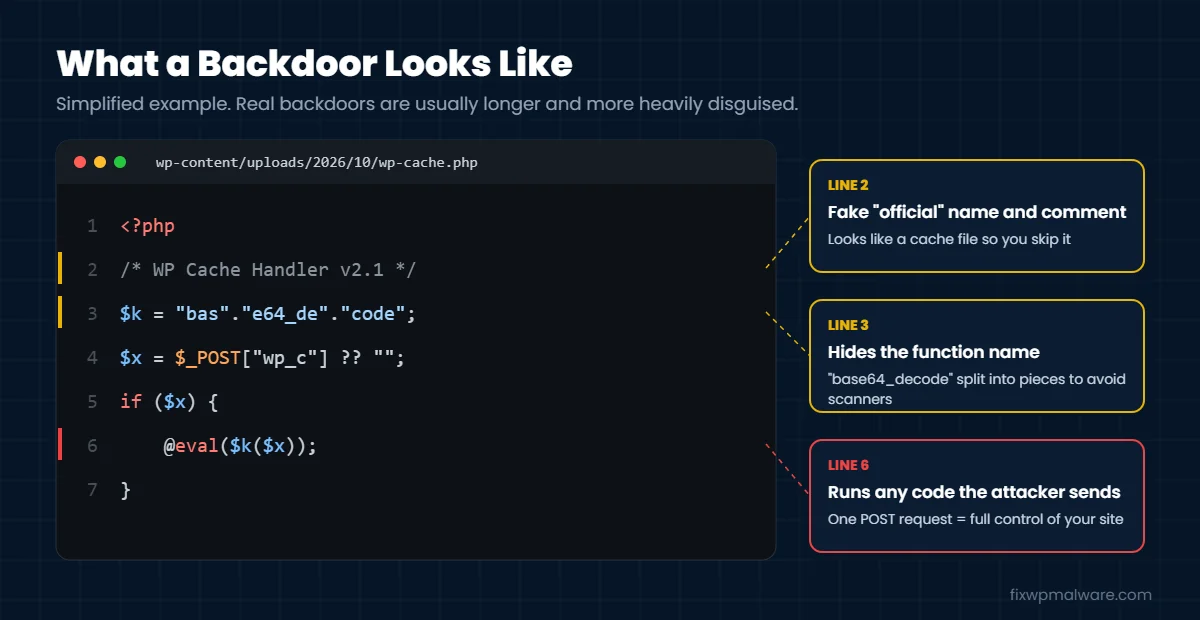
Watch for these warning signs in PHP files:
- Functions such as
eval,assert,base64_decode,gzinflate,str_rot13orcreate_function, especially when combined - Code that uses
$_POST,$_GET,$_REQUESTor$_COOKIEvalues directly insideeval - Very long lines of random-looking letters and numbers
- Functions like
move_uploaded_fileorfile_put_contentsin a file that has no reason to upload or write files - Code placed before the opening comment of a normal file, or after the closing
?>tag
Some legitimate plugins use base64_decode for normal reasons, so one match doesn’t prove a file is malicious. What matters is the context: where the file is, when it was changed and whether it belongs to a real plugin or theme.
How to Find a Backdoor in WordPress: Step by Step
Before you start, take a full backup of your files and database and label it as infected. If you need to act fast, our checklist on what to do in the first 24 hours after a hack covers the first steps.
Step 1: Verify core files against official checksums
If you have SSH access, WP-CLI can compare your files with the official WordPress versions. The command wp core verify-checksums lists any core file that has been changed and any extra file that shouldn’t be there. Run wp plugin verify-checksums --all to do the same for plugins from WordPress.org. See the WP-CLI documentation for details.
Step 2: Look for PHP files where they don’t belong
Search the uploads folder for PHP files with find wp-content/uploads -name "*.php". Then check wp-content/mu-plugins, the root folder and any folder with a strange name.
Step 3: Check recently modified files
Find files changed in the last few weeks with find . -name "*.php" -mtime -30. Focus on files that changed around the date the hack started and files that changed even though you didn’t update anything. Keep in mind that attackers can fake modification dates, so this is a clue, not proof.
Step 4: Search for suspicious code
Search all PHP files for the warning signs listed above, for example grep -rlE "eval\(|base64_decode\(|gzinflate\(" --include=*.php .. Review every result by hand and compare it with a clean copy of the same plugin or theme.
Step 5: Check users, the database and scheduled tasks
List every administrator with wp user list --role=administrator or in phpMyAdmin, and delete anyone you don’t recognize. Check scheduled tasks with wp cron event list. In phpMyAdmin, search the wp_options and wp_posts tables for <script, eval( and base64_decode.
Step 6: Check your hosting account
Log in to your hosting control panel and review FTP accounts, SSH keys, cron jobs and file manager access. Remove anything you didn’t set up. If you’re on shared hosting, ask your host whether other sites on the same account were infected too, because one infected site can reinfect the others.
How to Remove a WordPress Backdoor
Once you know what you’re dealing with, remove the backdoor in this order:
- Replace WordPress core: download a fresh copy and replace the
wp-adminandwp-includesfolders completely. With WP-CLI, usewp core download --force --skip-content. - Reinstall plugins and themes: reinstall every plugin and theme from its official source. Delete anything you don’t use and replace nulled software with licensed copies.
- Delete malicious files: remove PHP files from uploads, unknown files in mu-plugins and any suspicious file you found.
- Clean configuration files: check
wp-config.php,.htaccessand.user.iniline by line and remove anything you didn’t add. - Clean the database: delete unknown users, remove injected code and clear suspicious cron events.
- Reset all access: change passwords for WordPress, hosting, FTP or SFTP and the database. Generate new security keys in
wp-config.phpto log everyone out.
For the full cleanup process, including database cleaning and blacklist checks, see our complete WordPress malware removal guide.
How to Stop Backdoors from Coming Back
- Block PHP in the uploads folder. On Apache servers, add an
.htaccessfile towp-content/uploadsthat denies access to.phpfiles. - Disable the file editor by adding
define( 'DISALLOW_FILE_EDIT', true );towp-config.php. - Update weekly and remove plugins and themes you don’t use.
- Use two-factor authentication for every administrator account.
- Turn on file change monitoring in your security plugin, so you’re alerted when a file is added or modified.
- Never install nulled themes or plugins.
WordPress’s official hardening guide and our checklist on how to prevent WordPress hacks cover these steps in more detail.
Frequently Asked Questions
Can a security plugin find every backdoor?
No. Scanners are good at finding known malware, but many backdoors are custom, obfuscated or hidden inside legitimate files. Others live in the database or in the hosting account, where a plugin can’t see them. A manual check is almost always needed after a serious hack.
Will changing my passwords remove a backdoor?
No. A backdoor is designed to work without your password. Changing passwords is important, but the attacker can still get in until the backdoor code is removed.
Is restoring a backup enough?
Only if the backup was made before the attacker first got in. Many backups already contain the backdoor, because attackers often wait weeks before they use it. Always check a restored site for backdoors too.
How do hackers install a backdoor in the first place?
Most often through an outdated or vulnerable plugin, a stolen or weak password, a nulled theme or plugin, or another infected site on the same hosting account.
Why do I keep finding the same file after deleting it?
Something else is recreating it. That could be another backdoor, a malicious cron job, an infected must-use plugin or another site on the same server. Keep searching until you find what writes the file back.
Want Every Backdoor Found and Removed?
Backdoors are the reason so many cleanups fail. We check your files, database, users, cron jobs and hosting account, remove every way back in and secure the site so the hacker stays out. Get started with our hacked website repair service, or choose emergency malware removal if your site is being reinfected right now.