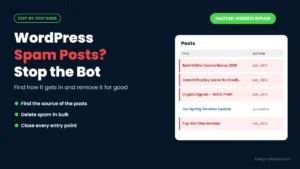
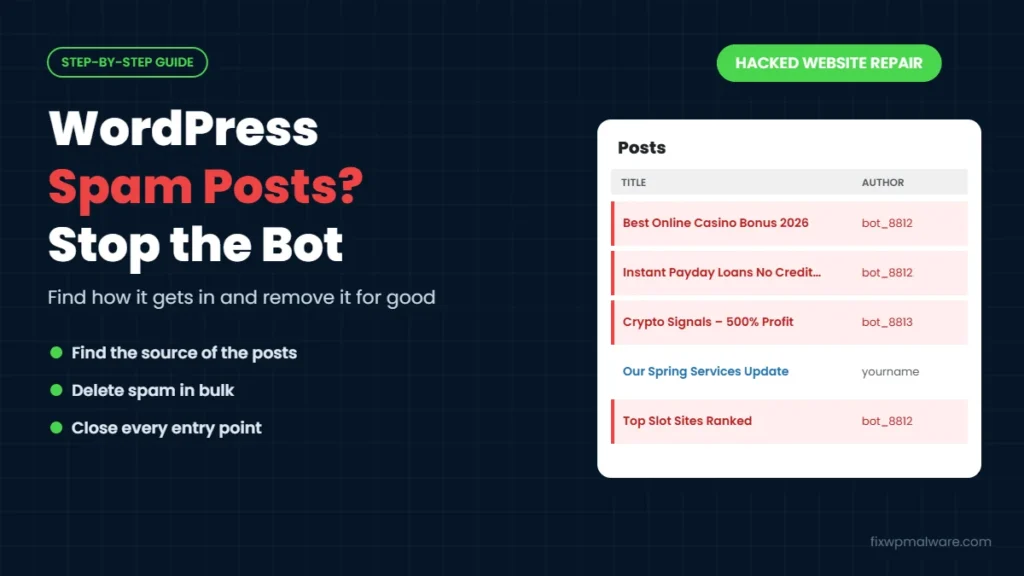
You open your WordPress dashboard and find posts you never wrote. Casino reviews, loan offers, crypto promotions, sometimes in languages you don’t speak. You delete them, and the next morning there are more. Maybe you’ve also noticed new user accounts or authors with random names.
These WordPress spam posts aren’t coming from a commenter or a confused editor. Something on your site is publishing them automatically, usually a bot with a way into WordPress that you haven’t found yet. In this guide, we explain why spam posts appear, how to find exactly how the bot gets in, how to remove the spam in bulk and how to stop it from coming back.
Why WordPress Spam Posts Appear on Your Site
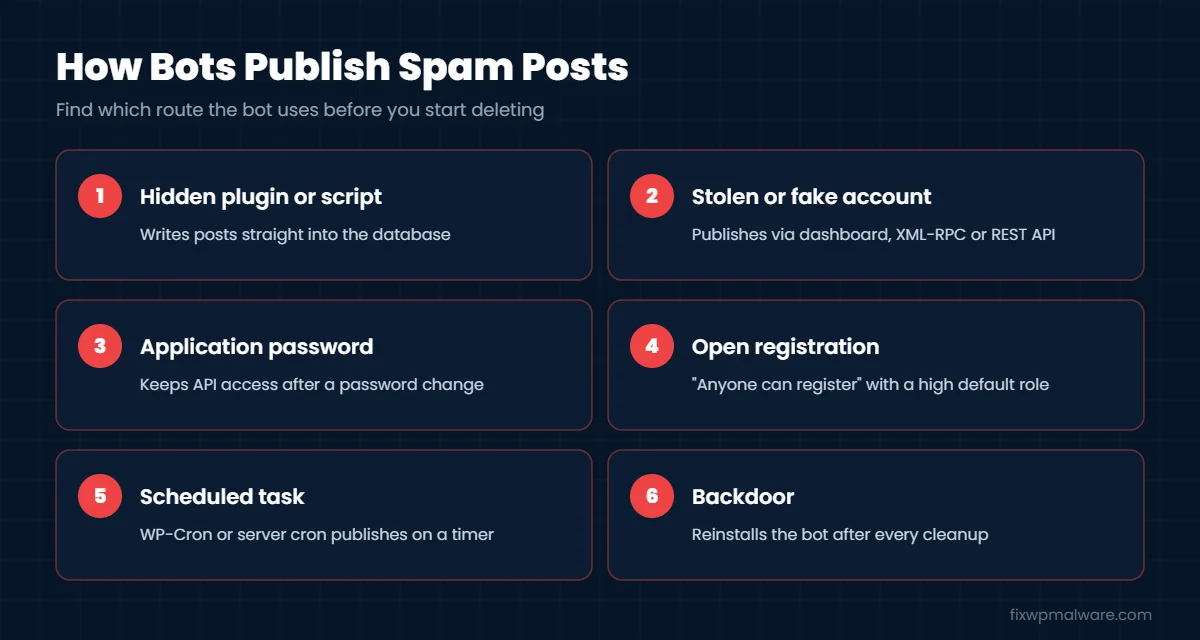
WordPress doesn’t let anonymous visitors publish posts. If posts are appearing that nobody on your team wrote, something has the power to create them. In our experience, it’s almost always one of these:
- A hidden plugin or script: a malicious file that accepts commands from the attacker and creates posts directly in the database
- A stolen or attacker-created account: an admin, editor or author account the bot uses to publish through the dashboard, XML-RPC or the REST API
- An application password: a separate API password added to a user account, which keeps working even after you change the normal password
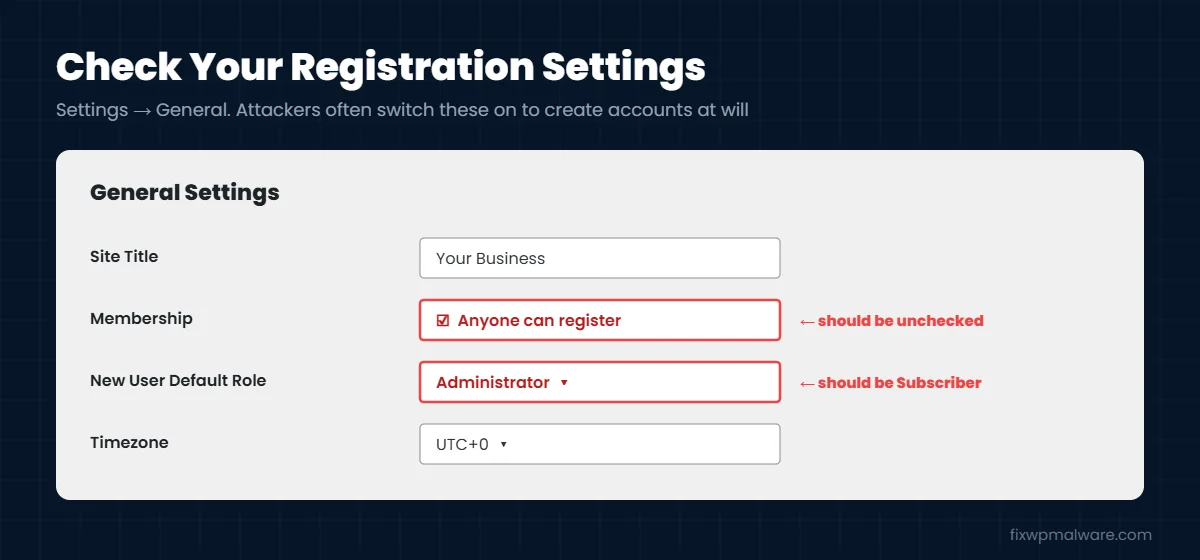
- Open user registration: “Anyone can register” switched on, sometimes with the default role changed to Author, Editor or even Administrator
- A scheduled task: a WordPress cron event or server cron job that publishes new spam on a timer
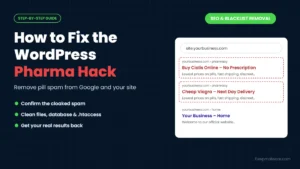
Spam posts are a type of SEO spam. The attacker wants Google to index their links and keywords on your trusted domain, the same goal as the Japanese keyword hack and the pharma hack.
Signs of a Spam Posting Bot
- New posts appear at odd hours, often many at once
- The posts are about casinos, loans, crypto, pills or adult content
- Posts are published under authors you don’t recognize, or under your own name
- User IDs jump unexpectedly, for example from 3 to 58, because the bot creates and deletes accounts
- Deleted spam posts come back within hours or days
- Google starts showing spam titles under your domain
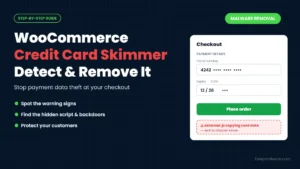
Here is a real example. In our WooCommerce card skimmer case study, the store owner’s first message was simply that a bot was making posts on the website. The cause was a hidden plugin folder that never appeared in the plugin list. It maintained a file that let the attacker create posts and users remotely, and the user IDs had jumped from 3 to 58 as the bot created and deleted accounts.
How to Find How the Bot Gets In
Don’t start by deleting posts. First work out where they come from, because the spam itself is your best clue.
1. Look at the author and time of the spam posts
Open Posts and check who the spam was published by and when. If every spam post has the same author, that account is either compromised or was created by the attacker. If the author is missing or shows a user that no longer exists, the posts were probably inserted directly into the database by a script.
2. Check every user account
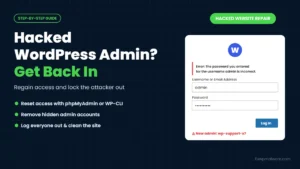
Go to Users and look for accounts you don’t recognize, especially administrators and editors. Because some malware hides users from the dashboard, also check with WP-CLI using wp user list, or look directly at the wp_users table in phpMyAdmin. Gaps in user IDs are a strong sign that a bot has been creating and deleting accounts. If you find attacker admin accounts, follow our guide on recovering a hacked WordPress admin.
3. Check for application passwords
Open each administrator’s profile and scroll to Application Passwords. Revoke any you didn’t create. These let an attacker publish through the REST API even after you change the account’s normal password. WordPress explains how they work in its Application Passwords documentation.
4. Check registration settings
In Settings, then General, make sure “Anyone can register” is unchecked unless you really need it, and that New User Default Role is set to Subscriber.
5. Look for hidden plugins and files
Compare the folders in wp-content/plugins on the server with the plugins listed in your dashboard. A folder that doesn’t appear in the list is a red flag. Also check wp-content/mu-plugins, the uploads folder and the site root for unknown PHP files. Our guide on how to find and remove a WordPress backdoor covers every place to look.
6. Check scheduled tasks and logs
Run wp cron event list to see WordPress scheduled events, and check the cron jobs in your hosting control panel. Then look at your server access logs around the time the spam posts were published. Requests to xmlrpc.php, /wp-json/wp/v2/posts or to an unknown PHP file usually reveal the route the bot uses.
What If a Real Team Member’s Account Was Used?
Sometimes the spam is published under a real person’s name: a writer, an editor or even you. That doesn’t mean they did it. It usually means their password was leaked from another website, guessed, or stolen by malware on their computer.
In that case:
- Change that user’s password and revoke any application passwords on the account
- Ask them to check their own computer for malware and to stop reusing passwords
- Look at the other changes made from that account, such as new plugins, edited pages or new users
- Reduce their role if they don’t need to publish directly, for example from Editor to Author or Contributor
Limiting who can publish is one of the simplest ways to reduce the damage any single stolen password can cause.
How to Delete WordPress Spam Posts in Bulk
Once you know the source, take a backup and then remove the spam:
- From the dashboard: in Posts, filter by the spam author or date, select all and choose Move to Trash. Empty the trash once you’ve checked nothing real was removed.
- With WP-CLI: if all spam came from one account, list its posts with
wp post list --author=58 --format=ids, check the list, then delete them withwp post delete $(wp post list --author=58 --format=ids) --force. Replace 58 with the real user ID. - Delete the spam accounts too, and attribute any real content to a trusted user.
- Check categories and tags. Bots often create spam categories and tags as well. Delete any you don’t recognize.
How to Stop WordPress Spam Posts for Good
- Remove the source: delete the hidden plugin, backdoor file or cron job you found, and reinstall WordPress core, plugins and themes from official sources.
- Lock down accounts: delete unknown users, revoke application passwords, change all passwords and generate new security keys in
wp-config.php. - Close the entry points: turn off open registration, set the default role to Subscriber and disable XML-RPC if you don’t use it.
- Turn on two-factor authentication for every account that can publish.
- Update everything and remove plugins you don’t use.
- Watch for a few days: if spam posts come back, something was missed. Read why a WordPress site keeps getting hacked for the usual causes.
For a full cleanup process, see our WordPress malware removal guide.
Remove WordPress Spam Posts from Google
If Google has already indexed the spam, deleted posts should return a 404 Not Found error. Don’t redirect them to your homepage. In Google Search Console, use the Removals tool to hide the spam URLs while Google recrawls, check the Security issues report and resubmit your sitemap. Our guide to Google Search Console security issues explains what to do if Google flagged your site.
Frequently Asked Questions
Can spam bots publish posts without logging in?
Not through normal WordPress. If posts appear, the bot either has a working account, an application password or a malicious file on your server that writes posts straight into the database.
Is this the same as comment spam?
No. Comment spam is common and usually harmless if you moderate comments. Spam posts mean someone has publishing access to your site, which is a security problem.
I deleted the posts. Why are they back?
Because the source is still active. Deleting the posts removes the result, not the cause. Find and remove the account, file or scheduled task that creates them.
Will spam posts hurt my SEO?
Yes. Google may index the spam, show spam titles under your domain or add a hacked warning to your search results. Removing the spam quickly and cleaning the site limits the damage.
Should I disable the REST API?
Usually not. Many plugins and the block editor rely on it. It’s better to remove unknown accounts and application passwords, use strong passwords and two-factor authentication, and keep everything updated.
Want the Spam Bot Gone for Good?
We find out exactly how the bot is publishing, remove the hidden plugins, backdoors and accounts behind it, delete the spam and help clean up your Google results. Get started with our hacked website repair service, or choose emergency malware removal if new spam is appearing right now.