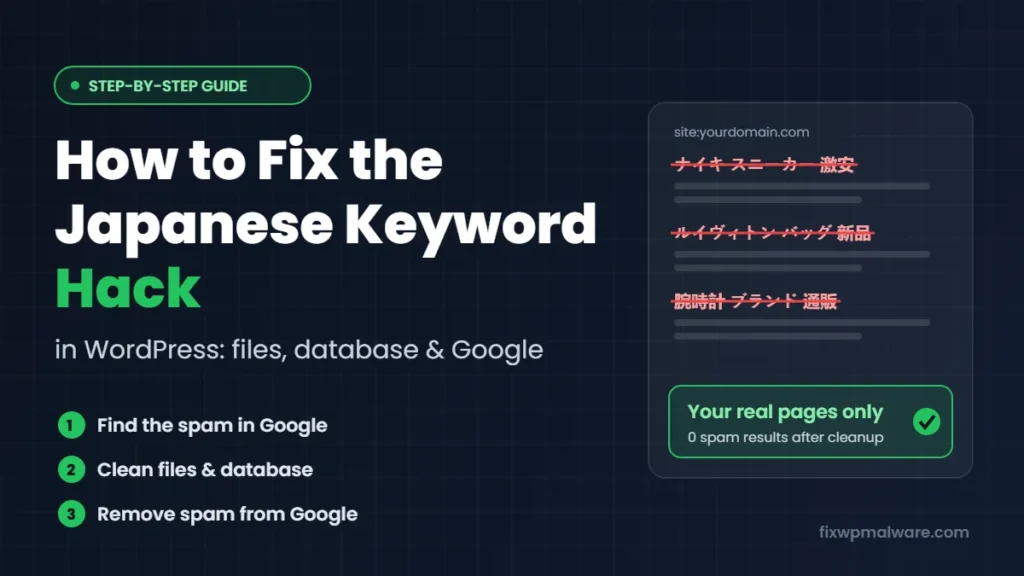
You search for your own business in Google and find pages you never created: Japanese titles, cheap designer bags, sneakers and watches, all sitting under your domain name. Your homepage looks perfectly normal when you visit it, so what is going on?
This is the Japanese keyword hack, one of the most common SEO spam attacks on WordPress sites. The good news is that it can be fixed completely. The bad news is that deleting the spam pages you can see almost never works on its own.
In this guide, we walk you through exactly how we find and remove the Japanese keyword hack on client sites: how to confirm the hack, where the infection hides, how to clean it step by step and how to get your search results back to normal.
What Is the Japanese Keyword Hack?
The Japanese keyword hack is an attack where hackers break into your website and use it to publish thousands of auto-generated pages in Japanese. These pages usually promote counterfeit products and link to fake online shops.
Why your site? Because Google already trusts your domain. A brand-new spam site would take months to rank, but pages on an established website can show up in search results within days. The attackers are borrowing your reputation.
What makes this hack tricky is cloaking. The spam pages are often shown only to Google’s crawler or to visitors who arrive from search results. When you type your URL directly into the browser, everything looks fine. That is why many site owners only find out weeks later, when traffic drops or a customer mentions it.
Signs Your Site Has the Japanese Keyword Hack
You may be dealing with this hack if you notice any of the following:
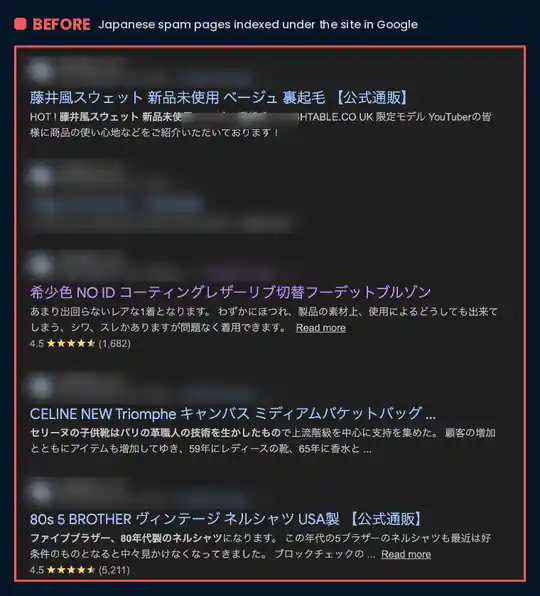
- Japanese titles and descriptions under your domain in Google search results
- Strange URLs in a folder you never created, such as
/items/,/products/or random strings of letters and numbers - A “Hacked content” or “Hacked: URL injection” warning in Google Search Console
- Unknown users or owners added to your Search Console property
- Sitemaps you don’t recognize, sometimes containing thousands of URLs
- A sudden drop in organic traffic, or pages from your site showing “This site may be hacked” in Google
Here is what it looked like for one of our clients. None of these listings were created by the site owner:
Before You Start: Take a Backup
It sounds strange to back up a hacked site, but do it anyway. Download a full copy of your files and export the database before you change anything. If something goes wrong during the cleanup, you can return to this point instead of losing your content. The backup is also useful evidence if you need to work out later how the attacker got in.
Keep this backup separate and clearly labeled as infected, so nobody restores it by mistake.
How to Fix the Japanese Keyword Hack: Step by Step
Step 1: Confirm the hack in Google
Search Google for site:yourdomain.com. This shows the pages Google has indexed for your site. Scroll through several pages of results and note any Japanese titles or unfamiliar URLs. Pay attention to the folder names in those URLs, because they will help you find the source later.
You can narrow it down further with searches like site:yourdomain.com japan or site:yourdomain.com/items/.
Step 2: Check Google Search Console
Google Search Console gives you three important clues:
- Security Issues report: shows whether Google has detected hacked content and lists example URLs. Our guide to Google Search Console security issues explains each warning type.
- URL Inspection tool: enter one of the spam URLs and run a live test. This shows you the page exactly as Googlebot sees it, which exposes cloaked spam that you can’t see in your own browser.
- Users and permissions: go to Settings, then Users and permissions, and look for owners you don’t recognize. Attackers often verify themselves as owners so they can submit their own sitemaps.
If you find an unknown owner, remove them and delete their verification method too. That is usually an HTML file in your site’s root folder with a name like google1234abcd.html. If you leave the file in place, they can verify again.
Step 3: Change all passwords
Before cleaning, lock the attacker out. Change the passwords for your WordPress admin accounts, hosting control panel, FTP or SFTP, and the database user (update wp-config.php afterwards). Then go to Users in WordPress and delete any administrator account you don’t recognize.
It is also a good idea to generate new security keys and salts in wp-config.php. This logs out everyone who is currently signed in, including the attacker.
Step 4: Scan and clean your WordPress files
The Japanese keyword hack needs code on your server to generate the spam pages. This code is usually hidden in one or more of these places:
- WordPress core files that have been modified, often
index.php,wp-load.phpor files insidewp-includes - PHP files with random names in the root folder,
wp-contentorwp-content/uploads. There should be no PHP files in the uploads folder at all. - .htaccess files with rewrite rules that send spam URLs to a malicious script
- Themes and plugins, especially nulled (pirated) ones or plugins you no longer use
Start with a malware scanner such as Wordfence. It compares your core files to the official versions and flags known malware. Then do these checks yourself, because scanners don’t catch everything:
- Reinstall WordPress core. In the dashboard, go to Updates and click “Reinstall version”. This replaces the core files with clean copies without touching your content.
- Reinstall themes and plugins from official sources. Delete any plugin or theme you don’t use, and replace nulled ones with legitimate versions.
- Look for recently modified files. Sort files by modification date in your file manager, or use SSH if you have it, and check anything that changed around the time the spam appeared.
- Search for obfuscated code. Malicious PHP often uses functions like
eval,base64_decode,gzinflateorstr_rot13to hide what it does. Legitimate plugins use some of these too, so check the context before deleting. - Replace .htaccess. Compare every
.htaccessfile with the default WordPress version and remove any rules you didn’t add.
Step 5: Clean the database
This is the step most people miss, and it is the reason the hack keeps coming back. Many versions of the Japanese keyword hack store their spam content, settings or even the generator code in the WordPress database.
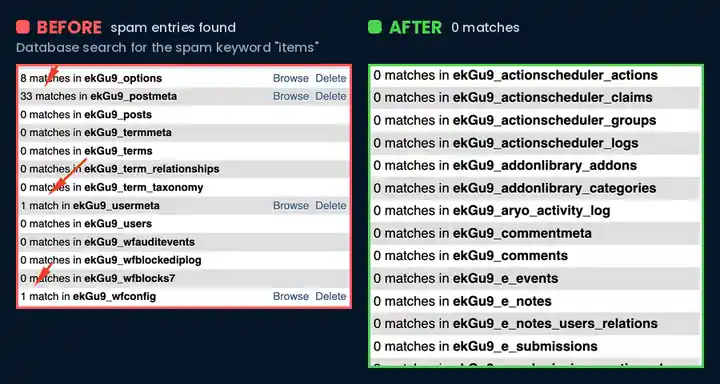
Open phpMyAdmin from your hosting panel and use the Search tab to look through all tables for words from the spam, such as the folder name from the spam URLs, Japanese product names or suspicious domains. Pay close attention to:
wp_options: unknown options, autoloaded entries with long encoded values, or a changedsiteurlorhomevaluewp_posts: posts or pages you didn’t create, often in bulkwp_postmetaandwp_usermeta: injected meta values- Tables created by security plugins, which attackers sometimes use to hide data
In our Japanese keyword hack case study, the spam keyword appeared 43 times across four different tables: options, postmeta, usermeta and the Wordfence configuration table. Cleaning only the files would have left all of that behind.
Be careful here. Deleting the wrong option can break your site, which is one more reason to have that backup from earlier. If you are not sure what an entry does, look it up or ask an expert before removing it.
Step 6: Check your sitemap and robots.txt
Open yourdomain.com/robots.txt and your sitemap, then look for anything you didn’t add. Some versions of this hack create their own sitemap files full of spam URLs so Google indexes the pages faster. Delete any sitemap file that only contains spam links, and remove old spam sitemaps from the Sitemaps report in Search Console.
Step 7: Test that the spam pages are gone
Open several of the spam URLs you found in Step 1. After a successful cleanup, they should return a 404 Not Found error. Check them in the URL Inspection tool as well, because a page that still loads for Googlebot means the infection is not fully removed.
Finally, run a full malware scan again and repeat the database search. Both should come back clean.
How to Remove the Japanese Spam from Google
Once your site is clean, the spam pages will slowly drop out of Google as it recrawls them and sees the 404 errors. You can speed this up in two ways.
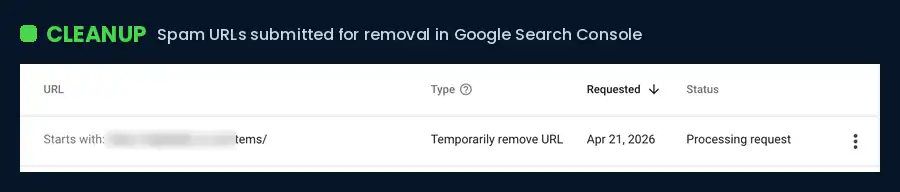
1. Use the Removals tool. In Search Console, the Removals tool lets you hide URLs from search results quickly. If all the spam sits under one folder, you can submit the folder prefix instead of every URL. Keep in mind that a removal only lasts about six months, so it only helps if the pages are really gone.
2. Request a review. If Google shows a warning in the Security Issues report, click “Request Review” after the cleanup and briefly explain what you fixed. Reviews for hacked content usually take a few days.
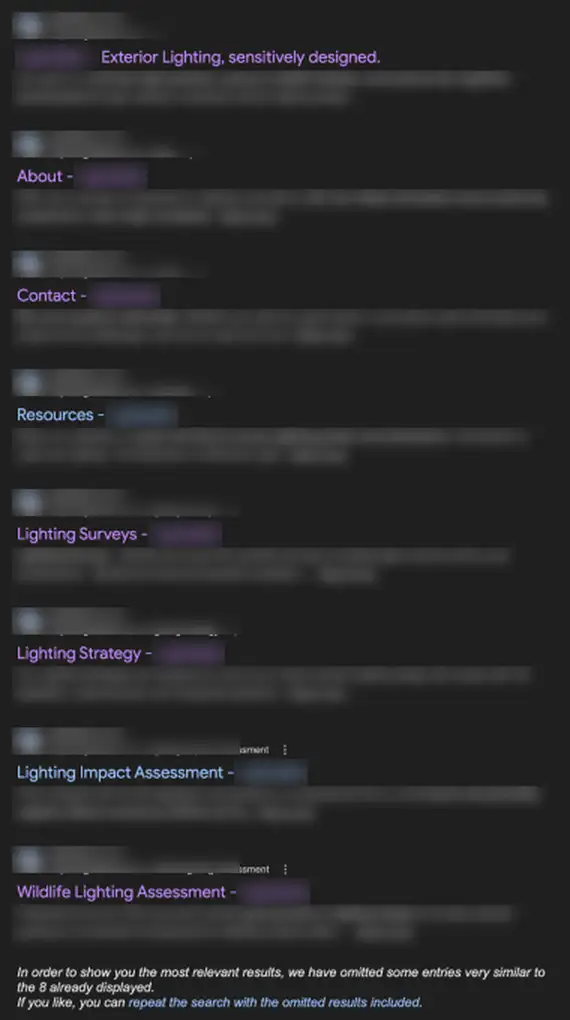
After our client’s cleanup, Google showed only the site’s real pages again:
Common Mistakes That Bring the Hack Back
We regularly clean sites where the owner or another developer already “fixed” the Japanese keyword hack once or twice. These are the usual reasons it came back:
- Only deleting the visible spam pages. The generator stays on the server and creates new ones.
- Skipping the database. Infected options and meta entries can rebuild the spam even after every file is clean.
- Restoring an old backup without checking it. The infection is often older than you think, so the backup may already contain it.
- Leaving the attacker in Search Console. A rogue owner can keep submitting spam sitemaps.
- Not fixing the entry point. If the outdated plugin or leaked password that let them in is still there, they will simply come back.
If your site keeps getting reinfected, read our full guide to removing malware from WordPress for a deeper cleanup process. Spam that returns is usually rebuilt by a hidden file, so also check our guide on finding and removing a WordPress backdoor.
How to Prevent the Japanese Keyword Hack
Most of these infections start with something simple. To keep it from happening again:
- Keep WordPress, themes and plugins updated, and delete anything you don’t use
- Never install nulled themes or plugins
- Use strong, unique passwords and turn on two-factor authentication
- Use a security plugin with a firewall and regular malware scans
- Take automatic off-site backups
- Check Google Search Console once a week for new security issues or unknown users
Our checklist on how to prevent WordPress hacks covers each of these in more detail.
Frequently Asked Questions
Why can’t I see the Japanese pages when I visit my site?
Because of cloaking. The hack shows spam only to Google’s crawler or to visitors coming from search results. Use the URL Inspection tool in Search Console to see what Google sees.
How long does it take for the spam to disappear from Google?
With the Removals tool, the URLs are usually hidden within a day or two. For them to disappear permanently, Google has to recrawl the pages and find them gone, which can take from a few days to several weeks depending on how many spam pages were indexed.
Will the Japanese keyword hack hurt my rankings?
Yes, while it is active. Google may lower trust in your site or show a hacked-site warning. Once the site is clean and the spam is removed, rankings usually recover.
Can I fix it myself?
If you are comfortable with file managers, phpMyAdmin and Search Console, yes. Follow the steps above in order and don’t skip the database. If you are not sure, it is safer to get help, because a partial cleanup often makes the problem last longer.
Need Help Removing the Japanese Keyword Hack?
If you’d rather not dig through database tables yourself, we can do it for you. We clean the files and the database, remove the spam from Google and make sure it doesn’t come back. Start with our hacked website repair service, or choose emergency malware removal if you need help today. If Google is already showing a warning, our Google blacklist removal service handles the review for you.