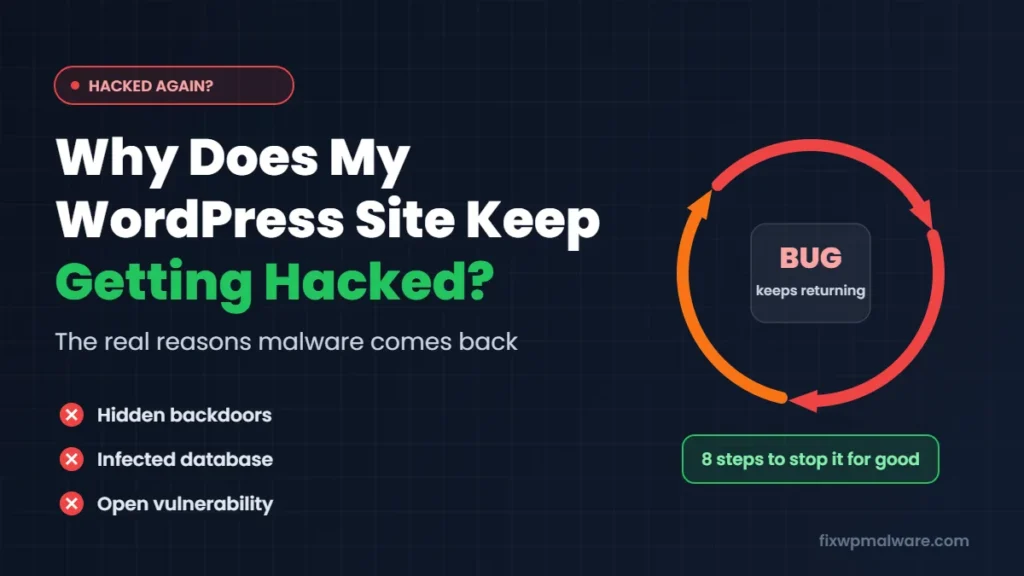
You cleaned the malware. Maybe your host cleaned it too, or you paid someone to do it. A few days later, the redirects are back, the spam pages are back, or Google is showing a warning again. If your WordPress site keeps getting hacked, you are not unlucky. Something from the first attack is still there.
In this guide, we explain the real reasons a WordPress site gets reinfected, how to find what was missed and the exact order we follow to stop the hack from coming back for good.
Why Does My WordPress Site Keep Getting Hacked?
A site that gets hacked again and again almost always has one of two problems:
- The infection was never fully removed. The visible malware was deleted, but a hidden backdoor, an infected database entry or a scheduled task stayed behind and rebuilt everything.
- The way in was never closed. The site was cleaned, but the outdated plugin, weak password or leaked account the attacker used is still there, so they simply walk back in.
Often it is both. Hackers expect site owners to find and delete the obvious malware, so they hide several backup ways to get back in. Let’s go through where those usually are.
1. A Hidden Backdoor Was Left Behind
A backdoor is a small piece of code that lets the attacker upload files or run commands whenever they want. It is the number one reason malware comes back. Backdoors are usually tiny, sometimes just one line, and they are built to look harmless. Our guide on how to find and remove a WordPress backdoor shows exactly where to look and how to clean it.
Common places we find them:
- PHP files inside
wp-content/uploads, where no PHP file should ever be - Files with random or official-sounding names such as
wp-cache.php,class-wp-helper.phpor a string of random letters - Hidden files and folders whose names start with a dot, so they don’t show up in many file managers
- Code added to the top or bottom of real files like
index.php,wp-config.phpor a theme’sfunctions.php - Fake plugins that don’t appear in your plugin list
Here is a real example. On one client site, the malware kept returning even after it had been removed several times. When we looked closer, we found a hidden folder and several empty hidden files, all named with the same random pattern, such as .sc_c5e93706 and .gk_13f4195a. None of them belonged to WordPress or any installed plugin. We also found a db.php file in wp-content that was only 5 bytes, which is not normal for that file.
Empty files like these are often used by malware as markers or locks, to check whether the infection is still in place. Deleting them alone does nothing. The important step is finding which code creates and reads them, because that code is the real backdoor.
2. The Database Was Never Cleaned
Many people clean the files and forget the database completely. But modern WordPress malware often stores its code, settings or spam content in the database, and then writes new infected files from there.
Places to check include:
wp_options: unknown options, long encoded values, injected scripts in widgets, or a changedsiteurlorhomewp_posts: hidden<script>tags or iframes inside posts and pageswp_usersandwp_usermeta: administrator accounts you didn’t create- Scheduled tasks (cron events) stored in the options table that reinstall the malware on a timer
In our Japanese keyword hack case study, the spam keyword was hiding in 43 database entries across four tables. Cleaning only the files would have left all of that behind, and the spam would have come back.
3. The Vulnerability Is Still There
Even a perfect cleanup won’t help if the door is still open. The most common entry points we see are:
- Outdated plugins and themes. Once a vulnerability is made public, bots scan millions of sites for it within days.
- Nulled (pirated) themes and plugins. These very often come with a backdoor already built in.
- Abandoned plugins that no longer receive security updates.
- Weak or reused passwords for WordPress, hosting, FTP or email.
If your WordPress site keeps getting hacked and you don’t know how the attacker got in, you haven’t finished the job. Check your server access logs around the date the first infection appeared, and look at which plugins had known security issues at that time.
4. Other Sites on the Same Hosting Account Are Infected
This one surprises a lot of people. If you have several websites on one hosting account, an old test site, a staging copy or a forgotten WordPress install in a subfolder, they often share the same file permissions. Malware on one site can spread to all the others.
So you clean your main site, and an hour later it is reinfected from the old site sitting next to it. Always check every folder in your hosting account, including public_html subfolders and addon domains. Delete sites you no longer use.
5. The Attacker Still Has Access
Hackers often create their own way back in during the first attack, for example:
- A hidden administrator account in WordPress
- A new FTP or SFTP account in your hosting panel
- An SSH key added to the server
- A stolen password that was never changed
- Access to your Google Search Console, where they can submit their own spam sitemaps
After a hack, change every password (WordPress, hosting, FTP, database and the email linked to your admin account), review all user accounts and generate new security keys in wp-config.php. This logs everyone out, including the attacker.
6. You Restored an Infected Backup
Restoring a backup feels like the fastest fix, but infections are often older than you think. Attackers sometimes wait weeks between breaking in and doing anything visible. If you restore a backup from last week, you may be restoring the backdoor too. Scan any backup before you restore it, and still close the original entry point afterwards.
What We Hear from Clients
When a WordPress site keeps getting hacked, it is one of the most frustrating problems a site owner can have. One of our clients described it like this:
“My site had some very nasty malware. I worked with my host for days but it just kept coming back; we couldn’t figure out how. I hired Monira and she started immediately. It took a few extra steps, but Monira’s communication was great and she was very persistent. She got rid of all the issues. I highly recommend her and would hire her again any time!”
Upwork client, December 2026 (5.0 rating)
That “few extra steps” is usually the difference. A quick scan-and-delete removes what is visible. Stopping reinfection means tracking down every piece of the attack.
What to Do When Your WordPress Site Keeps Getting Hacked
If your site keeps getting reinfected, follow these steps in this order. The order matters.
Step 1: Back up the infected site first
Download your files and export the database before you change anything. This gives you a safe copy to go back to and evidence to study later. Label it clearly as infected.
Step 2: Lock the attacker out
Change all passwords, remove unknown WordPress users, delete FTP accounts you don’t recognize and check Search Console for unknown owners. Do this before cleaning, otherwise the attacker can reinfect the site while you work.
Step 3: Investigate before you delete
This is the step most cleanups skip. Look for files that were changed recently, PHP files in the uploads folder, hidden files and folders, and code using functions like eval, base64_decode or gzinflate. For every suspicious file, find out what it does and what loads it. Deleting a file without understanding it often leaves the real backdoor untouched.
Step 4: Replace WordPress core, themes and plugins with clean copies
Reinstall WordPress core from the dashboard, and reinstall every theme and plugin from its official source. Delete anything you don’t use, and replace nulled software with legitimate versions.
Step 5: Clean the database
Search all tables for injected scripts, spam content and unknown admin users, and check the scheduled cron events for anything you don’t recognize.
Step 6: Clean every site on the hosting account
Scan and clean every other website and folder in the same account, or delete the ones you no longer need.
Step 7: Close the entry point and harden the site
Update everything, enable two-factor authentication, install a firewall, set correct file permissions and disable the built-in file editor by adding define( 'DISALLOW_FILE_EDIT', true ); to wp-config.php. The official WordPress hardening guide explains each of these settings.
Step 8: Monitor closely for the next few weeks
Run malware scans regularly, watch for new files and new user accounts, and keep an eye on Google Search Console. If something comes back, you will know right away, and you’ll know it came from something that was missed.
For the full cleanup process, see our guide to removing malware from WordPress. If you’ve just discovered the hack, start with our checklist on what to do in the first 24 hours.
How to Prevent Future Hacks
Once your site is clean, a few habits make another hack much less likely:
- Update WordPress, themes and plugins every week
- Remove plugins and themes you don’t use
- Use strong, unique passwords and two-factor authentication
- Keep automatic off-site backups
- Use a security plugin with a firewall and scheduled scans
- Never install nulled themes or plugins
Our checklist on how to prevent WordPress hacks covers each of these in detail.
Frequently Asked Questions
Why does malware come back after my host cleaned it?
Many hosting scans only remove files that match known malware signatures. Custom backdoors, database infections and the original vulnerability are often left in place, so the malware returns.
Will a security plugin stop my site from getting hacked again?
A security plugin helps, but it can’t remove a backdoor that was already installed before the plugin was added, and it can’t fix a vulnerable plugin you keep using. It works best after a thorough manual cleanup.
Should I rebuild my site from scratch?
Usually not. A careful cleanup of the files and the database is enough in most cases. A rebuild only makes sense when the site is very old, heavily modified or impossible to update safely.
How long does it take to stop recurring malware?
Most sites can be fully cleaned in a few hours. The investigation takes longer on sites that have been reinfected many times, because every hidden piece has to be found.
Tired of Cleaning the Same Malware Again and Again?
If your site keeps getting hacked, we can find what everyone else missed. We clean the files and the database, remove every backdoor, close the entry point and back the work with a 30-day re-infection guarantee. Get started with our hacked website repair service, or choose emergency malware removal if you need help right now.