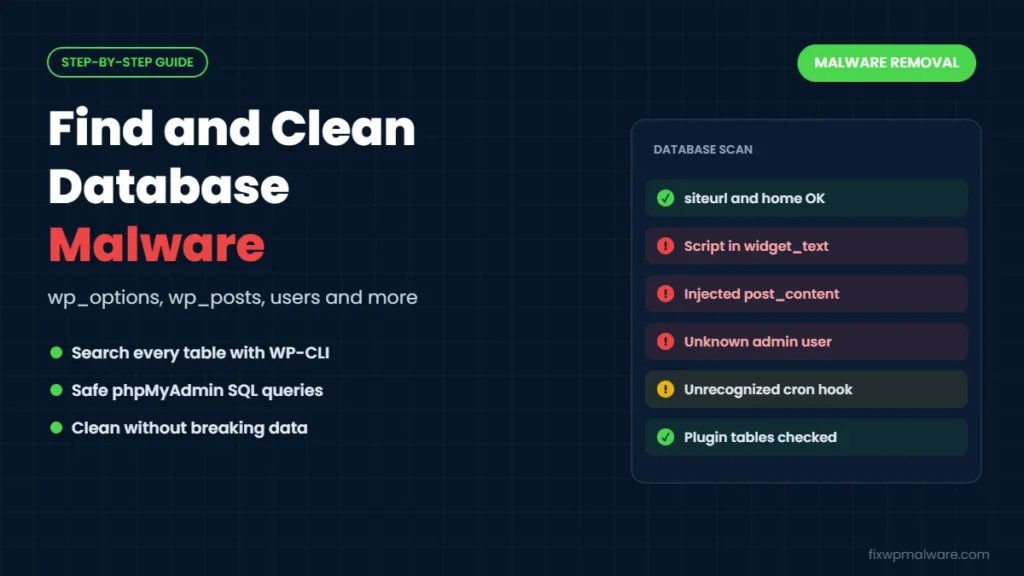
You replaced every WordPress file with a clean copy. Your security plugin says the site is clean. Yet visitors are still redirected, a spam link still appears in your footer, or a strange admin account comes back. When that happens, the infection usually isn’t in your files at all. It’s in the database.
WordPress database malware is easy to miss because most scanners focus on files, and because your content, settings and users all live in the same place as the malicious code. In this guide, we explain where malware hides in the database, how to find it safely with phpMyAdmin or WP-CLI, and how to clean it without breaking your site.
What Is WordPress Database Malware?
WordPress stores almost everything except your code files in a MySQL or MariaDB database: posts, pages, settings, widgets, menus, users and plugin data. WordPress database malware is malicious content an attacker has added to those tables. Common examples include:
- Injected JavaScript in posts, pages or widgets that redirects visitors or loads a skimmer
- Hidden spam links added to posts or theme settings
- Changed site URLs in the
siteurlorhomeoptions that send the whole site elsewhere - Rogue administrator accounts in the users tables
- Malicious code in plugin settings, for example “header and footer scripts” fields
- Spam posts and pages created in bulk, often hidden from your dashboard
Because WordPress outputs this content on every page load, the malware runs even when every file on the server is clean.
Signs Your Database Is Infected
- The infection returns right after you replace core, plugin and theme files
- Redirects or popups appear on specific posts but not others
- Viewing the page source shows a script you didn’t add, often near the top or bottom
- Your dashboard redirects you or the site URL in Settings has changed
- Admin users appear that you didn’t create, or the user count doesn’t match the list
- Google indexes spam pages that you can’t find under Posts or Pages
If you’re dealing with redirects, our guide to the WordPress redirect hack covers the file-based causes too. Spam pages in other languages usually point to a Japanese keyword hack, which often stores content in the database.
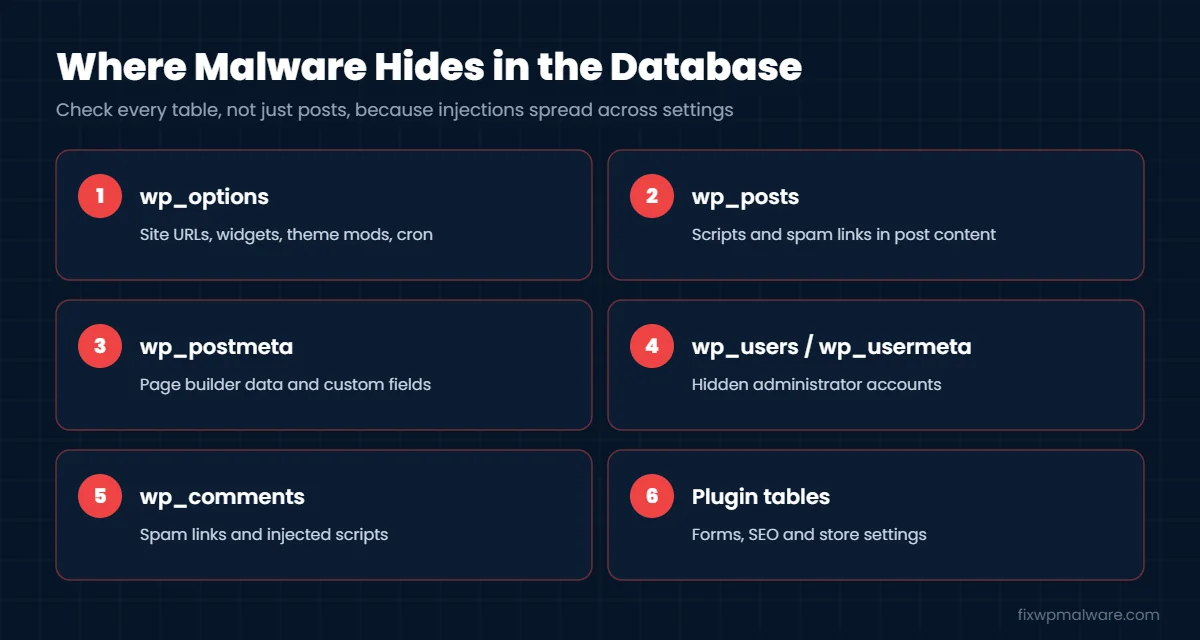
Where Malware Hides in the WordPress Database
The examples below use the default wp_ table prefix. Your site may use a different prefix, so check $table_prefix in wp-config.php and adjust table names to match.
wp_options
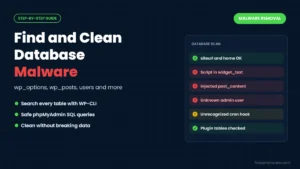
This is the most common hiding place. Check siteurl and home, widget options like widget_text and widget_custom_html, theme settings stored as theme_mods_ followed by your theme name, the active_plugins list, the cron option, and settings from any plugin that lets you add custom header or footer code.
wp_posts and wp_postmeta
Scripts and spam links are often injected into post_content across many posts at once. Don’t forget revisions, which keep old infected copies, and page builder data in wp_postmeta, where builders store page layouts.
wp_users and wp_usermeta
Attackers add administrator accounts here. A user’s role is stored in wp_usermeta under the wp_capabilities key, so a hidden admin may only be visible when you look at both tables together.
wp_comments and plugin tables
Comments can hold spam links or scripts. Plugins also create their own tables, for example for forms, SEO or WooCommerce. A thorough check covers every table in the database, not just the core ones. On stores, card skimmers are sometimes stored in settings fields; see our guide to the WooCommerce credit card skimmer.
How to Find WordPress Database Malware: Step by Step
Step 1: Back up the database first
Never edit an infected database without a backup. With WP-CLI, run wp db export infected-backup.sql, or use the Export tab in phpMyAdmin. WordPress.org explains other methods in its guide to backing up your database. Store the file outside the public web folder and label it as infected.
Step 2: Check the site URLs
Run wp option get siteurl and wp option get home, or look at those two rows in wp_options. Both should show your own domain. If either points somewhere else, the whole site is being redirected from the database.
Step 3: Search every table for scripts and suspicious code
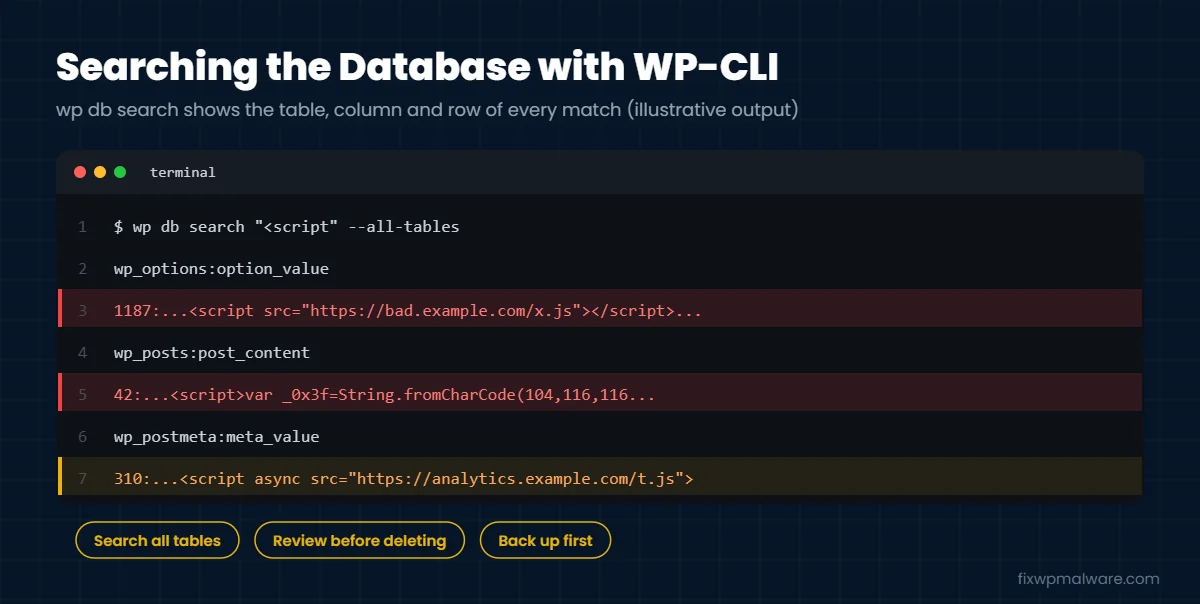
WP-CLI can search the entire database at once. Run each of these and note every table and column that matches:
wp db search "<script" --all-tables --statswp db search "<iframe" --all-tableswp db search "eval(" --all-tableswp db search "base64_decode" --all-tableswp db search "fromCharCode" --all-tables
The --all-tables flag makes sure plugin tables and tables with unusual prefixes are included. See the official wp db search documentation for more options. If you know the domain visitors are redirected to, search for that too. It’s often the fastest way to find the injection.
Step 4: Run the same searches in phpMyAdmin
Without SSH, use the SQL tab in phpMyAdmin. These queries are read-only:
SELECT option_id, option_name FROM wp_options WHERE option_value LIKE '%<script%' OR option_value LIKE '%eval(%' OR option_value LIKE '%base64_decode%';SELECT ID, post_title, post_type FROM wp_posts WHERE post_content LIKE '%<script%' OR post_content LIKE '%<iframe%';
phpMyAdmin’s Search tab can also search all tables for a word at once, which is useful for the redirect domain.
Step 5: Review administrator accounts
Run wp user list --role=administrator, or in phpMyAdmin run SELECT u.ID, u.user_login, u.user_email, u.user_registered FROM wp_users u JOIN wp_usermeta m ON u.ID = m.user_id WHERE m.meta_key = 'wp_capabilities' AND m.meta_value LIKE '%administrator%';. Any admin you don’t recognize, especially one registered around the time of the hack, should be removed.
Step 6: Check scheduled tasks
Run wp cron event list and look for hooks you don’t recognize. A malicious cron event can rewrite infected content back into the database after you clean it.
How to Clean WordPress Database Malware Safely
Review every match before you change anything. Analytics tags, ad codes, chat widgets and page builders legitimately store scripts, so not every <script is malicious.
- Fix site URLs with
wp option update siteurl https://yourdomain.comand the same forhome. - Remove injected strings with WP-CLI. Copy the exact malicious string and preview the change first:
wp search-replace '<script src="https://bad.example.com/x.js"></script>' '' --all-tables --dry-run. If the count looks right, run it again without--dry-run. WP-CLI handles serialized data correctly. - Avoid SQL REPLACE on serialized data. A query like
UPDATE wp_posts SET post_content = REPLACE(post_content, 'malicious string', '') WHERE post_content LIKE '%bad.example.com%';is fine for post content, but using it onwp_optionsor meta values can break serialized settings. - Clean widgets and plugin settings by editing them in the dashboard where possible.
- Delete rogue admins with
wp user delete ID --reassign=YOUR_ID, replacing both values with real user IDs. - Delete spam posts and malicious cron events, then empty old revisions if they contain the injection.
- Search again to confirm zero malicious matches, then clear every cache.
Database cleaning is only one part of a full cleanup. If a backdoor file is still on the server, the code will be injected again. Our WordPress malware removal guide covers the full process, and our guide to WordPress backdoors shows where reinfection usually starts.
How to Keep Your Database Clean
- Keep WordPress, plugins and themes updated, since most injections start with a vulnerable plugin
- Use two-factor authentication and remove admin access people don’t need
- Use a strong, unique database password and don’t expose phpMyAdmin publicly
- Take regular database backups and keep several versions
- Run a monthly database search for scripts and unknown admins
Frequently Asked Questions
Can a security plugin find WordPress database malware?
Some plugins scan posts and options, but many focus on files and skip plugin tables, serialized settings or encoded scripts. A manual search of every table is still the most reliable check.
Is it safe to delete every script tag in the database?
No. Many legitimate tools store scripts in the database. Remove only code you’ve identified as malicious, and always keep a backup.
Why does the malware come back after I clean the database?
Usually because a backdoor file, malicious cron event or rogue admin account is still active and writes the code back. Clean files, users and scheduled tasks too. If it still returns, read our guide on why a WordPress site keeps getting hacked for the less obvious causes, such as other infected sites on the same hosting account.
Should I restore an old database backup instead?
Only if you know the backup was made before the attack, and you accept losing newer content and orders. Check the restored database the same way before going live.
Can I clean the database without WP-CLI?
Yes. phpMyAdmin lets you search tables and edit rows, but be careful with serialized values. For large injections, ask your host whether WP-CLI is available, because it’s much safer for bulk changes.
Need Your Database Cleaned Properly?
We search every table, option and user for injected code, clean it without breaking your settings and remove the backdoors that put it there. Choose emergency malware removal if your site is redirecting or showing spam right now, or our hacked website repair service for a complete cleanup of files, database and security settings.