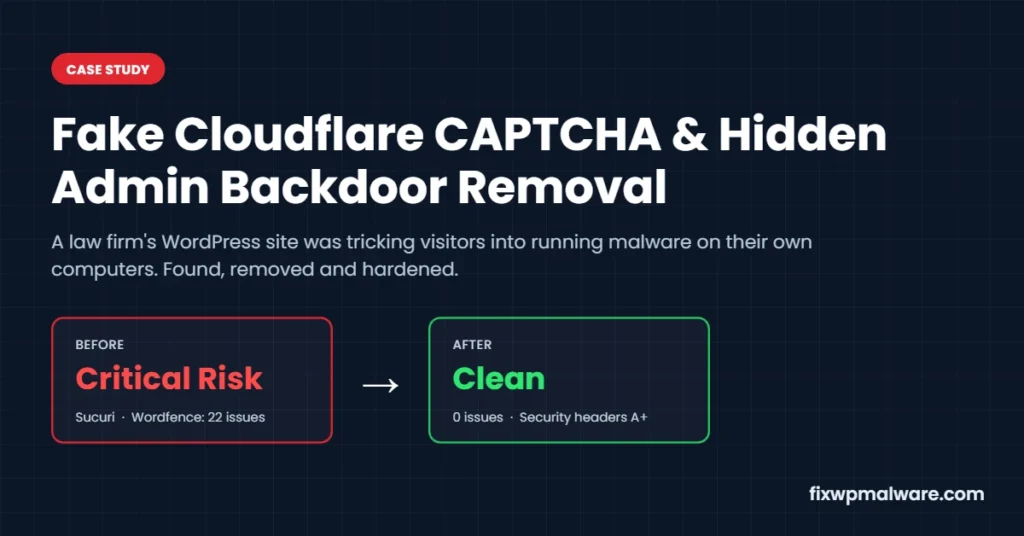
Summary: This case study shows how we removed fake Cloudflare CAPTCHA malware from a US law firm’s WordPress website. The site was showing visitors a fake Cloudflare “Verify you are human” check. The page told people to press Win+X, open Terminal and paste a command, a trick known as ClickFix that installs malware on the visitor’s own computer. We traced it to a fake plugin, a hidden administrator account and two database markers the attacker used to stay in control. Everything was removed, every file was checked against the official originals, and the site went from Critical Security Risk to clean in under 24 hours.
Project Summary
| Platform | WordPress 7.1 + Elementor Pro + Hello Elementor theme |
| Problem | Fake Cloudflare CAPTCHA (ClickFix) shown to visitors |
| Infection found in | Fake plugin, hidden admin account, database options |
| Hosting | SiteGround managed WordPress hosting |
| Scanned | 18,905 files, 44 database tables (about 21,800 rows), 93 live pages, 30 days of access logs |
| Cleanup time | Under 24 hours |
| Tools used | Sucuri SiteCheck, Wordfence, WordPress.org checksums, SiteGround Site Tools, Security Headers |
| Result | No malware in files or database, 0 Wordfence issues, Security Headers D to A+ |
Client details and screenshots are anonymized to protect the law firm.
The Problem: Fake Cloudflare CAPTCHA Malware on a Law Firm Website
The firm contacted us after visitors reported a strange security check on the homepage. Instead of the normal website, people saw a page that looked like a Cloudflare verification box. Under a spinning “Verifying…” icon it listed four steps: press Win+X, press I to open Terminal, press Ctrl+V to paste a command, then press Enter.
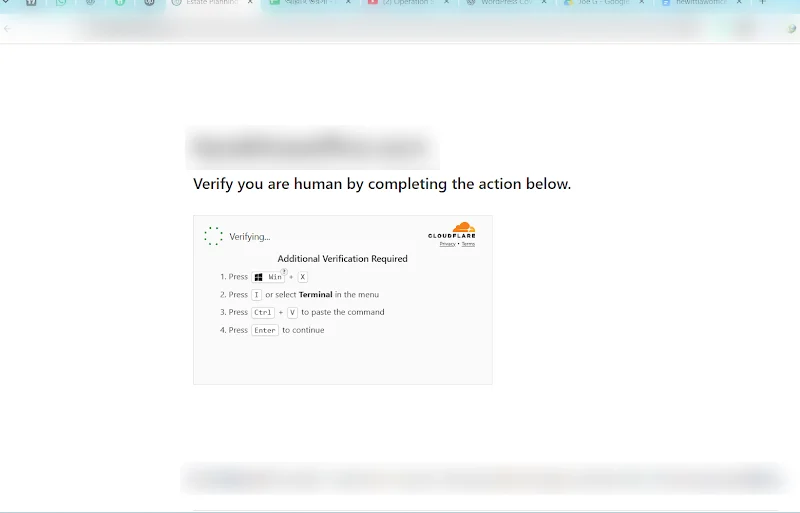
Real Cloudflare checks never ask you to open Terminal or paste anything. This kind of fake Cloudflare CAPTCHA malware is known as ClickFix. When the fake page loads, a script silently copies a malicious command to the visitor’s clipboard. If the visitor follows the steps, they run that command themselves and install malware, usually a password stealer, on their own computer.
For a law firm this is serious. The people visiting the site are clients and potential clients, so the website was being used to attack exactly the people the firm wants to protect.
Initial Security Assessment
Before touching anything, we documented the state of the site with three independent checks.
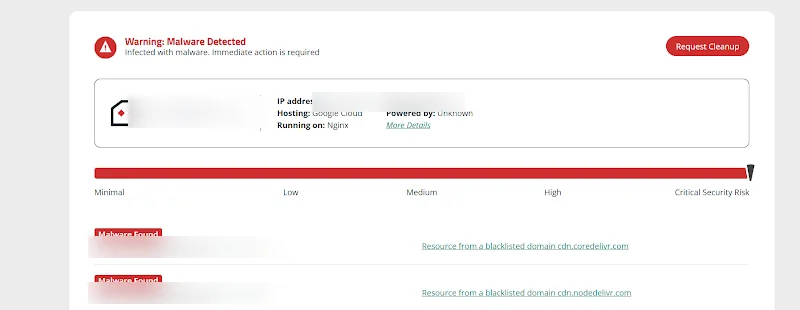
Sucuri SiteCheck rated the site Critical Security Risk with “Malware Detected”. It flagged scripts loading from two blacklisted domains, cdn.coredelivr.com and cdn.nodedelivr.com. Both names are designed to look like real content delivery networks.
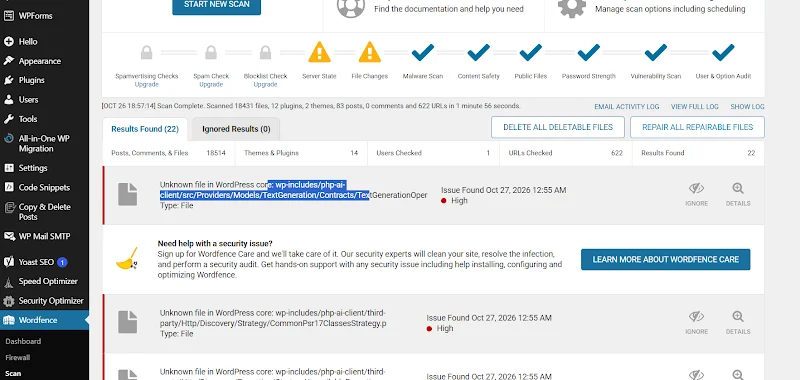
Wordfence reported 22 issues across files and settings.
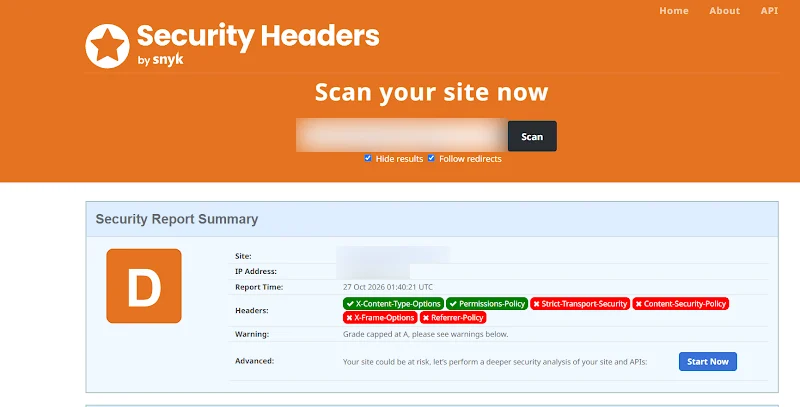
Security Headers gave the site a grade D. Four important headers were missing: Strict-Transport-Security, Content-Security-Policy, X-Frame-Options and Referrer-Policy.
A full backup of the files and database was taken before any change was made.
What We Found: How the Fake Cloudflare CAPTCHA Malware Worked
The fake Cloudflare CAPTCHA malware was not a single file. It had four parts that worked together.
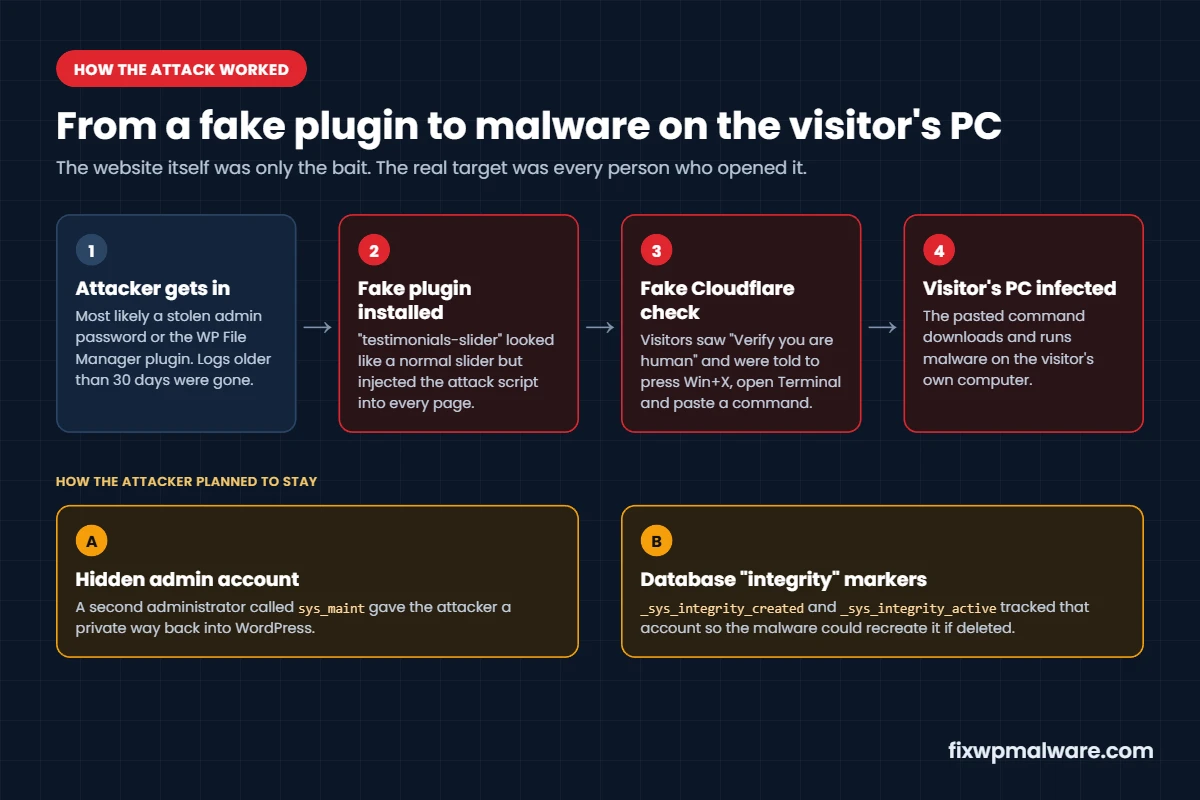
1. A Fake Plugin Called “testimonials-slider”
The site’s plugin folder contained a plugin named testimonials-slider. The name sounds harmless, and a testimonial slider is exactly the kind of plugin a law firm might use. But the firm had never installed it, and it was not the plugin of that name on WordPress.org. Its only job was to inject the fake Cloudflare CAPTCHA malware script into every page.
The server’s PHP error log showed this plugin was already on the site on August 11, 2026, more than two months before the firm noticed anything. That is common: this kind of malware often targets only some visitors, such as first-time Windows users arriving from Google, so the site owner rarely sees it.
2. A Hidden Administrator Account
The attacker had created a second WordPress administrator called sys_maint. A name like that is chosen to look like a system or hosting account, so nobody deletes it. It gave the attacker a private way back into the dashboard even if the main password was changed.
3. Database Markers to Recreate the Backdoor
In the wp_options table we found two settings that do not belong to WordPress or to any installed plugin:
_sys_integrity_createdwith the value2, which is the user ID of the hidden admin_sys_integrity_activewith the value1
These markers let the malware track its hidden admin and recreate it if someone deleted it. If you only delete the fake user and leave these settings, a surviving copy of the malware can quietly bring the account back.
4. A Risky File Manager Plugin
The site had recently run WP File Manager, a plugin with a long history of serious vulnerabilities. It lets anyone with access upload and edit files on the server from the browser. It had been deactivated, but it left behind a settings key, its own database table, a private backup folder and a folder in uploads. Plugins like this are one of the most common ways attackers plant files on WordPress sites.
How the Attacker Got In
The hosting access logs only keep 30 days, and the infection was older than that, so the first entry cannot be proven. The evidence points to two likely routes: a stolen administrator password, or the WP File Manager plugin. Both were closed during the cleanup.
How We Removed the Fake Cloudflare CAPTCHA Malware, Step by Step
- Backup first. A full copy of the files and database was saved before any change.
- Removed the fake plugin. The
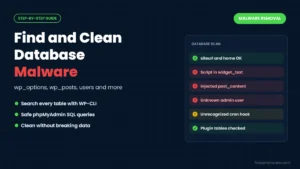
testimonials-sliderfolder was deleted and its leftover settings were checked in the database. - Scanned the whole database row by row. We exported the database and checked all 44 tables, about 21,800 rows, not just posts and options. We looked for injected
<script>tags, iframes,eval,atob, base64 and hex-encoded code, clipboard and PowerShell strings, and every outside domain the site referenced. - Removed the backdoor markers. The two
_sys_integrityoptions were deleted, and we confirmed the hiddensys_maintadmin and all its user data were gone. - Removed WP File Manager leftovers. Its settings, database table and the “recently active plugins” entry were cleaned out.
- Signed everyone out. All saved login sessions were cleared, so any session the attacker still held stopped working.
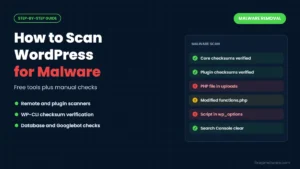
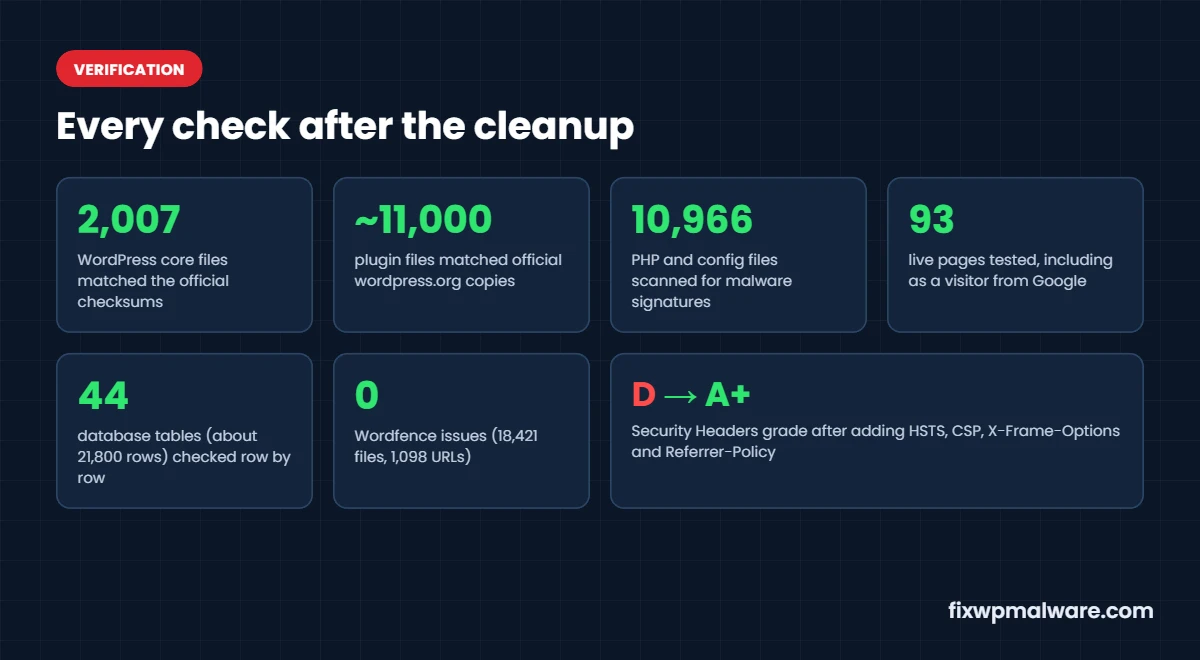
- Verified WordPress core. All 2,007 core files were compared with the official WordPress 7.1.3 checksums. Every file matched, and no extra files were hiding in
wp-adminorwp-includes. - Verified every plugin. About 11,000 plugin files from 10 plugins were compared with the official copies on WordPress.org. All of them matched.
- Scanned for malware signatures. 10,966 PHP and configuration files were searched for common backdoor patterns, including obfuscated code, hidden user creation and webshell functions.
- Checked the server. We reviewed
.htaccess,wp-config.php, must-use plugins, PHP files in uploads, cron jobs, SSH keys and FTP accounts in SiteGround Site Tools. Nothing suspicious remained. - Read the logs. We reviewed 30 days of access logs (about 108,000 requests) and the PHP error logs to understand the timeline and confirm there was no ongoing access.
One detail worth sharing: Wordfence flagged several “unknown files in WordPress core” inside the new wp-includes/php-ai-client folder. These turned out to be genuine WordPress 7.1 files. Checking them against the official checksums proved it, which saved the client from deleting files their site needs.
Hardening the Site So It Stays Clean
- Changed the administrator password and moved the WordPress login to a custom URL
- Added all six recommended security headers, including HSTS, Content-Security-Policy, X-Frame-Options and Referrer-Policy (see our guide on fixing missing security headers in WordPress)
- Installed the Wordfence firewall and malware scanner
- Updated WordPress, all plugins and the theme
The Result
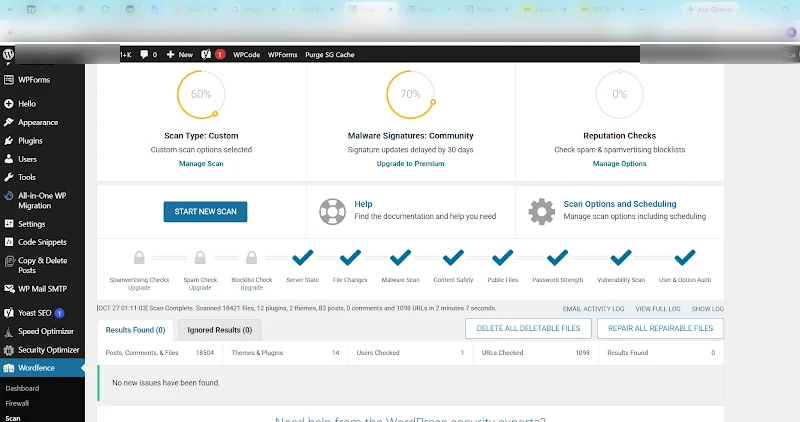
After removing the fake Cloudflare CAPTCHA malware we ran every check again. Wordfence scanned 18,421 files and 1,098 URLs and found no issues.
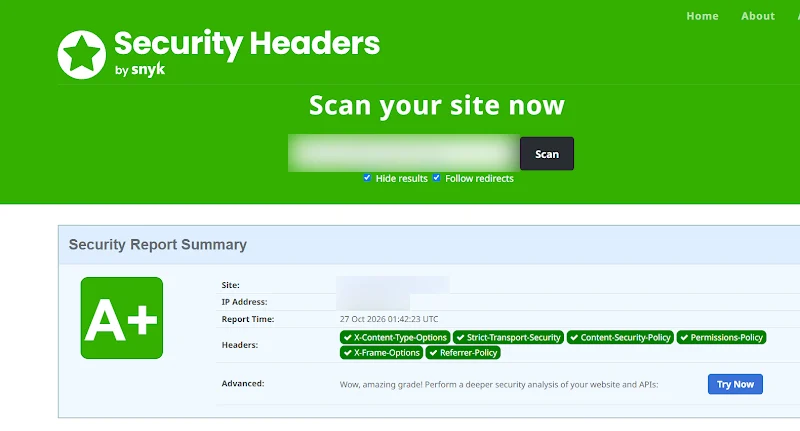
We also loaded all 93 public pages without cache, including as a visitor arriving from Google. The only outside scripts were the firm’s own Google Analytics and call-tracking code. The Security Headers grade went from D to A+.
How to Spot Fake Cloudflare CAPTCHA Malware on Your Website
Site owners often miss this infection because it hides from them. Check for these signs:
- A “Verify you are human” box that asks for keyboard shortcuts. Any page that tells visitors to press Win+R, Win+X or Ctrl+V and then Enter is malicious. Test your site in a private window, on a phone and from a Google search result.
- Scripts from look-alike domains. Names such as
cdnjs-cloud,coredelivrornodedelivrimitate real CDNs. Scan the site with Sucuri SiteCheck or Google Safe Browsing. - Plugins you did not install. Compare the Plugins page with what your team actually uses. A generic name like “testimonials-slider” or “wp-cache-helper” is a common disguise.
- Admins you do not recognise. Names like
sys_maint,wp_supportoradmin2are typical attacker accounts. - Warnings from visitors or browsers. Clients mentioning a strange security check, or a red browser warning, should always be taken seriously.
If you see any of these, do not just delete the plugin and move on. Fake Cloudflare CAPTCHA malware usually leaves a backdoor behind, as this case study shows.
Five Lessons for Law Firms and Professional Websites
- Never install unknown or nulled plugins. The malware here was disguised as an ordinary slider plugin. Only install plugins from WordPress.org or the official vendor.
- Keep WordPress, plugins and themes updated. Most hacks start with old software or a weak plugin.
- Avoid file manager plugins. Use your host’s file manager instead. A browser-based file manager is a gift to an attacker who gets in.
- Check your admin users every month. An admin you do not recognise, even one with a “system” name, is a red flag.
- Delete the fake user and its markers. Removing only the visible malware is not enough. Hidden accounts and database settings are how infections come back. If yours keeps returning, read why a WordPress site keeps getting hacked.
Frequently Asked Questions
What is fake Cloudflare CAPTCHA malware (ClickFix)?
It is a fake “Verify you are human” page that tells visitors to press Win+R or Win+X, paste a command and press Enter. The command is placed on the clipboard by a hidden script. Running it installs malware on the visitor’s computer. A real CAPTCHA never asks you to open Terminal or Run.
Can I remove fake CAPTCHA malware by deleting one plugin?
Deleting the fake plugin stops the fake page, but it rarely ends the infection. In this case the attacker also left a hidden admin account and database markers to recreate it. A full cleanup has to cover files, the database, user accounts and the original way in. We covered another version of this attack in our fake CAPTCHA malware case study.
Why didn’t the site owner see the fake CAPTCHA?
This malware often shows the fake page only to some visitors, for example first-time Windows users or people coming from search engines. Logged-in admins and returning visitors may see the normal site, which is why the infection can run for weeks before anyone notices.
How can I check my site for hidden admin accounts?
Open Users in your WordPress dashboard and filter by Administrator. Delete any account you did not create. If you use WP-CLI, run wp user list --role=administrator. For more signs of a takeover, see our guide on a hacked WordPress admin.
Need Help Removing Fake Cloudflare CAPTCHA Malware?
If your visitors see a strange CAPTCHA, a Sucuri or Google warning, or an admin user you did not create, your site is likely infected. If you are not sure where to start, read what to do in the first 24 hours after a hack.
At Fix WP Malware we have cleaned hacked WordPress sites since 2020. Every job includes a full file and database scan, checksum verification, backdoor removal, hardening and 30 days of free support. Get in touch through our WordPress malware removal service, or choose emergency malware removal if your visitors are at risk right now.