Your WordPress site runs on a database, and the key to that database sits in one small file: wp-config.php. It holds your database name, username and password, your security keys and several settings that control how WordPress behaves. Most site owners never open it, and that’s exactly why attackers love it.
If someone can read or change this file, they can take over your database, log in as any user or quietly load malware on every page. The good news is that it only takes a few minutes to secure wp-config.php properly. In this guide, we explain what’s inside the file, how to tell if it has been tampered with, and the exact steps to lock it down.
What Is wp-config.php and Why Does It Matter?
The wp-config.php file is created when you install WordPress. It usually lives in the root folder of your site, next to wp-admin, wp-content and wp-includes. WordPress loads it on every single request, before anything else runs.
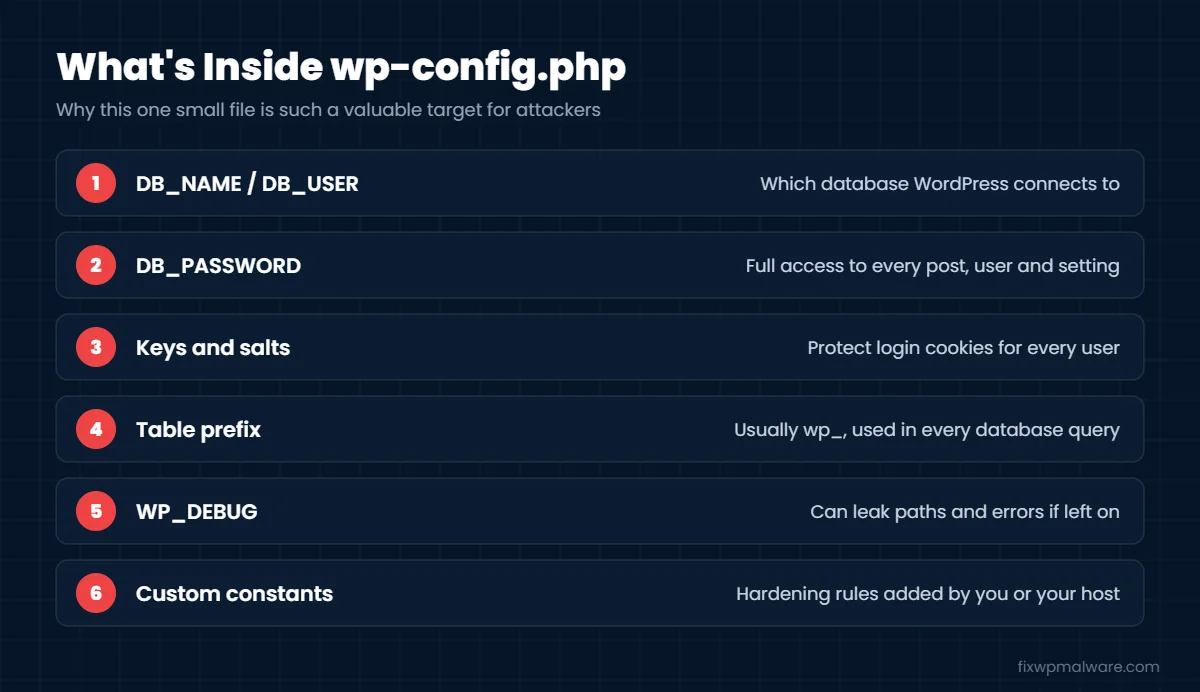
Inside, you’ll typically find:
- Database credentials:
DB_NAME,DB_USER,DB_PASSWORDandDB_HOST - Security keys and salts: eight random strings that protect login cookies
- The table prefix: usually
wp_, unless it was changed during setup - Debug settings: such as
WP_DEBUG - Custom constants: added by you, your host or some plugins
Because WordPress loads this file first, any code placed inside it runs on every page of your site. That makes it one of the most valuable targets for a hacker, right next to .htaccess and your theme’s functions.php.
Signs Your wp-config.php File Has Been Tampered With
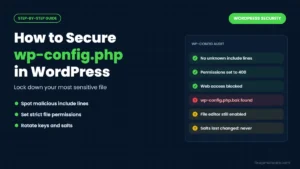
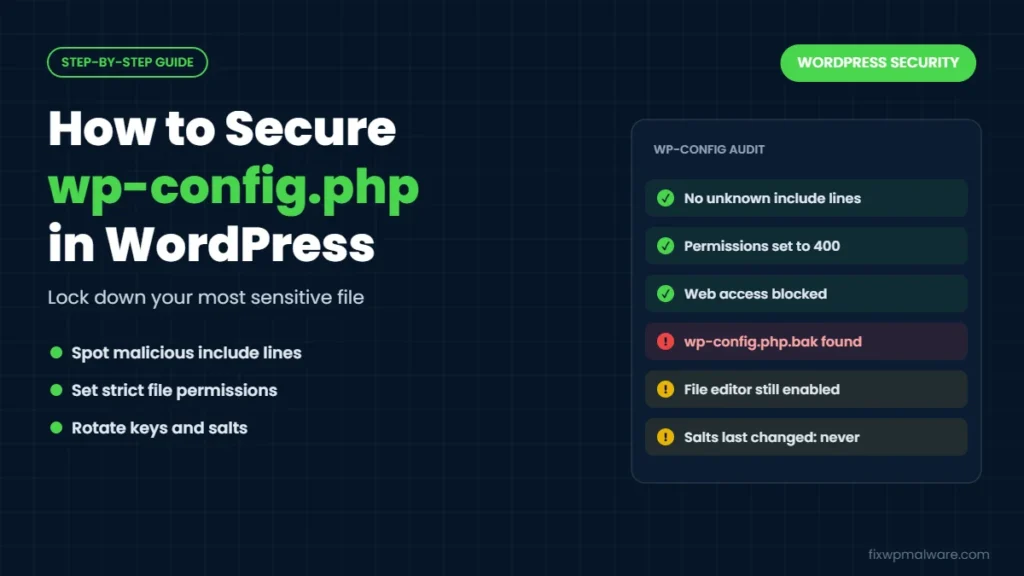
Before you harden the file, make sure it’s clean. Open it in your hosting file manager or over SFTP and look for these warning signs:
- An
include,requireor@includeline that loads a file you don’t recognize, often with a strange name or a path insidewp-content/uploads - Functions like
eval,base64_decode,gzinflateorstr_rot13 - Very long lines of random characters, or a huge amount of blank space that pushes code far to the right
- Code above the opening comment block or after the line that loads
wp-settings.php - A modification date that matches the day your site started acting strangely
- Extra copies such as
wp-config.php.bak,wp-config.oldorwp-config.php~that you didn’t create
If you find any of these, your site has probably been hacked, and the file is only one part of the problem. Our list of hacked website signs helps you check the rest of the site, and our guide on how to find a WordPress backdoor explains why a single extra include line is so dangerous.
Why You Need to Secure wp-config.php
Attackers go after this file for three main reasons:
- To steal your database password. With it, they can connect to your database, create admin users and inject spam or scripts directly into your content.
- To load a backdoor on every page. One line in
wp-config.phpis enough to run malware before WordPress even starts. Many cleanups fail because this line is missed. - To find leaked copies. A backup copy named
wp-config.php.bakorwp-config.txtis often served as plain text by the web server, which means anyone who guesses the name can read your database password in the browser.
Weak file permissions on shared hosting can make the problem worse, because another compromised account or site on the same server may be able to read the file.
How to Secure wp-config.php: Step by Step
You don’t need to be a developer to secure wp-config.php. You only need access to your hosting file manager or SFTP. Take a fresh backup of your files and database before you change anything. Keep a copy of the original wp-config.php on your own computer, not on the server.
Step 1: Check the file for malicious code
Compare your file with wp-config-sample.php, which ships with every WordPress download. Anything that isn’t a normal define() line, the table prefix or the standard comment blocks needs a closer look. If you have SSH access, this command highlights the most common red flags:
grep -nE "eval\(|base64_decode|gzinflate|str_rot13|@include" wp-config.php
Remove anything you didn’t add yourself. If you’re not sure what a line does, ask your developer or your host before you delete it.
Step 2: Delete old copies and backups
Find every version of the file on the server with find . -name "wp-config*". Keep only wp-config.php and wp-config-sample.php. Download any other copies to your computer if you need them, then delete them from the server.
Step 3: Set strict file permissions
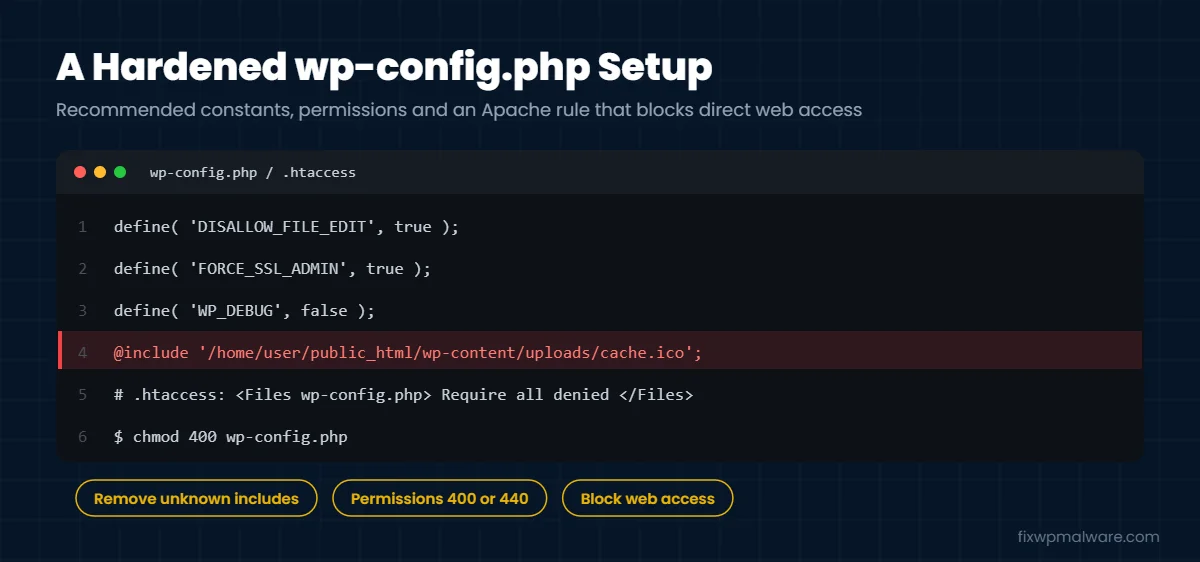
The file only needs to be readable by the account that runs WordPress. On most hosts, chmod 400 wp-config.php or chmod 440 wp-config.php works well. Some server setups need 600 or 640 instead. If your site shows a database connection error after the change, try the next less strict value. Never use 644 on shared hosting if you can avoid it, and never use 777.
Step 4: Block direct web access to the file
PHP files are normally executed, not displayed, but a server misconfiguration can expose their source code. Add a rule as an extra safety net. On Apache or LiteSpeed, add this to the .htaccess file in your WordPress root, outside the # BEGIN WordPress block:
<Files wp-config.php>
Require all denied
</Files>
On Nginx, add location = /wp-config.php { deny all; } to your server block, or ask your host to do it for you.
Step 5: Move wp-config.php one level up (optional)
WordPress automatically looks for wp-config.php in the folder above your WordPress root if it can’t find it in the root itself. For example, if WordPress lives in public_html, you can move the file to the folder that contains public_html, which is outside the public web folder. This only works when WordPress is installed in the root of that folder, and it doesn’t work if the parent folder contains its own WordPress installation. Test the site right after moving the file.
Step 6: Replace your security keys and salts
New keys log out every user, including any attacker with a stolen login cookie. With WP-CLI, run wp config shuffle-salts. Without WP-CLI, generate new keys with the official WordPress salt generator at api.wordpress.org and replace the eight define() lines by hand.
Step 7: Add hardening constants
Add these lines above the comment that says “That’s all, stop editing!”:
define( 'DISALLOW_FILE_EDIT', true );turns off the theme and plugin editor in the dashboard, so a stolen admin login can’t be used to edit PHP files.define( 'FORCE_SSL_ADMIN', true );makes sure logins and admin pages always use HTTPS.define( 'WP_DEBUG', false );keeps error messages, file paths and database details off your public pages.define( 'DISALLOW_FILE_MODS', true );blocks plugin and theme installs and updates from the dashboard. Only use this if you update through WP-CLI, SFTP or your host, or your site will stop getting updates.
With WP-CLI, you can add a constant safely with wp config set DISALLOW_FILE_EDIT true --raw. The official Editing wp-config.php handbook explains these and many other constants.
Step 8: Lock down the database user
Use a long, random database password that isn’t used anywhere else. Give each site its own database user, and don’t use the main hosting account or a root user in wp-config.php. If you suspect the file was ever exposed, change the database password in your hosting panel first, then update DB_PASSWORD to match.
How to Keep wp-config.php Secure Long Term
When you secure wp-config.php once, that’s a good start, but it won’t help if the rest of the site stays weak. Keep these habits:
- Turn on file change monitoring in your security plugin, so you get an alert when
wp-config.phpchanges. - Never store backups in the web root. Use your host’s backup system or an off-site backup plugin.
- Use SFTP, not FTP, so your credentials aren’t sent in plain text.
- Keep WordPress, plugins and themes updated, because most attackers get in through outdated plugins, not through the config file itself.
- Add security headers as another layer of protection. See our guide on fixing missing security headers in WordPress.
Our full checklist on how to prevent a WordPress hack covers the rest of the hardening steps.
Is Changing the Table Prefix Worth It?
You’ll often see advice to change the wp_ table prefix. It can block a few lazy automated attacks, but it doesn’t stop a real attacker, because anyone who can read wp-config.php or run SQL on your site can see the prefix anyway. Changing it on a live site also means renaming tables and updating option and usermeta values, which can break things. For most sites, the steps above give far more protection for much less risk.
Frequently Asked Questions
Can visitors see my wp-config.php in the browser?
On a correctly configured server, no. The server runs the PHP code and returns a blank page. The real risk comes from backup copies with other extensions, server misconfigurations and malware that reads the file from inside the server. That’s why you should still block access and remove extra copies.
What permissions should wp-config.php have?
Use 400 or 440 when your host allows it, and 600 or 640 if those cause errors. The goal is that only the account running WordPress can read the file.
Will moving wp-config.php break my site?
It shouldn’t, as long as WordPress is installed in the root of the folder and you move the file exactly one level up. Some hosts and staging tools expect the file in the root, so test right away and move it back if anything stops working.
Should I secure wp-config.php if my site has already been hacked?
Yes, but clean the site first. Hardening a file that already contains a backdoor include, or a site that still has malware elsewhere, won’t keep the attacker out. Follow our WordPress malware removal guide, then lock the file down.
Do I need to change my database password after a hack?
Yes. If the attacker had access to your files, assume they read wp-config.php. Change the database password, update the file and replace the security keys.
Need Help Securing Your Hacked WordPress Site?
If you found strange code in wp-config.php, the attacker most likely left more behind. We clean the file, remove every backdoor and injected script, reset your credentials and harden the whole site so it stays clean. Get started with our hacked website repair service, or choose emergency malware removal if your site is under attack right now.