Something feels off with your website. Maybe a visitor mentioned a strange popup, Google traffic dropped for no clear reason, or your host sent an email about suspicious files. You want to know if the site is infected, but you’re not sure where to start or which tools you can trust.
The good news is that you can scan WordPress for malware for free, and you can go further with a few manual checks that catch what automated scanners miss. In this guide, we explain how each type of scan works, which free tools to use, and the exact manual steps we use to confirm whether a WordPress site is clean.
What Does It Mean to Scan WordPress for Malware?
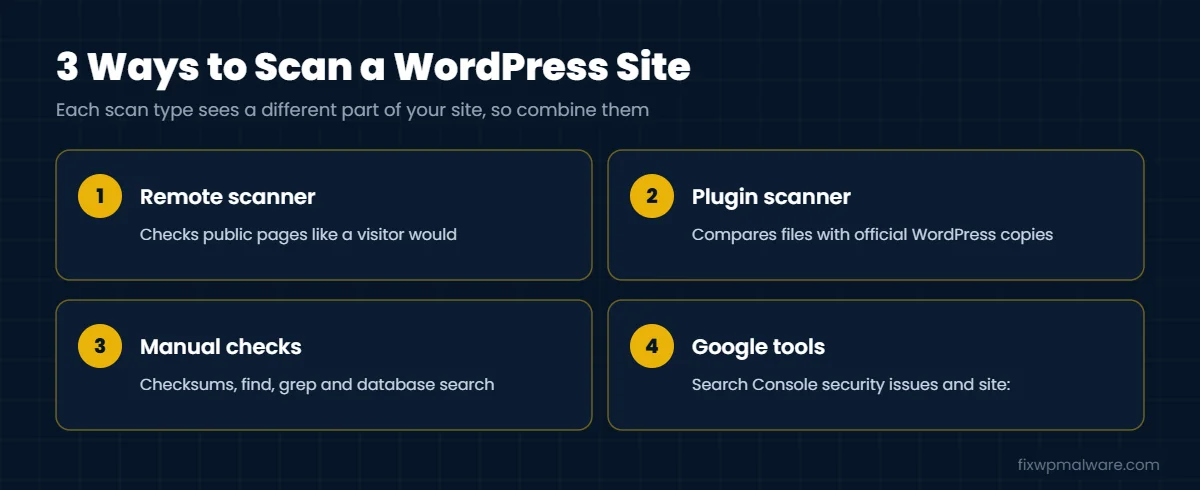
A malware scan looks for code, files or content on your site that shouldn’t be there. That includes spam pages, malicious redirects, injected JavaScript, backdoors and fake admin users. There are three main types of scans, and each one sees a different part of your site:
- Remote (external) scanners: load your site from the outside, like a visitor would, and look for malicious code in the pages they can see
- Server-side scanners: run inside WordPress or on your server, and check the actual files and sometimes the database
- Manual checks: you compare files with official copies, search for suspicious code and review the database yourself
No single method catches everything. A remote scanner can’t see a backdoor file that never shows up on a page. A plugin scanner can miss malware that only appears to Google or to mobile visitors. The most reliable approach combines all three.
Signs You Should Run a Scan Now
- Visitors are redirected to scam, gambling or adult sites, sometimes only on mobile
- Google shows spam titles or foreign-language results under your domain
- Chrome or another browser shows a red warning page
- Unknown administrator users appear in your dashboard
- Your host suspends the site or reports malicious files
- The site becomes slow, or your hosting resource usage suddenly jumps
For a longer list, see our guide to the signs of a hacked website. Even if you see no signs at all, a monthly scan is a good habit, because many infections are designed to stay quiet.
Why Malware Is Hard to Find
Modern malware hides on purpose. It often shows itself only to certain visitors, for example people arriving from Google, phone users, or search engine bots, while logged-in admins see a normal site. The code itself is usually obfuscated with encoding and strange variable names, and it’s often tucked inside real WordPress files or stored in the database instead of a file.
That’s why a clean result from one scanner doesn’t mean your site is clean. It only means that scanner didn’t find anything in the places it can see. When you scan WordPress for malware, plan to use more than one method and compare the results.
Free Ways to Scan WordPress for Malware
Start with these free tools. They’re quick and don’t require technical skills.
Step 1: Run a remote scan
Free online scanners such as Sucuri SiteCheck load your homepage and report visible malware, spam, injected scripts and blacklist status. They’re a fast first check, but they only see public pages and can’t inspect files on your server. Scan a few inner pages too, not just the homepage.
Step 2: Check Google and VirusTotal
Open Google Search Console and look at the Security issues report. If Google has detected malware, hacked content or phishing, it will be listed there. Our guide to Google Search Console security issues explains each warning. Then paste your URL into VirusTotal to see whether security vendors have flagged it.
Step 3: Run a server-side plugin scan
Install a reputable security plugin with a free scanner, such as Wordfence or a similar tool, and run a full scan. These scanners compare your core, plugin and theme files with the official versions from WordPress.org and look for known malware patterns. Turn on the option to scan files outside WordPress if your plugin offers it.
Step 4: Search Google for spam pages
Search for site:yourdomain.com and look through the results. Then try site:yourdomain.com casino or site:yourdomain.com viagra. Spam pages from a Japanese keyword hack or pharma hack often appear here before you notice them anywhere else.
Manual Ways to Scan WordPress for Malware
If you have SSH access and WP-CLI, these checks go deeper than any free scanner. Take a full backup before you start, and run commands from your WordPress root folder.
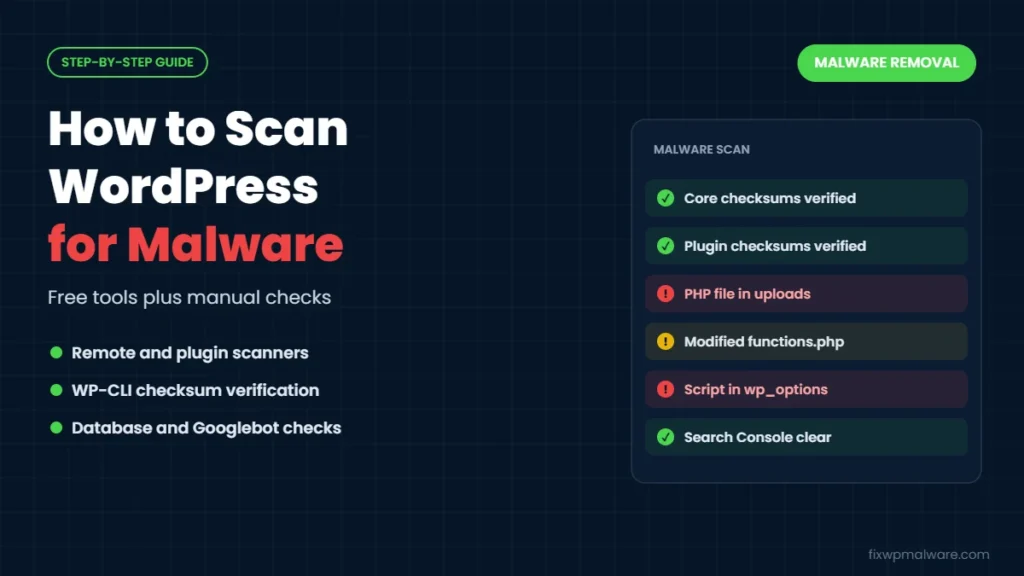
Step 5: Verify core and plugin checksums
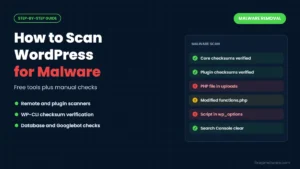
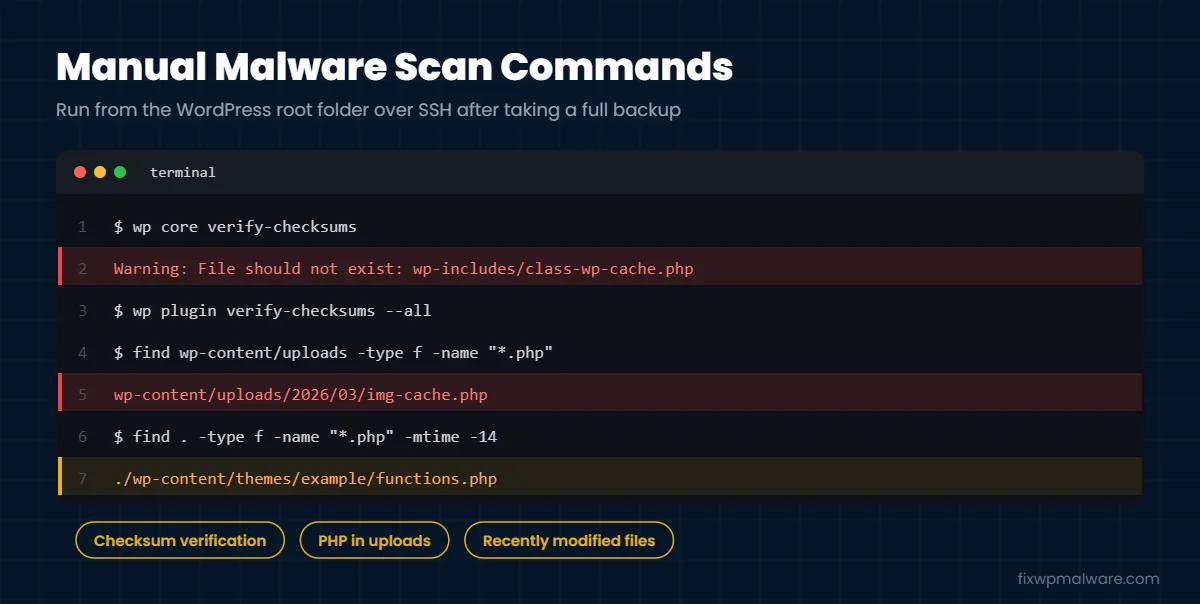
Run wp core verify-checksums to compare every core file with the official WordPress release. It reports modified files and extra files that shouldn’t be in core folders. Then run wp plugin verify-checksums --all to check plugins from the WordPress.org directory. Premium plugins aren’t in the directory, so they’ll be skipped and need to be checked by reinstalling a fresh copy. See the WP-CLI documentation for wp core verify-checksums for all options.
Step 6: Find PHP files in the wrong places
The uploads folder should not contain PHP. List any you find with find wp-content/uploads -type f -name "*.php". Also open wp-content/mu-plugins and check every file there, because must-use plugins load automatically and don’t show in your normal plugin list.
Step 7: Check recently changed files
List PHP files modified in the last two weeks with find . -type f -name "*.php" -mtime -14. Files that changed when you didn’t update anything deserve a closer look. Attackers can fake dates, so treat this as a clue, not proof.
Step 8: Search for suspicious code
Search your PHP files for functions that malware commonly uses: grep -rnE "eval\(|base64_decode\(|gzinflate\(|str_rot13\(" --include=*.php wp-content. Legitimate plugins sometimes use these functions too, so review each match in context. Very long lines of random characters and code before the first comment of a file are strong warning signs.
Step 9: See what Google sees
Some malware only shows spam to search engines. Compare what a normal visitor sees with what Googlebot sees by running curl -sL -A "Mozilla/5.0 (compatible; Googlebot/2.1; +http://www.google.com/bot.html)" https://yourdomain.com/ | grep -iE "casino|viagra|loan". Any match that doesn’t appear in your normal page source points to cloaked spam.
Step 10: Scan the database
Malware is often stored in the database, where file scanners never look. Search all tables for injected scripts with wp db search "<script" --all-tables, then review the results for scripts you didn’t add. Also list administrators with wp user list --role=administrator and check scheduled tasks with wp cron event list.
What to Do If the Scan Finds Malware
Don’t just delete the flagged file and move on. Visible malware is usually reinstalled by a hidden backdoor, so a partial cleanup often fails within days. Instead:
- Back up the infected site and label the backup clearly
- Change all passwords and remove unknown users
- Replace WordPress core, plugins and themes with fresh copies
- Clean the database and remove every backdoor
- Request reviews for any Google or browser warnings
Our full WordPress malware removal guide covers each step, and our guide on finding a WordPress backdoor shows where hidden access usually lives.
How to Keep Your Site Clean After a Scan
- Schedule automatic scans at least weekly in your security plugin, and scan WordPress for malware manually once a month
- Turn on file change alerts so you know when new PHP files appear
- Keep WordPress, plugins and themes updated, and delete what you don’t use
- Use two-factor authentication for every administrator
- Never install nulled themes or plugins
For a complete prevention plan, read our guide on how to prevent WordPress hacks.
Frequently Asked Questions
Can I scan WordPress for malware without a plugin?
Yes. Remote scanners, Google Search Console and VirusTotal need no plugin at all. If you have SSH access, WP-CLI checksum checks, find and grep give you a deeper manual scan without installing anything on the site.
Is a free malware scanner enough?
Free scanners are good at catching known malware and modified core files. They often miss custom backdoors, database injections and malware that only shows to search engines or mobile visitors. Use them as a first step, then add manual checks.
My scanner says the site is clean, but Google still shows a warning. Why?
The malware may be hidden from the scanner, stored in the database or shown only to Googlebot. It’s also possible the site was cleaned but you haven’t requested a review in Search Console yet.
How often should I scan my WordPress site?
Run automated scans at least weekly and a deeper manual check monthly, or right away if you see any warning signs.
Can a scan damage my site?
Scanning itself only reads files, so it won’t change anything. Problems happen when files are deleted without review. Always take a backup before removing anything a scanner flags.
Found Malware, or Not Sure What the Results Mean?
Scan reports can be confusing, and a missed backdoor means the infection comes back. We scan your files, database and server manually, remove every trace of malware and secure the site so it stays clean. Choose emergency malware removal if your site is infected right now, or our hacked website repair service for a complete cleanup and hardening.