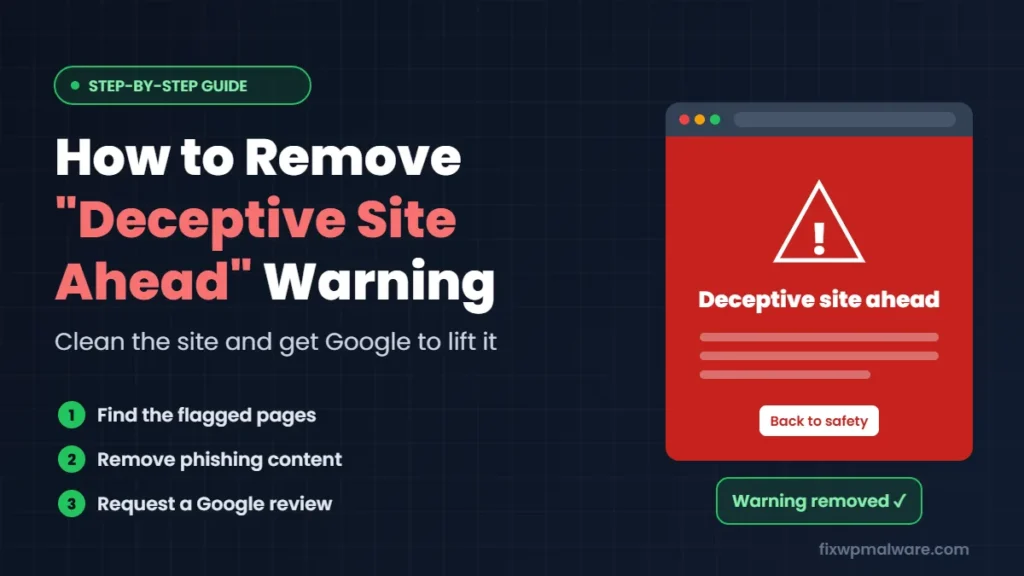
You open your website and instead of your homepage, Chrome shows a full red screen: “Deceptive site ahead. Attackers on this site may trick you into doing something dangerous like installing software or revealing your personal information.”
Your visitors see the same thing. Most of them will leave immediately, sales and enquiries stop, and in many cases Google search traffic drops too. The good news is that this warning can be removed, usually within a few days once the cause is fixed. This guide explains exactly why Google shows it and how to get rid of it step by step.
What Does “Deceptive Site Ahead” Mean?
“Deceptive site ahead” is a warning from Google Safe Browsing, the system that protects Chrome, Firefox, Safari and other browsers from harmful websites. Google shows it when it believes a page on your site is using social engineering: trying to trick people into doing something they wouldn’t normally do.
According to Google’s documentation on social engineering, this usually means one of these things:
- Phishing: a page that tricks users into entering passwords, card details or other personal information, often by copying a bank, PayPal, Microsoft or another well-known brand
- Deceptive content: fake download buttons, fake virus alerts, fake browser updates or fake CAPTCHA pages that push visitors to install software or run commands
- Unclear third-party services: a service that pretends to be something it isn’t, without making clear who actually runs it
You may also see related Safe Browsing warnings such as “Dangerous site”, “The site ahead contains malware” or “The site ahead contains harmful programs”. The cleanup process is very similar for all of them. If the warning appears under your site in Google search results instead, see our guide on how to fix “This site may be hacked”.
Why Is My Website Showing This Warning?
If you run a normal business website, you didn’t create a phishing page. In almost every case we handle, the site was hacked and the attacker added the deceptive content. The most common causes are:
- Hidden phishing pages. Attackers upload fake login pages for banks, delivery companies or email providers into a random folder on your server, then send the link out in spam emails. Your homepage looks fine, but Google finds the phishing page.
- Fake CAPTCHA or fake browser update popups. Malicious JavaScript shows visitors a fake “verify you are human” box or “update your browser” message that tells them to run a command or download a file. We covered a real example in our fake CAPTCHA malware case study.
- Malicious redirects. Visitors from Google or mobile devices are silently sent to scam pages, fake prize pages or tech support scams.
- Bad ads or third-party scripts. Occasionally the problem comes from an ad network, chat widget or other embedded script that started serving deceptive content.
Only rarely is the warning a genuine false positive. Before you assume that, check carefully, because requesting a review while the deceptive content is still there only slows things down.
Step 1: Confirm the Warning and Find the Affected Pages
Start by finding out exactly what Google has flagged.
- Check Google Search Console. Go to Security & Manual Actions, then Security issues. You will usually see “Deceptive pages” or “Phishing” along with example URLs. Our guide to Google Search Console security issues explains each warning type.
- Check the Google Transparency Report. Enter your domain in Google’s Safe Browsing site status tool to see whether your site is currently listed as dangerous.
- Check other blacklists. Safe Browsing isn’t the only list. Scan your domain on VirusTotal too, because other security vendors often flag the same problem. Our guides on VirusTotal blacklist removal and McAfee website block removal explain how to handle them.
Write down every example URL Google shows. They are your best clue to where the problem is.
Step 2: Take a Backup and Lock the Attacker Out
Download a full copy of your files and database before you change anything, and label it clearly as infected. Then change every password: WordPress admin, hosting control panel, FTP or SFTP, and the database. Remove any WordPress user or hosting account you don’t recognize, and check Search Console for unknown owners.
Doing this first stops the attacker from putting everything back while you clean.
Step 3: Find and Remove the Deceptive Content
Now look for the content that triggered the warning. Where to look depends on the example URLs:
- URLs pointing to folders you don’t recognize (for example
/wp-content/uploads/2026/secure-login/or/.well-known/bank/): these are usually uploaded phishing kits. Check the folder, note what’s inside and delete the whole kit. - Your normal pages being flagged: the deceptive content is probably injected JavaScript. Look for unfamiliar
<script>tags in your theme files, inwp_options(widgets and theme settings) and inside posts inwp_posts. - Redirects that only happen sometimes: check
.htaccess,index.php,wp-config.phpand your theme’sfunctions.phpfor code that sends certain visitors elsewhere.
Then do a full cleanup, not just the flagged pages:
- Run a malware scan of all files.
- Reinstall WordPress core, and reinstall themes and plugins from their official sources.
- Search for PHP files in the uploads folder, hidden files and recently modified files.
- Search the database for injected scripts and suspicious links.
- Remove any ad network, widget or third-party script you don’t fully trust.
Our step-by-step guide to removing malware from WordPress covers each of these in detail.
Step 4: Fix How the Attacker Got In
If you remove the phishing pages but leave the door open, they will be back within days, and a second warning is harder to remove than the first. Update WordPress, every plugin and every theme. Delete plugins you don’t use, replace any nulled (pirated) software and turn on two-factor authentication for all admin accounts.
If this isn’t the first time your site has been flagged, read why a WordPress site keeps getting hacked. Something from the first attack is almost certainly still there.
Step 5: Double-Check That the Site Is Clean
Before you ask Google for a review, confirm everything is gone:
- Every example URL from Search Console now returns a 404 Not Found or shows your normal content.
- Use the URL Inspection tool in Search Console to run a live test on those URLs and see exactly what Googlebot sees.
- Open your site on a phone and in a private browser window, and follow a link from Google search, because some malware only shows itself to visitors from search or mobile.
- Run a fresh malware scan and repeat the database search.
Step 6: Request a Review from Google
When you’re sure the site is clean, go back to the Security issues report in Search Console, confirm that you’ve fixed the issues and click Request Review. In the text box, briefly explain:
- What the problem was (for example, “phishing pages uploaded to the uploads folder after a plugin vulnerability”)
- What you removed and cleaned
- How you secured the site so it doesn’t happen again
Google says a review can take anywhere from a few days to a few weeks. In our experience, well-documented deceptive site reviews are often processed within a few days. Don’t submit another request while one is pending, because it can slow things down.
If you can’t use Search Console, you can also report a warning you believe is incorrect through Google’s Safe Browsing report form, but the Search Console review is the main route for site owners.
How Long Does It Take to Remove “Deceptive Site Ahead”?
It depends mostly on how quickly the site is cleaned:
- Cleanup: a few hours for most WordPress sites, longer if the site has been reinfected several times
- Google review: usually a few days, sometimes longer
- Warning disappearing for visitors: shortly after Google approves the review, although browsers can take a little while to update their lists
The biggest delay is usually a failed first review. If Google still finds deceptive content, the next review takes longer, so it pays to be thorough the first time.
How to Prevent the Warning from Coming Back
- Keep WordPress, themes and plugins updated every week
- Use strong, unique passwords and two-factor authentication
- Use a firewall and scheduled malware scans
- Only use ad networks and scripts from trusted providers
- Check Google Search Console regularly so you see new security issues early
Frequently Asked Questions
Can visitors still open my site when the warning is showing?
Technically yes, by clicking “Details” and choosing to visit the site anyway, but very few people do. For most businesses, the warning stops almost all traffic from that browser.
Will “Deceptive site ahead” hurt my Google rankings?
Google may show a warning next to your site in search results, and visitors who click will see the red screen, so traffic usually drops sharply. Once the review is approved, rankings normally return as Google recrawls the site.
What if my site isn’t hacked and the warning is a mistake?
False positives do happen, but they are rare. Check every example URL, your third-party scripts and your ads first. If everything is truly clean, request a review in Search Console and explain why you believe the flag is incorrect.
Does removing the warning in Chrome also remove it in other browsers?
Yes. Firefox, Safari and other browsers use Google’s Safe Browsing list, so once Google clears your site, the warning goes away in all of them. Other security vendors, like the ones on VirusTotal, have separate lists and need separate requests.
Need the Red Warning Gone Fast?
Every day the “Deceptive site ahead” warning stays up costs you visitors and trust. We find and remove the phishing pages and malicious code, close the entry point and handle the Google review for you. Get started with our Google blacklist removal service, or choose emergency malware removal if your site is losing customers right now.