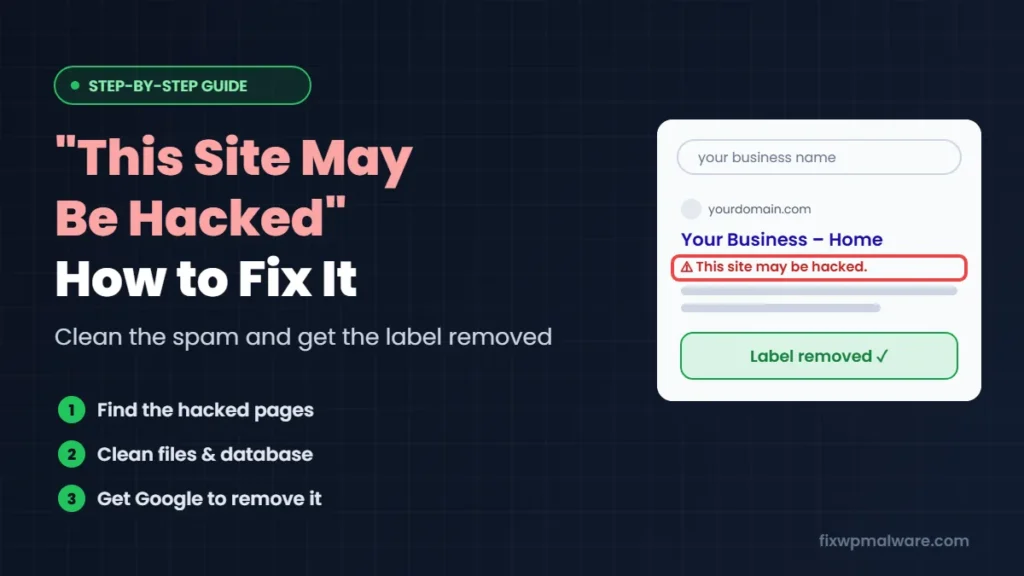
You search for your business in Google, and right under your website’s name there is a small line of text: “This site may be hacked.” Nobody wants to click a result like that. Visitors skip your site, your traffic drops and people start asking whether it is safe to do business with you.
This warning doesn’t appear by accident. It means Google has found signs that someone else has taken control of part of your website. In this guide, we explain what the label means, why Google adds it and exactly how to remove it, step by step.
What Does “This Site May Be Hacked” Mean?
“This site may be hacked” is a label Google shows in its search results, under the title of an affected website. According to Google’s Search Console Help, labels like “This site may be hacked” or “This site may harm your computer” appear next to sites that Google believes are compromised or dangerous.
It is different from the full-screen red warnings you might have seen in Chrome:
- “This site may be hacked” appears in Google search results. People can still click through to your site, but most won’t.
- “Deceptive site ahead” or “Dangerous site” appear in the browser and block the page completely. If you see those, read our guide on how to remove the Deceptive site ahead warning.
The “may be hacked” label is usually about spam: pages, links or redirects that a hacker added to your site to promote their own products.
Why Does Google Show This Label?
Google adds the label when it finds content on your site that the owner almost certainly didn’t create. The most common causes we see on WordPress sites are:
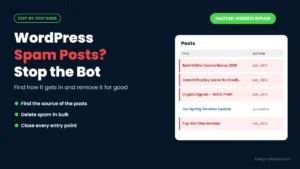
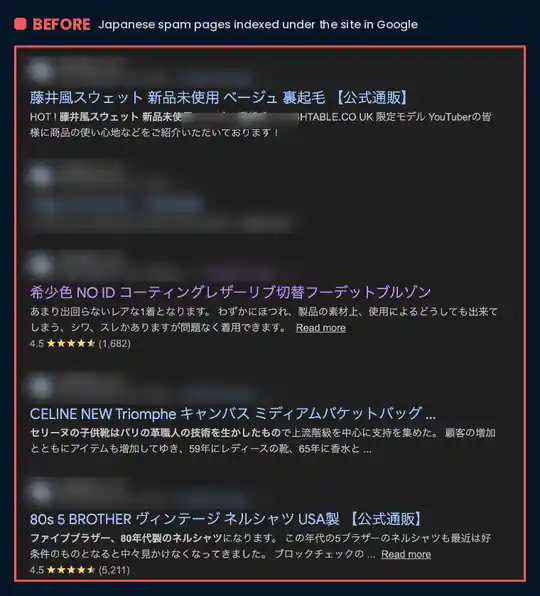
- Japanese keyword hack: thousands of auto-generated Japanese pages selling fake designer goods, all indexed under your domain
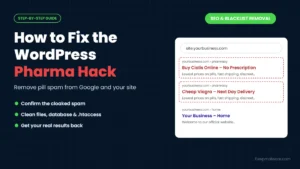
- Pharma hack: hidden pages or links for pills and pharmacy products
- Casino and gambling spam: injected pages or links to betting sites
- Cloaked redirects: visitors from Google are sent to spam or scam sites, while you see your normal homepage (see our guide to the WordPress redirect hack)
- Hidden links: invisible spam links injected into your theme, footer or posts
- A new owner in Search Console: the attacker verifies themselves so they can submit their own spam sitemaps
Here is a real example from one of our clients. These Japanese product listings were showing in Google under the client’s own domain:
Step 1: Confirm What Google Found
Before you change anything, find out exactly what is wrong.
- Search Google for
site:yourdomain.com. Look through several pages of results for titles, languages or URLs you don’t recognize. Note the folder names in those URLs. - Open the Security Issues report in Google Search Console (Security & Manual Actions, then Security issues). If Google lists “Hacked: URL injection”, “Hacked: content injection” or “Hacked: code injection”, you’ll see example URLs there. Our guide to Google Search Console security issues explains each type.
- Check the Manual Actions report too, in case Google has also applied a spam action.
- Check Users and permissions in Search Console and remove any owner you don’t recognize, along with their verification file.
Sometimes the label appears even though the Security Issues report is empty. That still means Google has seen hacked content, so don’t ignore it. Follow the same cleanup steps below.
Step 2: Back Up and Lock the Attacker Out
Download a full backup of your files and database and label it as infected, so you can go back if something breaks. Then change every password (WordPress, hosting, FTP or SFTP, and the database), delete WordPress users you don’t recognize and generate new security keys in wp-config.php to log everyone out.
If you’ve only just found the hack, our checklist on what to do in the first 24 hours walks you through this in more detail.
Step 3: Clean the Hacked Content
This is the most important step, and the one where most cleanups fall short. Spam hacks are designed to survive a quick cleanup, so check all of these:
- Files: reinstall WordPress core and all themes and plugins from official sources, then look for PHP files in the uploads folder, hidden files and recently modified files.
- .htaccess: remove any rewrite rules you didn’t add. Spam redirects often live here.
- Database: search every table for spam keywords, injected scripts and hidden links. In our Japanese keyword hack case study, the spam was hiding in 43 entries across four database tables.
- Sitemaps: delete any sitemap files full of spam URLs, and remove them from the Sitemaps report in Search Console.
If the hack is Japanese spam, our step-by-step guide shows you how to fix the Japanese keyword hack. For other infections, see our full WordPress malware removal guide.
Step 4: Close the Door the Hacker Used
Update WordPress, every plugin and every theme. Delete anything you don’t use, replace nulled (pirated) software, and turn on two-factor authentication for all admin accounts. If you skip this step, the spam usually returns within days. If that has already happened to you, read why a WordPress site keeps getting hacked.
Step 5: Make Sure the Spam Pages Are Really Gone
- Open several spam URLs from Step 1. They should now return a 404 Not Found error.
- Test the same URLs with the URL Inspection tool in Search Console. Cloaked spam often shows only to Googlebot, so this is the only way to be sure.
- Run another malware scan and repeat the database search.
Step 6: Ask Google to Remove the Label
How you do this depends on what you found in Step 1:
- If the Security Issues report lists a problem: confirm that you’ve fixed it and click Request Review. Briefly explain what was hacked, what you removed and how you secured the site.
- If the report is empty: there is nothing to submit. The label usually disappears once Google recrawls your site and sees that the hacked content is gone. You can speed this up by submitting your sitemap again and using URL Inspection to request indexing of your key pages.
Here is an example of a short, clear review request you can adapt:
“Our WordPress site was hacked through an outdated plugin. The attacker created spam pages under /items/ and added spam entries to the database. We removed all spam pages and files, cleaned the database, reinstalled WordPress core, themes and plugins, removed an unknown Search Console owner, changed all passwords and enabled two-factor authentication. All spam URLs now return 404.”
Keep it factual. Google doesn’t need a long story, just clear evidence that you found the cause, removed everything and secured the site.
To get the spam results out of Google faster, you can also use the Removals tool in Search Console to hide the spam URLs while Google recrawls. If all the spam sits in one folder, you can submit that folder instead of each URL.
How Long Does It Take for the Label to Disappear?
Google says that reviews for spam and hacked content can involve manual checks or reprocessing the hacked pages, and can take up to several weeks. Once the review is approved, Google says warnings are removed from search results within a few days.
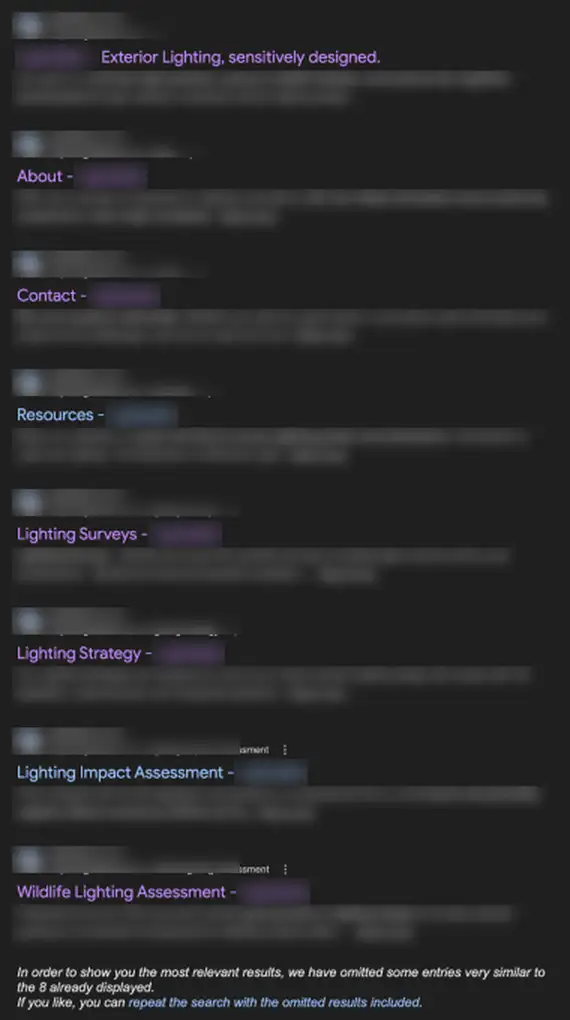
In practice, the biggest factor is how thorough the cleanup was. A failed review restarts the wait, so it’s worth checking everything twice before you submit. After our client’s cleanup, Google showed only their real pages again:
How to Prevent It from Happening Again
- Update WordPress, themes and plugins every week
- Use strong, unique passwords and two-factor authentication
- Remove plugins and themes you don’t use, and never install nulled software
- Use a firewall and scheduled malware scans
- Check Google Search Console regularly for new security issues or unknown users
- Search
site:yourdomain.comonce a month to spot spam pages early
Frequently Asked Questions
Why does Google say my site may be hacked when it looks fine to me?
Many spam hacks use cloaking: they show spam only to Google’s crawler or to visitors who arrive from search results. When you visit your site directly, everything looks normal. Use the URL Inspection tool in Search Console to see what Google sees.
Does “This site may be hacked” hurt my rankings?
The label itself mainly hurts your click-through rate, because people avoid results with a warning. The spam behind it can also damage your rankings. Once the site is clean and the label is gone, traffic usually recovers.
Can I remove the label without cleaning the site?
No. Google only removes the label once it confirms the hacked content is gone. Requesting a review before the site is clean simply leads to a rejection and a longer wait.
Is this the same as being blacklisted?
It’s closely related. The label is Google’s own warning in search results. Your site may also be flagged by other security vendors at the same time, so it’s worth checking VirusTotal as well.
Want the Warning Gone Without the Guesswork?
We clean hacked WordPress sites regularly. We remove the spam from your files and database, close the entry point, clean up Search Console and help get the warning removed from Google. Start with our Google blacklist removal service, or choose hacked website repair if the site itself still needs fixing.