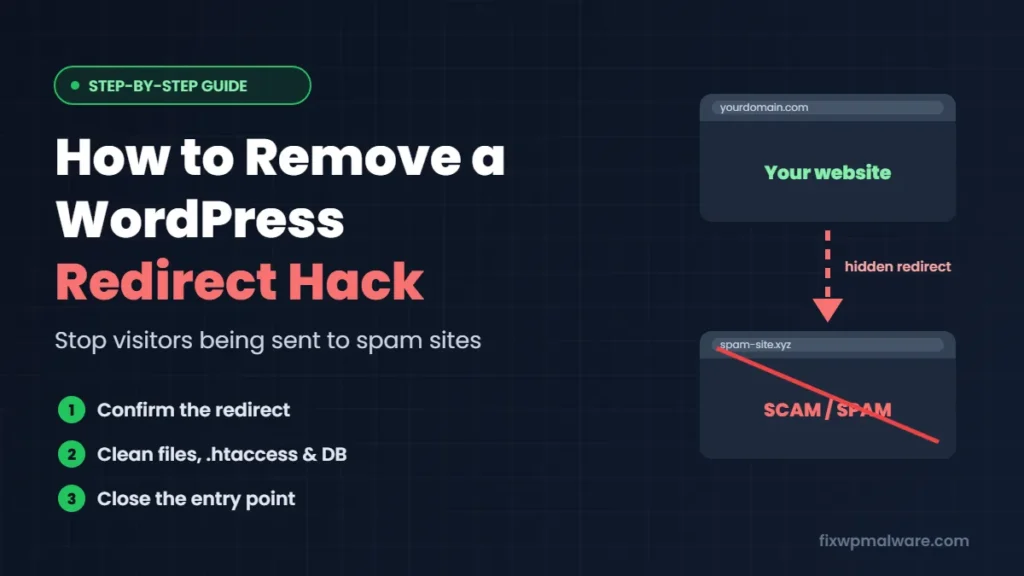
You type your website address, and a second later you land on a completely different site: a fake prize page, a “your phone is infected” scam, a gambling site or an adult page. Or maybe your site looks fine to you, but customers keep telling you they get sent somewhere strange when they click your link in Google.
This is a WordPress redirect hack, one of the most common and most frustrating types of malware. It damages your reputation, kills your traffic and can get your site blacklisted by Google. In this guide, we explain how the redirect hack works, where the malicious code hides and exactly how to remove it for good.
What Is a WordPress Redirect Hack?
A redirect hack is malicious code that sends your visitors to another website without their permission. Attackers use your site’s traffic to earn money from scam pages, fake downloads or spam ads. Google describes this kind of behaviour as sneaky redirects, and it treats code added to your site without permission as hacked content.
What makes redirect malware hard to catch is that it is usually conditional. It often redirects only:
- Visitors coming from Google or other search engines
- Mobile visitors
- First-time visitors (it sets a cookie so the same person is only redirected once)
- Visitors who are not logged in to WordPress
That’s why site owners often can’t reproduce the problem. You’re logged in, on a desktop, typing the URL directly, so the malware leaves you alone.
Signs Your WordPress Site Has a Redirect Hack
- Visitors or customers report being sent to spam, scam or adult websites
- Your site redirects on mobile but not on desktop, or only when opened from Google
- Google Analytics shows a sudden jump in bounce rate or a drop in time on site
- Google Search Console shows a security issue, or search results show “This site may be hacked”
- Chrome shows a red “Deceptive site ahead” warning
- You notice unfamiliar JavaScript in your page source, often loading from a strange domain
How to Confirm the Redirect
Before you start cleaning, make the redirect happen so you know what you’re dealing with:
- Log out of WordPress and open your site in a private or incognito window.
- Search for your site in Google and click the result, instead of typing the URL.
- Try it on your phone using mobile data, not your office Wi-Fi.
- View the page source (right-click, then View Page Source) and look for
<script>tags loading from domains you don’t recognize, or long blocks of scrambled code. - Use the URL Inspection tool in Google Search Console to see the page exactly as Google sees it.
Write down the domain visitors are sent to. Searching your files and database for that domain name is often the fastest way to find the malicious code.
Where Redirect Malware Hides in WordPress
Redirect code can live in several places at once. If you clean only one of them, the redirect keeps coming back.
1. The .htaccess file
Attackers add rewrite rules that send visitors from search engines or mobile devices to another site. Look for lines containing RewriteCond %{HTTP_REFERER} or %{HTTP_USER_AGENT} combined with an external URL. Also check for extra .htaccess files in subfolders such as wp-content and wp-includes.
2. WordPress core and theme files
Malicious PHP is often added to the top of index.php, wp-config.php, wp-load.php, wp-blog-header.php or your theme’s header.php and functions.php. It usually looks like a long, unreadable line using functions like eval, base64_decode, gzinflate or str_rot13.
3. JavaScript files
Some redirect malware injects code into legitimate JavaScript files of your theme or plugins, so every page that loads the file redirects visitors. Compare file sizes and modification dates with a clean copy of the same plugin or theme.
4. The database
This is where many redirect infections hide. Check these places carefully:
wp_options: thesiteurlandhomevalues, widget content and any option containing<script>wp_posts: scripts injected at the end of posts and pages, sometimes in hundreds of posts at once- Header and footer script settings in your theme or in “insert headers and footers” type plugins
5. Fake or nulled plugins
Hackers often install a plugin with an innocent-looking name that doesn’t appear in your plugin list, or they hide code inside nulled (pirated) themes and plugins. Check the wp-content/plugins folder for anything you didn’t install.
How to Remove the WordPress Redirect Hack: Step by Step
Step 1: Back up the site
Download all files and export the database before you change anything. Label the backup as infected.
Step 2: Lock the attacker out
Change all passwords (WordPress, hosting, FTP or SFTP and the database), delete unknown admin users and generate new security keys in wp-config.php. If you’ve just discovered the hack, our checklist on what to do in the first 24 hours covers this in detail.
Step 3: Replace .htaccess
Replace your main .htaccess with the default WordPress rules, then add back only the rules you know you need, such as those from your caching or security plugin. Delete unexpected .htaccess files in other folders.
Step 4: Reinstall WordPress core, themes and plugins
Reinstall WordPress core from Dashboard, then Updates. Reinstall every plugin and theme from its official source, delete the ones you don’t use and replace any nulled software. This replaces infected files with clean copies in one go.
Step 5: Search for leftover malicious files
Look for PHP files in wp-content/uploads, files with random names, hidden files and anything modified around the date the redirects started. Redirect malware is almost always reinstalled by a hidden backdoor, so see our guide on how to find a WordPress backdoor. Search all files for the domain visitors were redirected to, and for obfuscated code using eval or base64_decode.
Step 6: Clean the database
Use phpMyAdmin’s Search tab to search every table for <script, the redirect domain and suspicious terms like eval( or fromCharCode. Remove injected code carefully and confirm that siteurl and home point to your real domain.
Step 7: Test again, the way visitors see it
Repeat the checks from earlier: logged out, in a private window, from Google and on mobile. Clear any caching plugin and CDN cache first, otherwise you may still be seeing an old infected copy of the page.
Step 8: Close the entry point
Update everything, turn on two-factor authentication and add a firewall. If you don’t close the hole the attacker used, the redirect will return. If that’s already happening to you, read why a WordPress site keeps getting hacked.
For a deeper walkthrough of the cleanup, see our full WordPress malware removal guide.
After the Cleanup: Fix Your Reputation
Redirect hacks often get a site flagged by security services. Once the site is clean:
- Check the Security Issues report in Google Search Console and request a review if a problem is listed. Our guide to Google Search Console security issues explains how.
- Scan your domain on VirusTotal and ask any vendor that still flags you to remove the detection. See our guide to VirusTotal blacklist removal.
- If your emails started landing in spam during the hack, check your domain’s reputation with your email provider.
How to Prevent a WordPress Redirect Hack
- Update WordPress, themes and plugins every week
- Delete plugins and themes you don’t use
- Never install nulled themes or plugins
- Use strong, unique passwords and two-factor authentication
- Disable the built-in file editor with
define( 'DISALLOW_FILE_EDIT', true );inwp-config.php - Use a firewall and schedule regular malware scans
- Check your site from Google on a mobile phone every few weeks
Our checklist on how to prevent WordPress hacks covers each of these in detail.
Frequently Asked Questions
Why does my site redirect on mobile but not on desktop?
Many redirect scripts check the visitor’s device and only redirect mobile users, because site owners usually check their site on a computer. The code is still on your site, even if you can’t see the redirect.
Why don’t I see the redirect when I visit my own site?
Redirect malware often skips logged-in users, visitors who type the URL directly and people it has already redirected once. Log out, use a private window and open your site from a Google search result.
Will a security plugin remove the WordPress redirect hack?
A scanner can find many infected files, but redirect malware in the database or in modified legitimate files is often missed. A manual check of the database and .htaccess is almost always needed.
Can a WordPress redirect hack hurt my Google rankings?
Yes. Google treats sneaky redirects and hacked content as spam. Your site may get a warning in search results, and rankings can drop until the site is clean and the warning is removed.
Need the Redirects Stopped Today?
Every visitor who gets redirected is a customer you lose. We find every piece of the redirect malware in your files and database, close the entry point and help clear any warnings from Google. Get started with our hacked website repair service, or choose emergency malware removal if your visitors are being redirected right now.