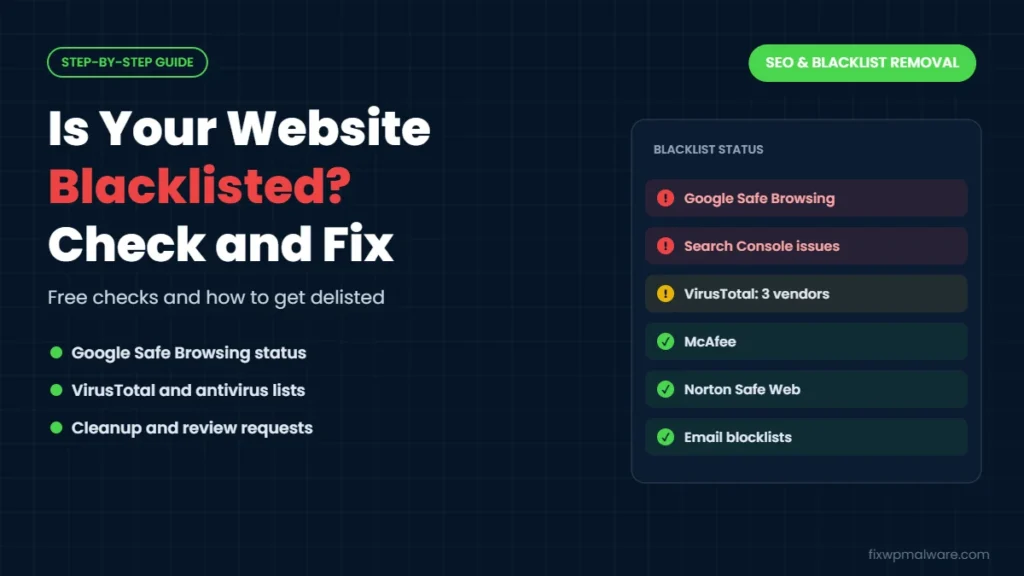
Your traffic dropped overnight. A customer sends you a screenshot of a red warning screen instead of your homepage. Or your antivirus suddenly refuses to open your own site. When things like this happen, the first question is simple: has my website been blacklisted?
A quick website blacklist check answers that question in a few minutes. In this guide, we explain what website blacklists are, how to check your site with free tools, why sites get listed in the first place, and the exact steps to clean your site and get it removed from each list.
What Is a Website Blacklist?
A website blacklist (also called a blocklist) is a database of domains and URLs that a security company considers dangerous. Browsers, search engines, antivirus programs and firewalls check these lists before letting people visit a site. If your domain is on one, visitors may see a full-page warning, a blocked connection or a warning label next to your search results.
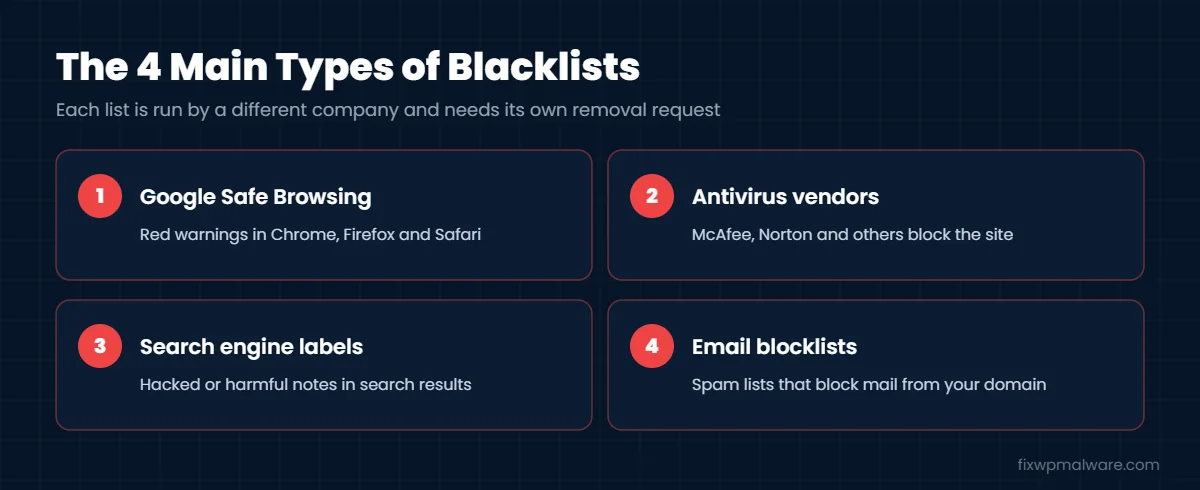
The main types of blacklists are:
- Google Safe Browsing: used by Chrome, Firefox, Safari and Google Search. This is the one that shows the red “Deceptive site ahead” or “Dangerous site” screens.
- Antivirus and security vendors: companies like McAfee, Norton, Kaspersky and many others keep their own lists, which their software uses to block sites.
- Search engine flags: Google and Bing can label results as hacked or harmful.
- Email blocklists: lists such as Spamhaus track IP addresses and domains that send spam. These affect your email delivery rather than your website.
Signs Your Website Is Blacklisted
- Chrome or another browser shows a red warning page before your site loads
- Google search results show “This site may be hacked” under your title
- Antivirus software or a company firewall blocks your site
- Google Search Console shows a message in the Security issues report
- Your ad campaigns are disapproved for malware or unsafe content
- Organic traffic drops sharply with no change on your side
- Emails from your domain start landing in spam or bouncing
If you’re seeing the red screen in Chrome, our guide on the “Deceptive site ahead” warning explains what it means and how to fix it.
Why Websites Get Blacklisted
Security vendors don’t blacklist sites at random. In almost every case, something on the site looked harmful to their scanners. The most common causes are:
- Malware: injected scripts that download files, mine cryptocurrency or steal data
- Malicious redirects: visitors sent to scam, gambling or adult sites (see our guide to the WordPress redirect hack)
- Phishing pages: fake login pages for banks, email providers or delivery companies, often hidden deep inside a hacked site
- Spam content: thousands of pages for pharma, casino or counterfeit products
- Harmful downloads: infected files hosted on your server
Sometimes a site is listed because of a third-party script, an infected ad or a shared IP address. But for WordPress sites, a hack is by far the most likely reason.
How to Run a Website Blacklist Check: Step by Step
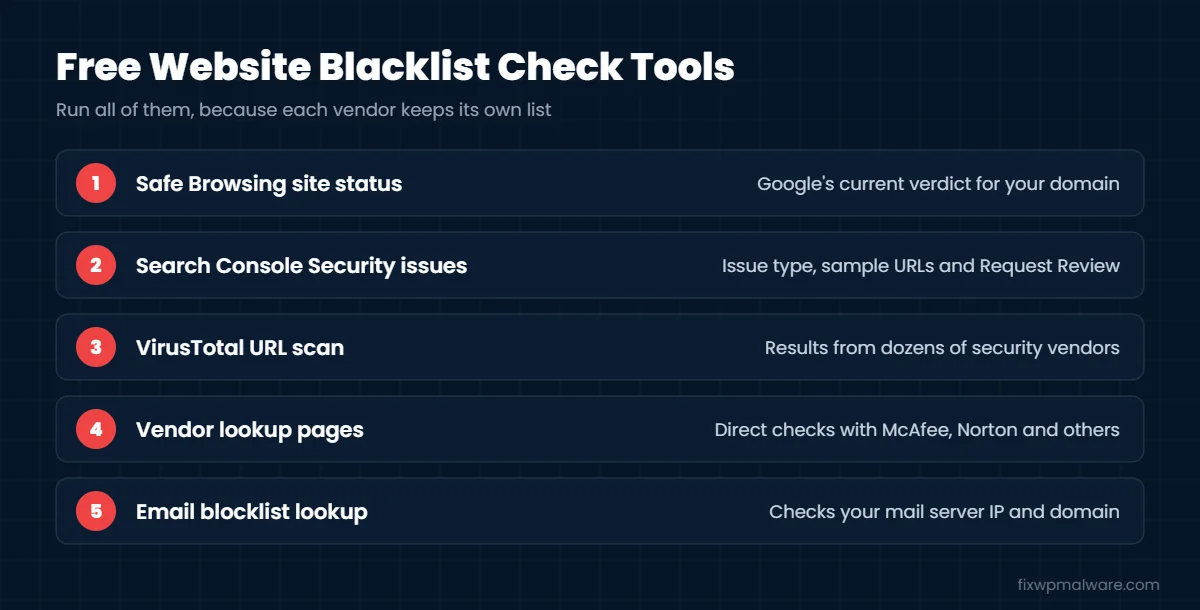
Use several tools, because each vendor keeps its own list. Being clean on one doesn’t mean you’re clean on all of them.
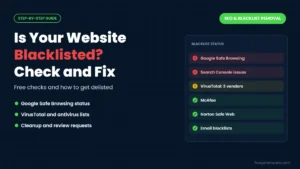
Step 1: Check Google Safe Browsing
Google’s Transparency Report has a Safe Browsing site status tool. Enter your domain and it shows whether Google currently considers the site unsafe. Check both your homepage and any specific URL that visitors reported.
Step 2: Check Google Search Console
If your site is verified in Search Console, open Security & Manual Actions and then Security issues. This report lists the problem type, such as malware, hacked content or social engineering, and often shows sample URLs. Google’s own help page on the Security issues report explains each issue type. Our guide to Google Search Console security issues covers how to fix them.
Step 3: Scan your URL on VirusTotal
VirusTotal checks a URL against dozens of security vendors at once. Paste your full URL, including https, and look at the detection list. Note the name of every vendor that flags your site, because you’ll need to contact each one later.
Step 4: Check individual security vendors
Some vendors, like McAfee and Norton, have their own site lookup pages. If customers say their antivirus is blocking you, check that vendor directly. For McAfee in particular, see our guide on McAfee website block removal.
Step 5: Check email blocklists if mail is affected
If your problem is bounced or spam-foldered email, check your domain and mail server IP on an email blocklist lookup tool. These lists work differently from website blacklists, and removal usually means fixing the spam source and then following each list’s delisting process.
When your website blacklist check is done, you should have a simple list: which services flag the site, which URLs they mention and what type of problem they report. Don’t panic if only one or two small vendors show a detection on VirusTotal while Google and the major antivirus brands are clear. That can be a false positive, but it can also be an early sign of an infection that others haven’t picked up yet, so scan the site either way. If Google flags you, treat it as urgent, because that warning reaches most of your visitors.
What to Do After a Website Blacklist Check Finds a Problem
Requesting removal before the site is clean almost never works. Reviewers scan the site again, and if anything is still there, the request is rejected. Follow this order instead.
Step 6: Find and remove the malware
Back up the site, change all passwords, and clean files and the database. Replace WordPress core, plugins and themes with fresh copies, and remove any backdoors, because they let the attacker reinfect the site after you’re delisted. Our WordPress malware removal guide walks through the full process.
Step 7: Fix how the attacker got in
Update or remove the vulnerable plugin or theme, delete unknown admin users and turn on two-factor authentication. If you skip this, the site will likely be hacked and listed again.
Step 8: Request a review from Google
In Search Console, open the Security issues report, confirm every issue is fixed and click Request Review. Describe what you found and what you did to clean the site. According to Google’s article on how to request a review, malware reviews usually take a few days, phishing reviews about a day, and reviews for spam hacks can take several weeks. Once approved, warnings are typically removed within 72 hours.
Step 9: Request removal from other vendors
For each vendor that flagged your site on VirusTotal, find that vendor’s false positive or re-review form and submit your URL. VirusTotal itself doesn’t remove listings, so you need to contact each vendor separately. Our guide on VirusTotal URL blacklist removal explains how.
Step 10: Check again
Run your website blacklist check again a few days later, and again after each review is approved. Keep a short log of each vendor, the date you submitted and the result.
How to Avoid Getting Blacklisted Again
- Keep WordPress, plugins and themes updated, and delete what you don’t use
- Use strong passwords and two-factor authentication for every admin
- Run scheduled malware scans and turn on file change alerts
- Keep your site verified in Google Search Console so you get alerts quickly
- Check your site on VirusTotal once a month
- Never install nulled themes or plugins
Our guide on how to prevent WordPress hacks covers each step in more detail.
Frequently Asked Questions
How often should I do a website blacklist check?
Once a month is a good routine for most sites, and right away if traffic drops, customers report warnings or your host flags malware. Keeping Search Console active means Google will also email you if it detects a problem.
How long does it take to get removed from a blacklist?
It depends on the vendor. Google says malware reviews usually take a few days and spam reviews can take several weeks. Other vendors vary, and some only update after a manual re-review request.
Can my site be blacklisted even if it isn’t hacked?
Yes, though it’s less common. A false positive, a malicious ad, an infected third-party script or a shared IP address can cause a listing. Scan the site carefully before assuming it’s a false positive.
Will being blacklisted hurt my SEO?
Yes. Warnings scare visitors away and Google may show a hacked label in results, so traffic and trust drop. Most rankings recover after the site is cleaned and the warning is removed, but the sooner you act, the better.
Is a website blacklist the same as an email blacklist?
No. Website blacklists block people from visiting your site. Email blocklists block or filter messages sent from your mail server or domain. A hacked site can end up on both if it was used to send spam.
Need Your Site Removed From a Blacklist Fast?
We clean the malware that caused the listing, close the hole the attacker used and handle review requests with Google and other security vendors. Choose our Google blacklist removal service to clear warnings, or our hacked website repair service if the site needs a complete cleanup and security setup.